



Running AI Models Without Sending Your Data Anywhere
Ollama is an open-source tool that lets you download and run large language models directly on your own machine, with no cloud subscription, no API keys, and no data leaving your hardware. If you have a reasonably modern computer with a dedicated GPU, you can run models like Llama 3, Mistral, and Gemma in minutes.
What You Need Before You Start
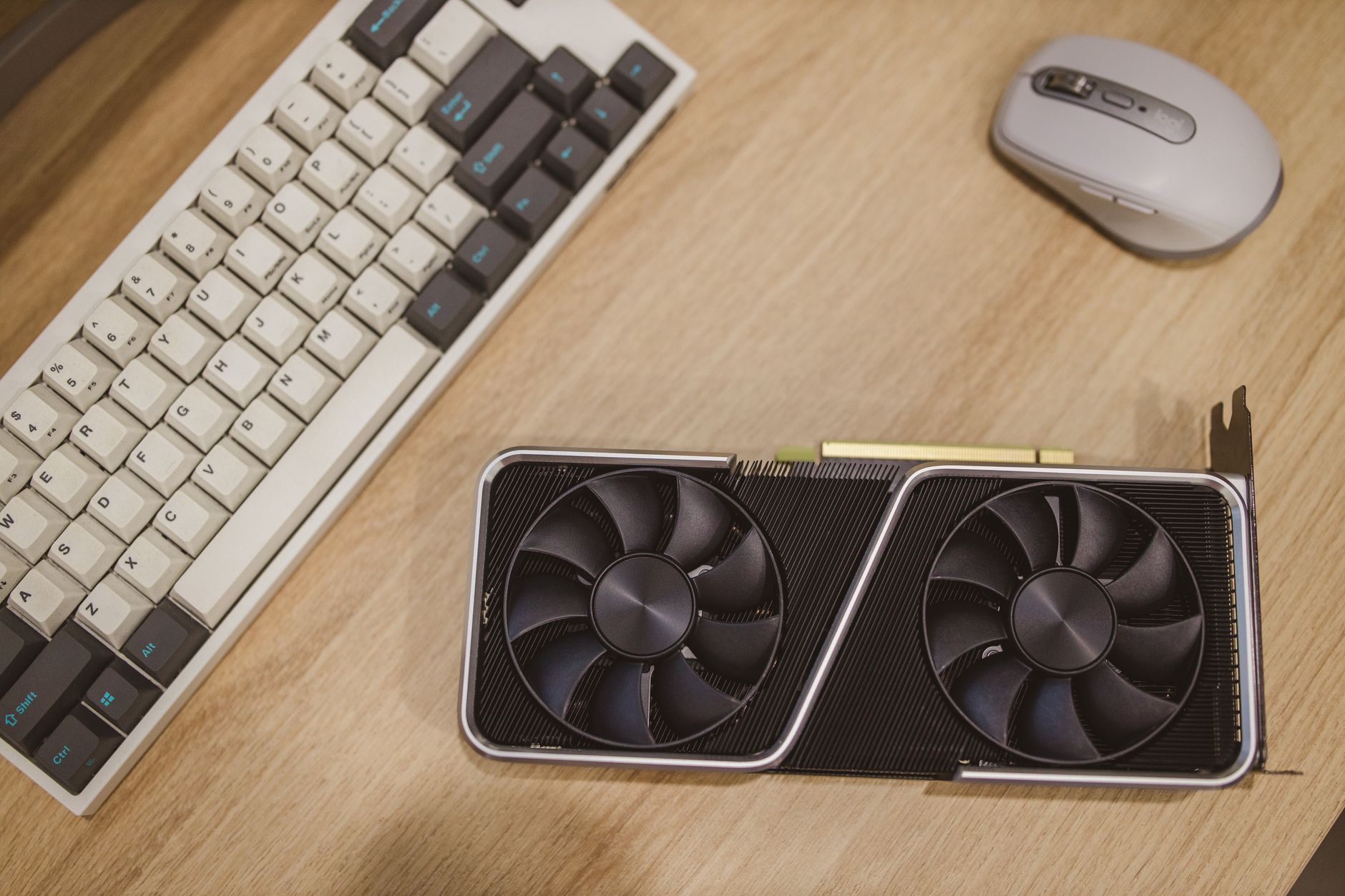
Hardware matters more here than in most software setups. Ollama works on CPU-only machines, but performance is painful for anything beyond the smallest models. A GPU with at least 8GB of VRAM is the practical starting point for running 7-billion-parameter models at usable speeds. NVIDIA cards get the most attention because of CUDA support, but Ollama also supports AMD GPUs on Linux via ROCm, and Apple Silicon Macs get particularly good performance through Metal acceleration.
On the system side, you need at least 8GB of RAM for smaller models, though 16GB is a much more comfortable baseline. Storage adds up quickly: a 7B model in Q4 quantization runs about 4GB, while a 13B model in the same format sits around 8GB. If you plan to experiment with multiple models, a dedicated drive with 50-100GB free is a reasonable target. The model files download directly to your local disk and stay there.
Operating system support is broad. Ollama runs natively on macOS (Apple Silicon and Intel), Linux, and Windows. The Windows version is relatively recent and works well, though the Linux version is the most battle-tested, especially for GPU passthrough in home server setups. If you run a self-hosted stack already, adding Ollama to the same machine is straightforward.
Before installing, confirm your GPU drivers are current. For NVIDIA, that means the latest stable driver from the NVIDIA site, not necessarily the one bundled with your OS. For AMD on Linux, ROCm has specific kernel and driver version requirements listed in the official documentation. Skipping this check is the most common reason for Ollama failing to detect a GPU at first launch.
Installing Ollama and Running Your First Model
Installation is deliberately simple. On macOS and Linux, the official one-liner handles everything: open a terminal and run curl -fsSL https://ollama.com/install.sh | sh. On Windows, download the installer from ollama.com and run it like any standard application. The installer sets up the Ollama service, which runs in the background and listens on port 11434 by default.
Once installed, pulling and running a model is a single command. In your terminal, type ollama run llama3 and Ollama handles the download automatically. The first run takes time depending on your connection – Llama 3 8B is around 4.7GB. After it downloads, you land directly in an interactive chat session in the terminal. Type your prompt, press Enter, and the model responds. To exit the session, type /bye.
The Ollama model library at ollama.com lists every available model with size variants and recommended hardware. For most home setups, the Q4_K_M quantized versions offer the best balance of quality and speed. If you want a specific variant rather than the default, append the tag to the pull command: ollama pull mistral:7b-instruct-q4_K_M. You can have multiple models downloaded simultaneously and switch between them freely.
Managing models uses a handful of commands. ollama list shows everything currently downloaded. ollama rm modelname deletes a model and frees the disk space. ollama ps shows which model is currently loaded into memory. Because loading a model into VRAM takes a few seconds, Ollama keeps the last-used model resident for a short idle window – this is intentional and speeds up repeated queries.
Ollama also exposes a local REST API on port 11434, which opens up a lot of possibilities beyond terminal chat. Any application that can make HTTP requests can talk to Ollama. The endpoint POST /api/generate accepts a JSON body with the model name and prompt, and returns a streamed response. This is how tools like Open WebUI, Continue (the VS Code AI coding extension), and dozens of other local-first apps connect to Ollama as a backend. If you already run a home server with a dashboard like Homarr, Ollama fits naturally into the same self-hosted ecosystem.
Customizing Models with Modelfiles
Ollama supports a configuration format called a Modelfile, which lets you create custom model variants with specific system prompts, temperature settings, and context window sizes baked in. Create a plain text file named Modelfile, start it with a FROM directive pointing to a base model, then add a SYSTEM block with whatever instructions you want the model to follow by default. Run ollama create my-custom-model -f ./Modelfile and the new variant appears in your local model list, behaving exactly as configured every time you run it.
The Modelfile approach works well for building specialized assistants – a coding helper with a narrow system prompt, a document summarizer with reduced temperature for more consistent output, or a persona tuned for a specific writing style. One practical detail: the PARAMETER num_ctx setting in a Modelfile controls the context window, and Ollama defaults to 2048 tokens if you don’t set it explicitly. Most modern models support 4096 or 8192 tokens, and setting num_ctx 4096 in your Modelfile immediately improves performance on longer conversations without any other changes needed.
Frequently Asked Questions
Does Ollama require a GPU to run?
No, Ollama runs on CPU-only machines, but performance is very slow for most models. A GPU with at least 8GB of VRAM is recommended for practical use.
Which models can you run with Ollama?
Ollama supports a wide range of open models including Llama 3, Mistral, Gemma, Phi, and many others, all listed in the official model library at ollama.com.



