



Audiobook stores and podcast apps each want an account, a subscription, or a say in how you listen. Audiobookshelf replaces all of them with one server you control.

What Audiobookshelf Does and What You Need First
Audiobookshelf is an open-source server that handles audiobooks and podcasts in a single interface. You point it at folders of audio files, and it builds a browsable library with covers, descriptions, chapters, and series information. It runs on a Raspberry Pi, a NAS, a mini PC, or an old laptop sitting in a closet, and you reach it through a web browser or the official mobile apps.
The feature list goes further than simple file hosting. Listening progress syncs between devices, so you can stop a chapter on your phone and resume it from the browser. Bookmarks, a sleep timer, and playback speed controls are built in. Multiple user accounts each keep their own progress and can be restricted to specific libraries. Podcast support covers subscribing by RSS feed, searching for shows, and downloading new episodes automatically.
The hardware demands are modest. You need a machine with Docker and Docker Compose installed, enough RAM to run a lightweight Node.js application, and storage sized to your collection. Audiobooks are large, so a long library can fill a drive faster than you expect. One legal point matters here: Audiobookshelf plays DRM-free files, and it does not remove copy protection. Use it for audio you own in a format you are allowed to store, such as DRM-free purchases, public domain recordings, or files you ripped from media you own.
Before installing anything, create four directories on the host: one each for audiobooks, podcasts, config, and metadata. The config folder holds the database, and the metadata folder holds cached covers and backups. Keep both on local disk, not a network share, because the database does not cope well with network file systems. Your audio folders can live on a NAS mount without trouble.
Installing With Docker Compose and Building Your Libraries
Create a compose file with a single service using the image from the GitHub Container Registry, ghcr.io/advplyr/audiobookshelf:latest. Map host port 13378 to container port 80. Add four volume mappings: your audiobooks folder to /audiobooks, your podcasts folder to /podcasts, your config folder to /config, and your metadata folder to /metadata. Set the TZ environment variable to your time zone so scheduled tasks run when you expect, and add a restart policy of unless-stopped. Run docker compose up -d and the container starts.
Open a browser to your server’s IP address on port 13378. The first screen asks you to create the root account, which carries full administrator rights. Pick a strong password, then go to the users section and create a separate non-admin account for daily listening. Keeping the root login out of everyday use limits the damage if a phone or tablet is lost.
Libraries come next. In the settings, add a new library, choose whether it is an audiobook or podcast type, and select the matching folder from the container’s file browser. Folder structure matters more than most people expect, because Audiobookshelf reads author, series, and title from the path. A layout of Author, then Title, works for standalone books, and Author, then Series, then Title handles series. Put every file of a multi-file book in its own folder. A single m4b file with embedded chapters gives the cleanest experience, though folders of numbered mp3 files work fine, with each file treated as a track.
After the first scan, check the matches. Audiobookshelf can pull metadata and covers from providers such as Audible, Google Books, and Open Library, and the quick match option fills in details for a whole batch of books at once. Expect to correct a few mismatches by hand, especially with older recordings or unusual title formats. For podcasts, use the built-in search or paste an RSS feed URL directly, then set how often the server checks for new episodes. Limit how many episodes it keeps per show, or a daily podcast will quietly eat your disk.
The mobile apps are where the setup pays off. Install the Audiobookshelf app on Android or iOS, enter your server address, and sign in with your listening account. Downloads for offline playback work per book, which covers flights and commutes with no signal. For listening away from home, you have two sensible paths. One is a reverse proxy such as Caddy, Traefik, or Nginx Proxy Manager with HTTPS, and you must enable WebSocket support or live progress updates break. The other is a private VPN such as WireGuard or Tailscale, which keeps the server off the public internet entirely.
Keeping the Server Healthy
Updating is a two-command job: pull the new image with docker compose pull, then recreate the container with docker compose up -d. Your data survives because it lives in the mapped folders, not inside the container. Still, run a manual backup first, which you can do from the backups section of the settings. The same page lets you schedule automatic backups and choose how many to retain.
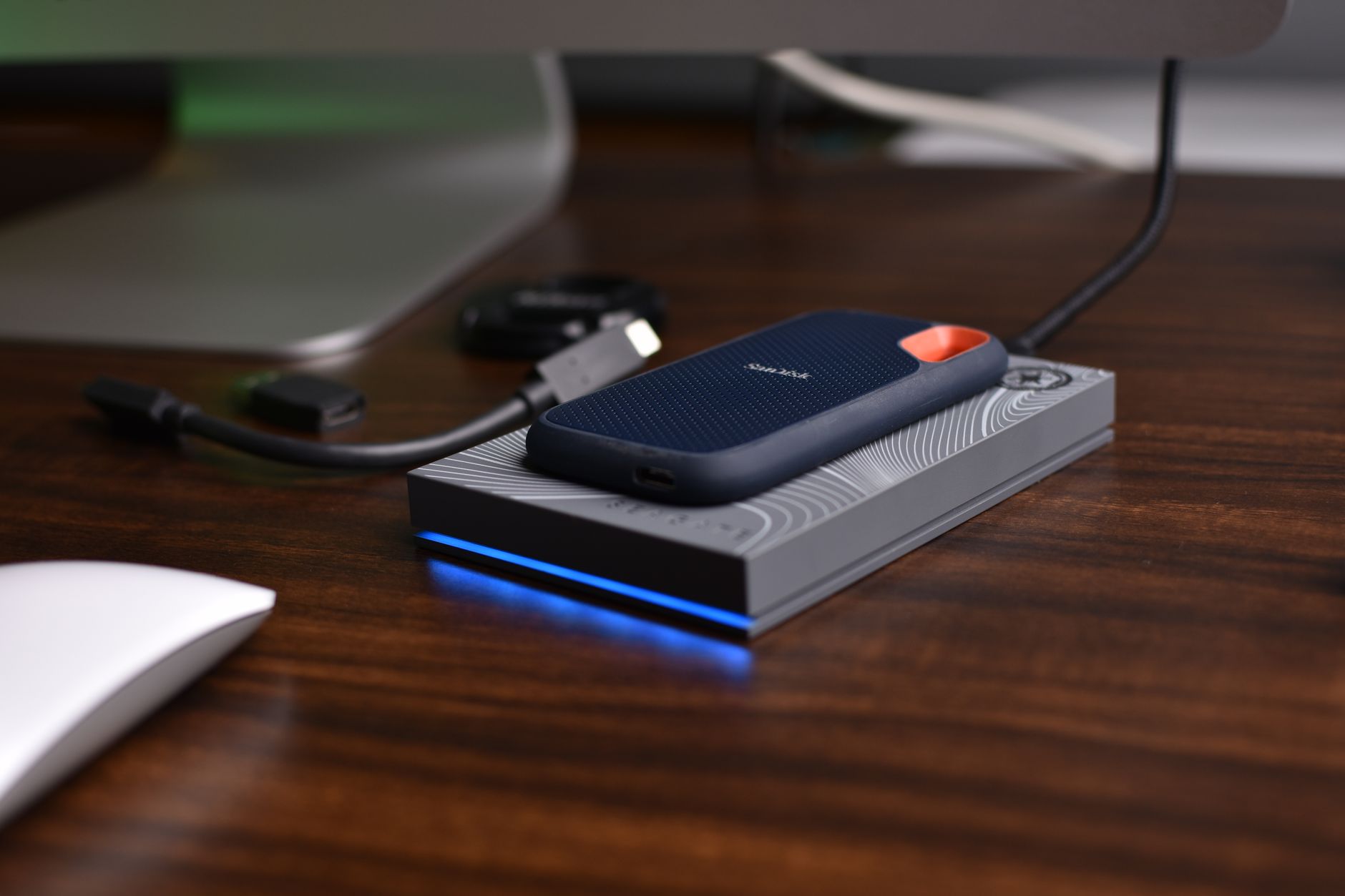
Those backups come with a limit that catches people out. They capture the database and metadata, meaning your users, progress, bookmarks, and library settings, but not the audio files themselves. If the drive holding your audiobooks fails, a perfect Audiobookshelf backup restores a library full of empty entries. Copy both the backup folder and the media folders to a second location, and test a restore at least once.