



What You Need to Know
Setting up a Kubernetes cluster transforms how you deploy and manage web applications at scale. Unlike traditional hosting where you’re locked into fixed server resources, Kubernetes automatically distributes your application across multiple machines, scales up during traffic spikes, and recovers from failures without human intervention.
This guide walks you through creating a production-ready Kubernetes cluster that can handle everything from small business websites to enterprise applications serving millions of users. You’ll learn to configure the cluster, deploy your first application, and set up monitoring tools that keep everything running smoothly.
Before diving in, understand that Kubernetes has a learning curve. The initial setup requires patience, but once configured, it provides unmatched flexibility for scaling web applications. Major companies like Netflix, Spotify, and Airbnb rely on Kubernetes to serve billions of requests daily.

Step 1: Prepare Your Environment and Install Prerequisites
Start by setting up your local environment with the essential tools. Install Docker Desktop on your development machine, as Kubernetes relies on containerized applications. Download the latest version from Docker’s official website and ensure it’s running properly by testing with a simple container.
Next, install kubectl, the command-line tool for interacting with Kubernetes clusters. On macOS, use Homebrew with the command brew install kubectl. Windows users can download the binary directly or use Chocolatey with choco install kubernetes-cli. Linux users should follow the package manager instructions for their distribution.
Install a local Kubernetes distribution for development and testing. Minikube provides the easiest starting point, offering a single-node cluster that runs on your laptop. Download Minikube from the official GitHub releases page and follow the installation instructions for your operating system.
Verify all installations by running version checks. Execute docker –version, kubectl version –client, and minikube version to confirm everything installed correctly. These tools form the foundation of your Kubernetes development environment.
Step 2: Create and Configure Your First Cluster
Launch your local Kubernetes cluster using Minikube with enhanced specifications for web application deployment. Run minikube start –memory=4096 –cpus=2 to allocate sufficient resources. This command creates a virtual machine running Kubernetes components and may take several minutes on the first run.
Configure kubectl to communicate with your new cluster. Minikube automatically sets this up, but verify the connection with kubectl cluster-info. You should see output showing the Kubernetes master running at a local IP address, confirming your cluster is active and accessible.
Enable essential Minikube addons that simplify web application deployment. Run minikube addons enable ingress to activate the NGINX Ingress controller, which handles external traffic routing. Enable the dashboard with minikube addons enable dashboard for a web-based management interface.
Test cluster functionality by deploying a simple nginx pod. Create a test deployment with kubectl create deployment test-nginx –image=nginx, then verify it’s running with kubectl get pods. Delete this test deployment afterward using kubectl delete deployment test-nginx.
Step 3: Prepare Your Web Application for Kubernetes Deployment
Create a Dockerfile for your web application if one doesn’t exist. This file defines how your application gets packaged into a container image. For a Node.js application, start with a base image, copy your source code, install dependencies, and specify the startup command.
Build and tag your container image locally. Navigate to your application directory and run docker build -t your-app:v1.0 . replacing “your-app” with your actual application name. This process packages your code and dependencies into a portable container image.
Test your containerized application locally before Kubernetes deployment. Run docker run -p 3000:3000 your-app:v1.0 and access your application through a web browser. This step catches configuration issues before they complicate Kubernetes debugging.
Push your container image to a registry accessible by your Kubernetes cluster. For development, you can load images directly into Minikube using minikube image load your-app:v1.0. For production clusters, push to Docker Hub, Google Container Registry, or Amazon ECR.

Step 4: Create Kubernetes Deployment and Service Manifests
Write a Deployment manifest that defines how Kubernetes should run your application. Create a YAML file specifying your container image, resource requirements, and replica count. The deployment ensures your application stays running and handles updates gracefully.
Configure resource limits and requests in your deployment manifest. Set memory and CPU requests to guarantee baseline resources, and limits to prevent resource overconsumption. Start conservatively with requests around 64Mi memory and 100m CPU, adjusting based on your application’s actual usage.
Create a Service manifest to expose your application within the cluster. Services provide stable networking for your pods, essential for reliable web application access. Use a ClusterIP service for internal communication or LoadBalancer for external access.
Add health checks to your deployment manifest. Define readiness and liveness probes that monitor your application’s health. Readiness probes prevent traffic from reaching unhealthy pods, while liveness probes restart pods that become unresponsive.
Step 5: Deploy and Configure Ingress for External Access
Apply your deployment and service manifests to the cluster using kubectl apply -f deployment.yaml and kubectl apply -f service.yaml. Monitor the deployment progress with kubectl rollout status deployment/your-app and verify pods are running with kubectl get pods.
Create an Ingress resource to route external traffic to your application. This manifest defines how outside users access your web application through domain names and paths. Configure host rules, TLS certificates, and path-based routing as needed for your application architecture.
Configure DNS or local host file entries to test your ingress configuration. For Minikube, get the cluster IP with minikube ip and add entries to your hosts file mapping your chosen domain to this IP address. This allows testing with realistic domain names.
Test external access to your deployed application by visiting your configured domain in a web browser. Troubleshoot connectivity issues using kubectl describe ingress and kubectl logs commands to examine ingress controller logs and pod outputs.
Step 6: Implement Horizontal Pod Autoscaling
Enable metrics collection in your cluster to support autoscaling decisions. Install the Metrics Server addon with minikube addons enable metrics-server. This component collects resource usage data that the Horizontal Pod Autoscaler uses to make scaling decisions.
Create a Horizontal Pod Autoscaler for your deployment. Use kubectl autoscale deployment your-app –cpu-percent=70 –min=2 –max=10 to automatically scale between 2 and 10 pods based on CPU utilization. Adjust these values based on your application’s performance characteristics and traffic patterns.
Test autoscaling behavior under load using tools like Apache Bench or hey. Generate sustained traffic to your application and monitor scaling events with kubectl get hpa and kubectl describe hpa your-app. Observe how quickly new pods start and begin handling requests.
Fine-tune scaling parameters based on your application’s startup time and resource usage patterns. Applications with long startup times benefit from lower scale-down thresholds, while lightweight applications can use more aggressive scaling parameters for faster response to traffic changes.
Step 7: Set Up Monitoring and Logging
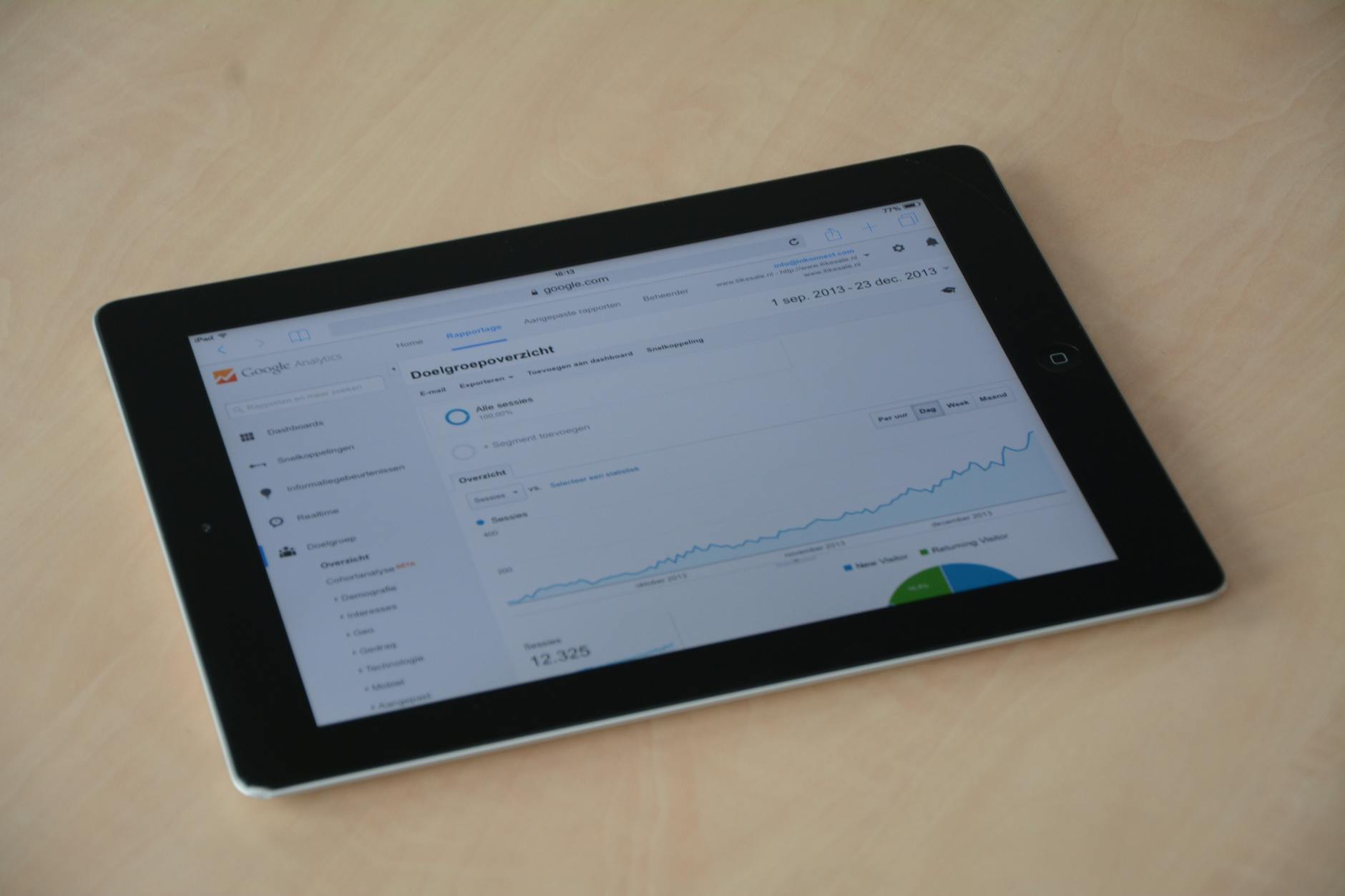
Install Prometheus and Grafana for comprehensive cluster monitoring. These tools track resource usage, application performance, and cluster health metrics. Use Helm charts for simplified installation, or deploy using kubectl with provided YAML manifests from the Prometheus community.
Configure application-specific monitoring by exposing metrics endpoints in your web application. Many frameworks provide built-in metrics endpoints, or you can use libraries like Prometheus client libraries to expose custom metrics about your application’s performance and business logic.
Set up log aggregation using the ELK stack or similar solutions. Configure your applications to output structured logs that can be easily searched and analyzed. Implement log rotation and retention policies to manage storage usage while maintaining debugging capabilities.
Create alerting rules for critical events like pod failures, resource exhaustion, or application errors. Configure notification channels through email, Slack, or PagerDuty to ensure rapid response to production issues. Test alert rules by intentionally triggering conditions to verify notification delivery.
Similar to setting up custom home servers for media streaming, Kubernetes deployments benefit from careful monitoring and maintenance routines that prevent small issues from becoming major outages.
Key Takeaways
Successfully deploying scalable web applications on Kubernetes requires understanding both the technology and operational practices that keep applications running reliably. Your cluster now provides automatic scaling, self-healing capabilities, and the foundation for sophisticated deployment strategies like blue-green deployments and canary releases.
Remember that Kubernetes excels at managing stateless applications but requires additional considerations for databases and persistent storage. Plan your application architecture accordingly, using managed database services or properly configured StatefulSets for data persistence needs.
Regular maintenance keeps your cluster secure and performant. Schedule updates for Kubernetes components, monitor resource usage trends, and review security policies periodically. The investment in proper setup and maintenance pays dividends in application reliability and development team productivity.
As your applications grow, explore advanced Kubernetes features like custom resource definitions, operators, and service mesh technologies. The container orchestration skills you’ve developed here translate directly to cloud-managed Kubernetes services like Google GKE, Amazon EKS, and Azure AKS for production deployments.
Frequently Asked Questions
What are the minimum system requirements for running a Kubernetes cluster?
You need at least 2GB RAM and 2 CPU cores for a basic cluster, though 4GB RAM and 4 cores are recommended for web application development.
How long does it take to set up a Kubernetes cluster from scratch?
Initial setup takes 2-4 hours for beginners, including tool installation, cluster creation, and deploying your first application with proper monitoring.



