



What You Need to Know
Matter promises to solve the biggest headache in smart home automation: device compatibility. This new connectivity standard lets different brands talk to each other without the usual juggling act between apps and protocols. Home Assistant, the open-source automation platform, now supports Matter integration natively, giving you centralized control over devices from Apple, Google, Amazon, and dozens of other manufacturers.
The setup process involves enabling Matter support in Home Assistant, configuring your network for Thread communication, and pairing devices through the standardized Matter protocol. Unlike previous smart home integrations that required brand-specific bridges or workarounds, Matter creates direct connections between your devices and Home Assistant.
You’ll need Home Assistant version 2023.2 or later, a Thread-capable border router, and Matter-certified devices. The entire process takes about 30 minutes for basic setup, with additional time needed for each device you want to add to your system.
Step 1: Update and Prepare Home Assistant
Start by updating Home Assistant to the latest version through the supervisor panel. Navigate to Settings > System > Updates and install any available updates. Matter support requires version 2023.2 or newer, though newer versions include stability improvements and expanded device support.
Once updated, enable advanced mode in your user profile. Go to your profile settings and toggle “Advanced Mode” to access developer tools and additional configuration options. This step unlocks the integrations menu where you’ll configure Matter settings.
Check your network setup before proceeding. Home Assistant needs to communicate with your local network and internet for Matter device discovery. Ensure your Home Assistant instance has a static IP address or reliable DHCP reservation to prevent connectivity issues during device pairing.
Step 2: Install the Matter Integration
Navigate to Settings > Devices & Services > Add Integration and search for “Matter (BETA).” Click on the Matter integration and follow the installation prompts. The system will download the necessary components and create the Matter server instance within Home Assistant.
During installation, Home Assistant creates a local Matter fabric – think of this as your smart home’s secure network identity. The system generates unique credentials and certificates that allow your devices to authenticate with your specific installation. This happens automatically, but the process can take several minutes on slower hardware.
The integration will appear in your integrations list with a configuration panel. Don’t worry if it shows “0 devices” initially – you haven’t paired anything yet. The status should indicate “Connected” or “Ready” once the Matter server starts properly.
Step 3: Configure Thread Border Router
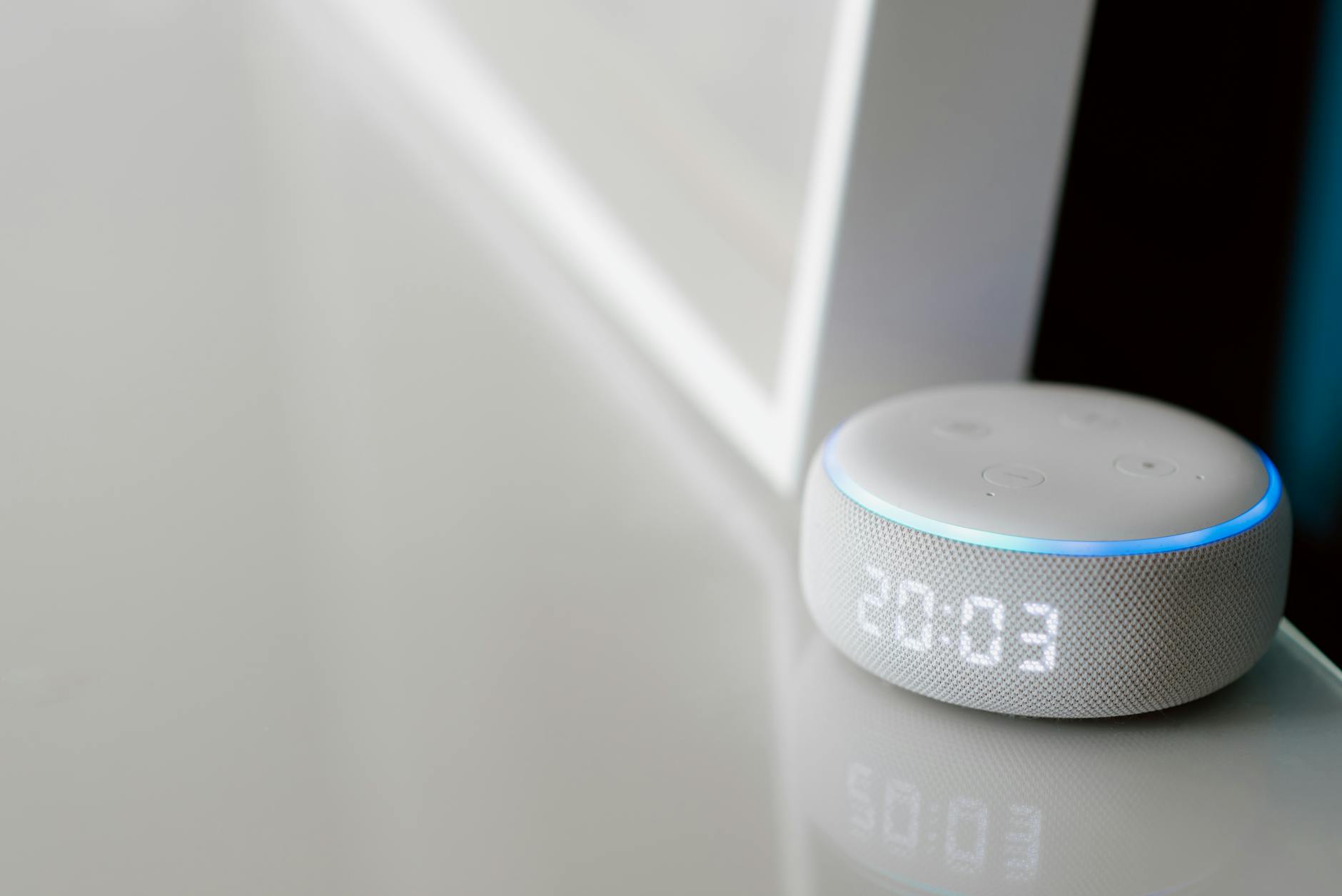
Matter relies on Thread networking for low-power devices, so you need a Thread border router on your network. If you have an Apple HomePod mini, Google Nest Hub (2nd gen), or Amazon Echo (4th gen), these devices can serve as border routers when connected to your network.
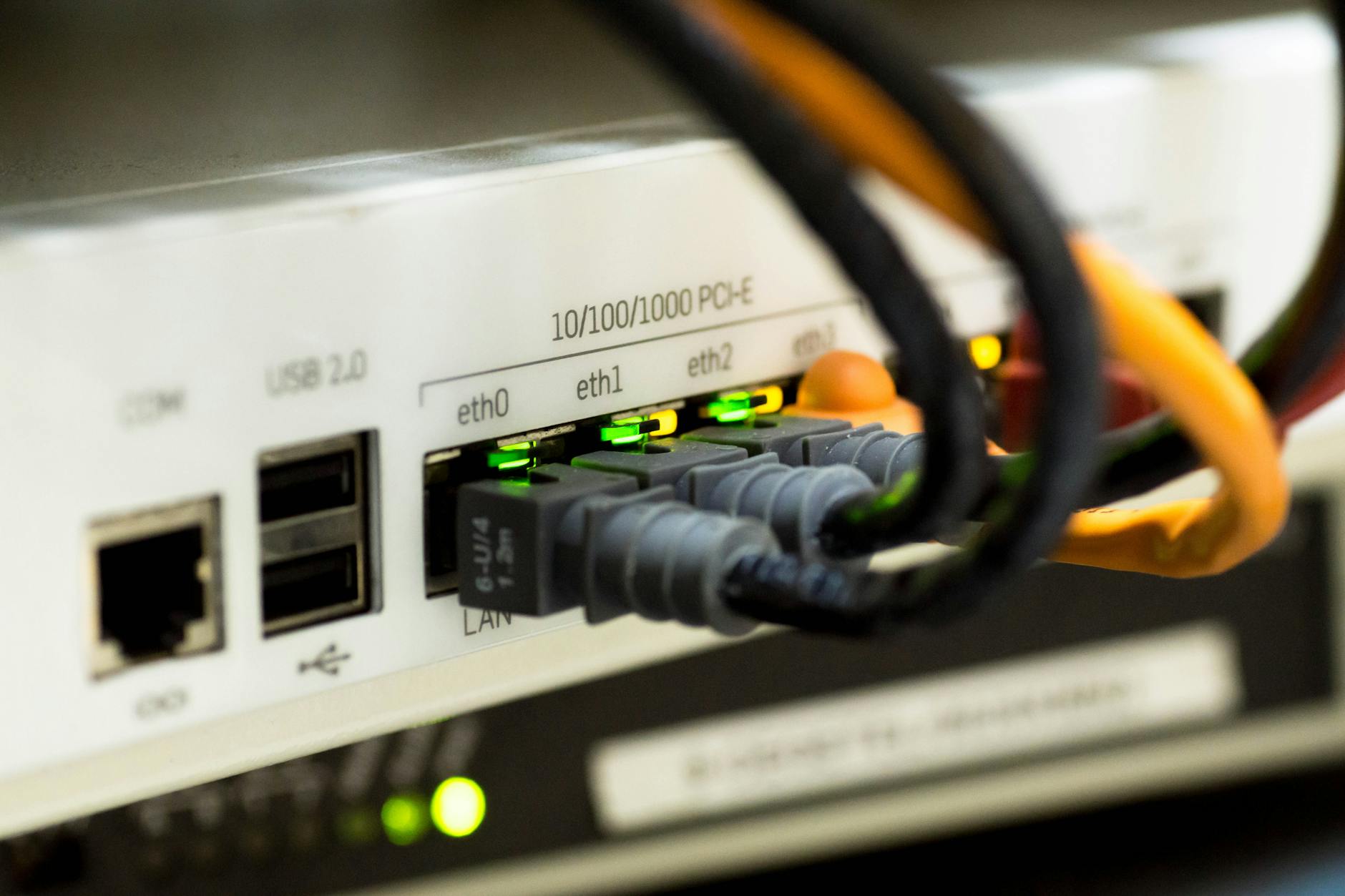
For dedicated Thread border routers, popular options include the GL.iNet GL-S200 or Nordic Semiconductor dongles. Connect your chosen border router to the same network as Home Assistant. The device should automatically advertise Thread network availability.
Verify Thread connectivity by checking your border router’s status in its companion app or web interface. Look for an active Thread network with a unique PAN ID. Some routers display connected Thread devices and network topology, which becomes useful when troubleshooting device connectivity later.
Step 4: Commission Your First Matter Device
Put your Matter-certified device into commissioning mode according to its manufacturer instructions. Most devices enter this mode automatically when first powered on, while others require holding a specific button combination. Look for a QR code on the device or in its documentation – you’ll need this for pairing.
In Home Assistant, go to Settings > Devices & Services and click the “Add Device” button in the Matter integration panel. Select “Add Matter device” and choose your commissioning method. Scanning the QR code provides the fastest setup, while manual entry works if the code is damaged or unavailable.
The commissioning process involves several network handshakes between your device, Home Assistant, and any Thread border routers. This can take 2-5 minutes depending on your network configuration. Don’t interrupt the process or move the device during commissioning, as this can cause authentication failures.
Step 5: Set Up Device Controls and Automations
Once commissioned, your Matter device appears in the Home Assistant devices list with automatically detected capabilities. A smart bulb shows brightness and color controls, while a door sensor provides open/close states and battery levels. These controls populate based on the device’s Matter cluster definitions.
Test basic functionality through the device page before creating automations. Toggle lights, adjust thermostats, or trigger sensors to verify proper communication. If controls don’t respond, check your Thread network connectivity and ensure the device hasn’t lost power or network connection.
Create automations using the standard Home Assistant automation editor. Matter devices work with all existing automation features, triggers, and conditions. You can combine Matter devices with non-Matter devices in the same automation, giving you flexibility to integrate legacy smart home equipment with newer Matter-certified products.
Step 6: Add Multiple Ecosystems
Matter’s multi-admin feature lets you control devices from multiple platforms simultaneously. After commissioning a device to Home Assistant, you can also add it to Apple HomeKit, Google Home, or Amazon Alexa without losing Home Assistant control.
Use each platform’s native commissioning process to add already-paired devices. In Apple Home, tap the “+” button and scan the same QR code you used for Home Assistant. Google Home and Alexa follow similar procedures through their respective apps. The device maintains connections to all platforms simultaneously.
This multi-platform approach provides redundancy and lets different family members use their preferred smart home apps. Home Assistant can still run complex automations while someone else controls the same devices through their iPhone or Google Assistant.

Troubleshooting Common Issues
Device commissioning failures often stem from network connectivity problems. Ensure your Thread border router is broadcasting properly and that Home Assistant can reach the internet for credential validation. Restarting the Matter integration occasionally resolves persistent connection issues.
If devices become unresponsive after successful pairing, check Thread network stability. Too many Thread devices on a single border router can cause performance problems. Consider adding additional border routers for networks with more than 20-30 Thread devices.
Matter device updates happen through the manufacturer’s ecosystem, not through Home Assistant directly. Keep devices updated through their original apps or platforms to ensure compatibility with evolving Matter specifications.
Key Takeaways
Home Assistant’s Matter integration transforms device compatibility from a constant struggle into a standardized process. The setup requires specific hardware and network configuration, but the payoff is seamless device control across multiple platforms and manufacturers.
Thread networking forms the backbone of most Matter implementations, making a reliable border router essential for stable operation. Invest in quality Thread hardware to avoid connectivity frustrations down the road.
Multi-admin capabilities mean you’re not locked into a single ecosystem anymore. Your smart home can accommodate different family members’ preferences while maintaining centralized automation control through Home Assistant. The technology finally delivers on the promise of truly interoperable smart home devices.
Frequently Asked Questions
What version of Home Assistant supports Matter integration?
Home Assistant version 2023.2 or later includes native Matter support with ongoing improvements in newer releases.
Do I need a Thread border router for Matter devices?
Yes, most Matter devices use Thread networking and require a border router like HomePod mini or dedicated Thread hardware.



