



What You Need to Know
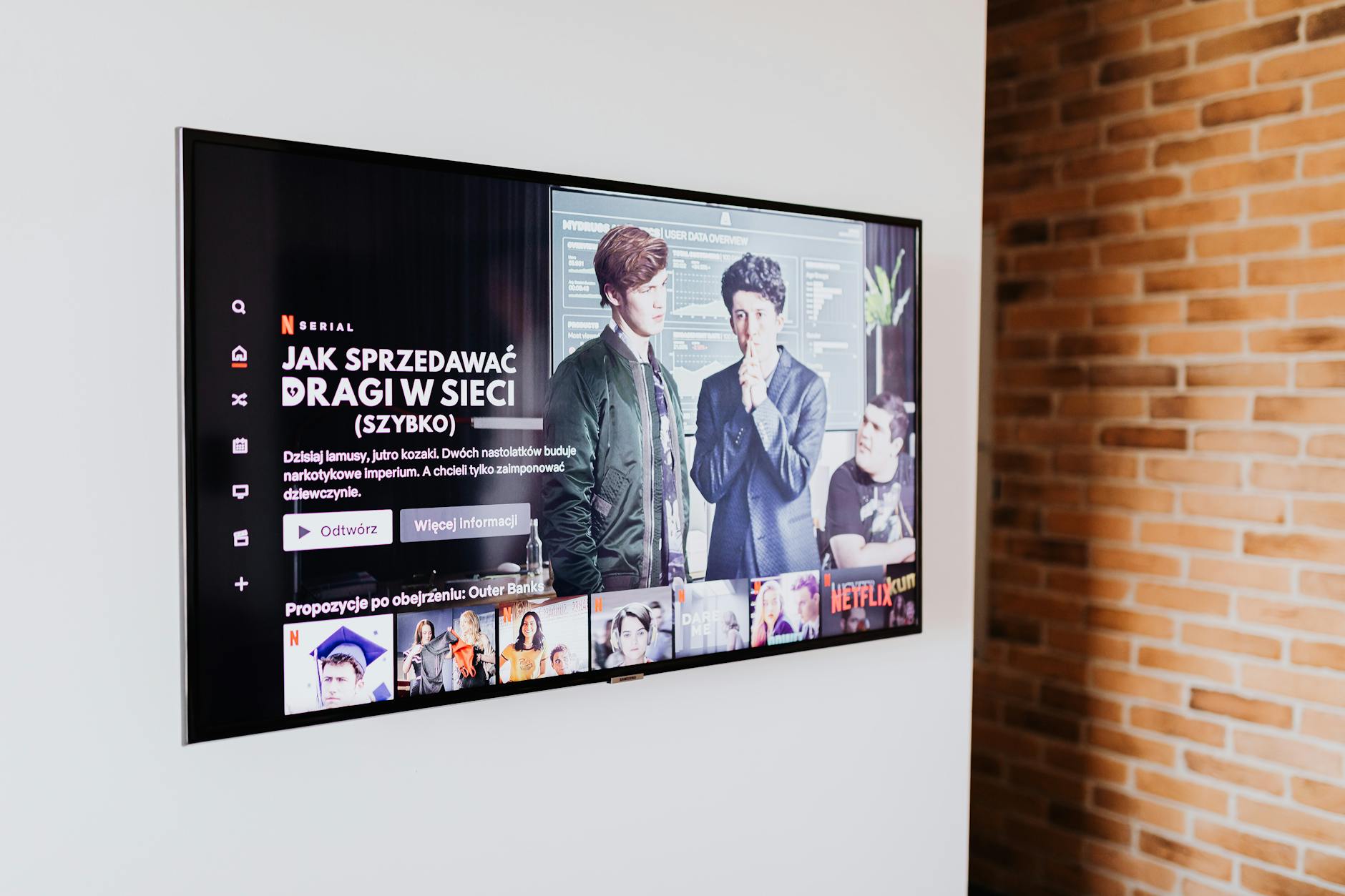
Building your own media streaming server puts you in complete control of your entertainment library. Unlike subscription services that remove content without warning, a personal media server stores your digital collection locally while providing Netflix-like streaming to any device in your home.
Both Plex and Jellyfin offer powerful media management and streaming capabilities, but they serve different needs. Plex provides a polished, user-friendly experience with premium features available through subscription. Jellyfin takes the open-source route, offering complete freedom without licensing restrictions or monthly fees.
Setting up both platforms on a single home server gives you the best of both worlds. You can test which interface your family prefers while maintaining redundancy for your media collection. This dual setup also lets you take advantage of Plex’s superior mobile apps while enjoying Jellyfin’s unrestricted codec support.
1. Choose Your Hardware Foundation
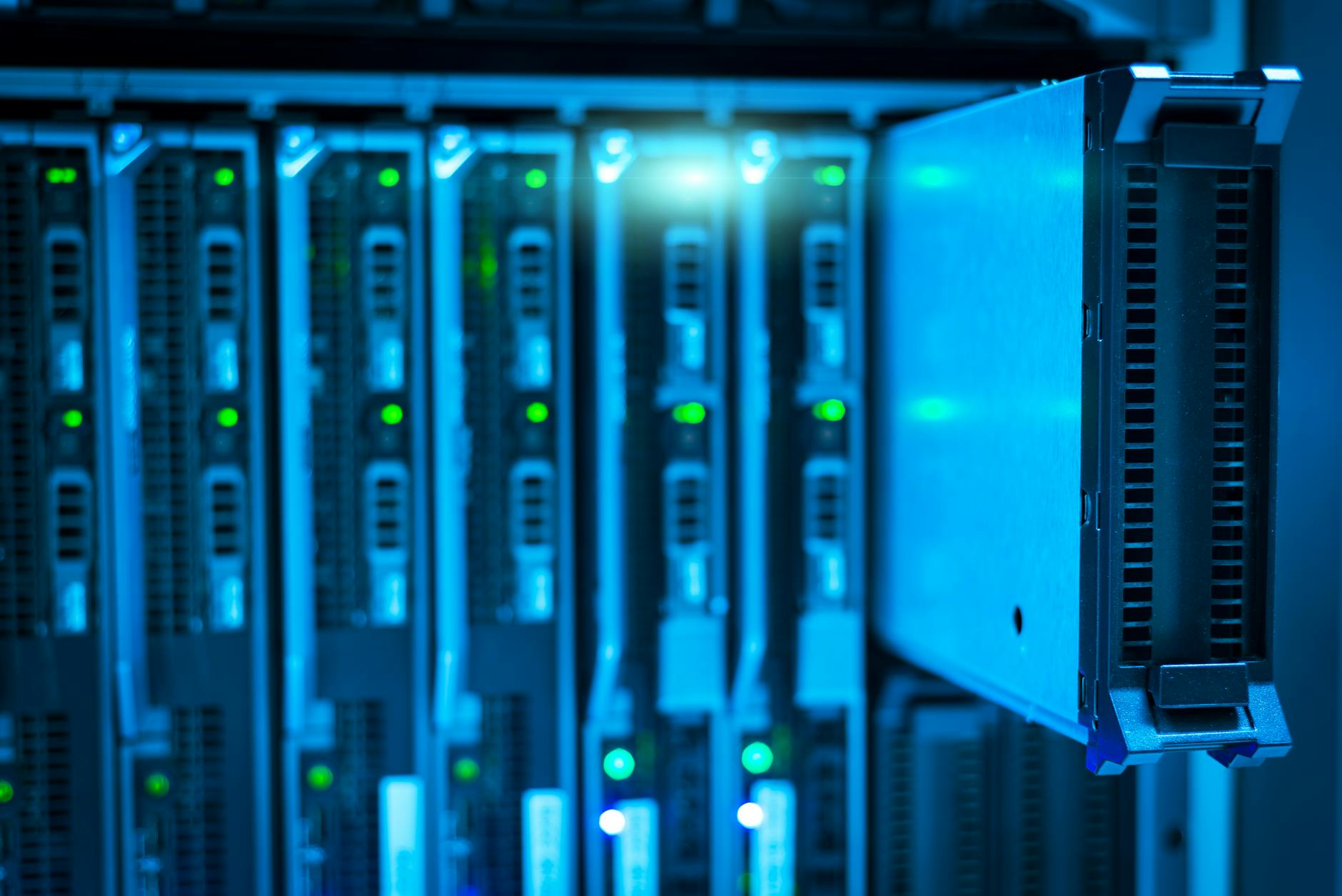
Your server’s performance depends entirely on the hardware foundation. A dedicated mini PC like the Intel NUC or Beelink models provides excellent power efficiency for 24/7 operation. These compact systems typically feature modern processors capable of hardware transcoding, which reduces CPU load when streaming to different devices.
For budget-conscious builders, repurposing an older desktop computer works perfectly. Ensure the system has at least 8GB of RAM and a processor from the last five years. AMD Ryzen or Intel Core processors offer built-in graphics that handle transcoding tasks efficiently.
Consider storage capacity carefully. A single 4K movie can consume 20-50GB of space, while a TV series season might require 100-200GB. Start with at least 2TB of storage, but plan for expansion as your library grows. External USB drives work for testing, but internal SATA drives provide better reliability and performance.
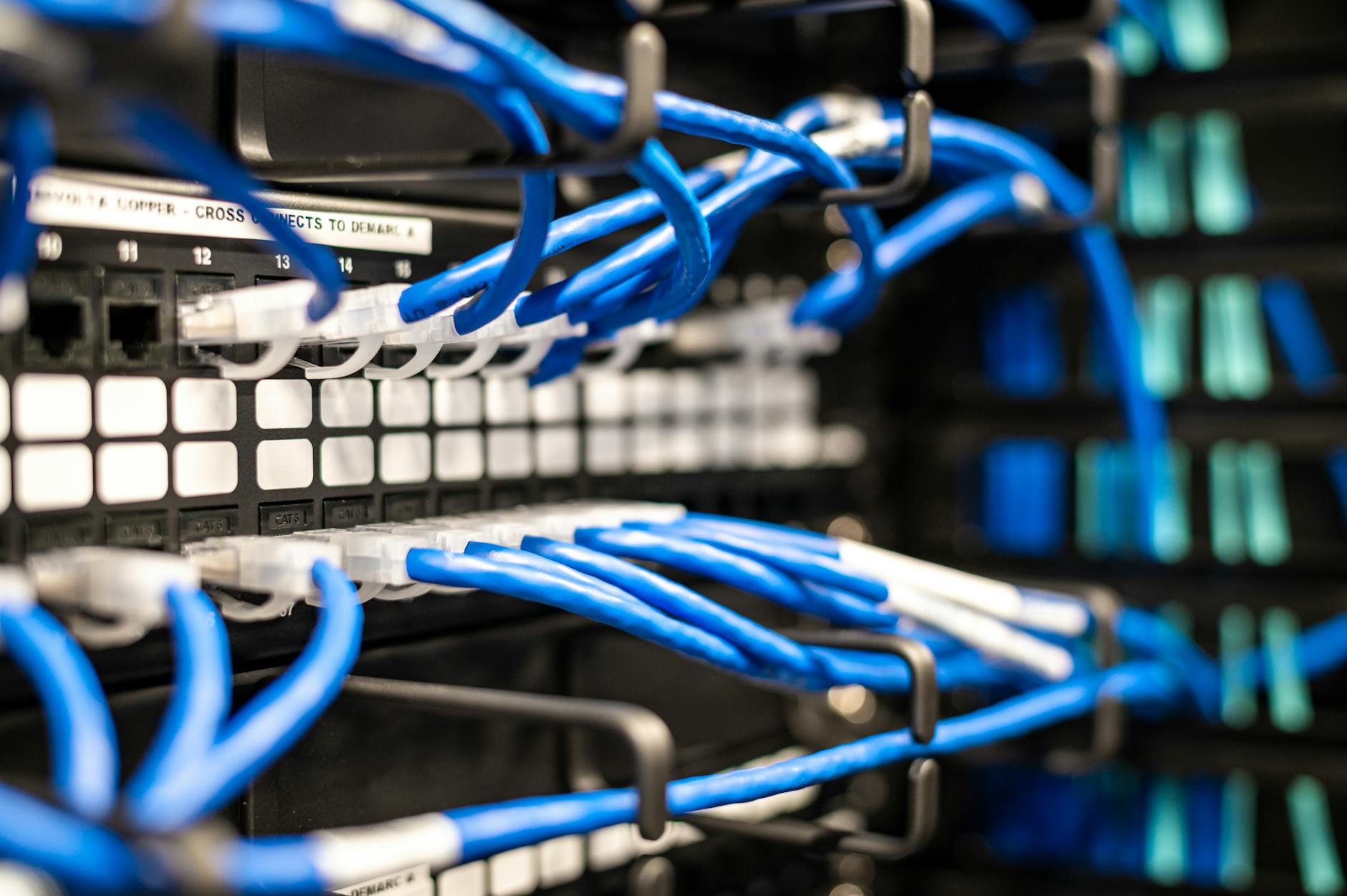
Network connectivity matters more than raw processing power for most streaming scenarios. Gigabit ethernet ensures smooth 4K streaming throughout your home network. Wireless connections work for 1080p content but may struggle with high-bitrate 4K files.
2. Install and Configure Your Operating System
Ubuntu Server provides the most straightforward Linux experience for media server applications. The server edition eliminates unnecessary desktop components, dedicating system resources to your streaming services. Download the latest LTS version for extended support and stability.
During installation, enable SSH access for remote management. This feature lets you configure and maintain your server from any computer on your network without connecting a monitor and keyboard directly.
Create a dedicated user account for media server operations. Avoid running services with root privileges for security reasons. Set up proper file permissions to ensure both Plex and Jellyfin can access your media directories without conflicts.
Configure automatic updates for security patches while excluding kernel updates that might affect hardware compatibility. Regular security updates protect your server from vulnerabilities without risking system stability.
For users comfortable with graphical interfaces, consider setting up a Linux desktop environment for easier file management and troubleshooting.
3. Set Up Your Media Directory Structure
Organization determines how well your media servers can automatically identify and categorize content. Create a logical folder hierarchy that both Plex and Jellyfin can navigate efficiently.
Establish separate root directories for different content types. Create folders named “Movies”, “TV Shows”, “Music”, and “Home Videos” at the top level. This separation helps both platforms apply appropriate metadata scrapers and display options.
Within the Movies directory, place each film in its own subfolder named with the title and release year. For example: “Movies/The Matrix (1999)/The Matrix (1999).mkv”. This naming convention ensures accurate metadata matching and prevents confusion between remakes or films with similar titles.
TV Shows require more detailed organization. Create a folder for each series, then subfolders for each season. Name episodes with season and episode numbers: “TV Shows/Breaking Bad/Season 01/Breaking Bad – S01E01 – Pilot.mkv”.
Set proper file permissions on your media directories. Both Plex and Jellyfin need read access to media files and read/write access to metadata folders. Use the chmod command to set appropriate permissions: “chmod -R 755 /path/to/media”.
4. Install and Configure Plex Media Server
Plex installation varies by operating system, but the official repositories provide the most reliable packages. On Ubuntu, add the Plex repository to your system’s package sources, then install using the standard package manager.
During initial setup, Plex creates a web interface accessible at http://your-server-ip:32400/web. This interface handles all configuration tasks, from library creation to user management. Claim your server with a Plex account to enable remote access and mobile app connectivity.
Create separate libraries for each content type. Point your Movies library to your organized Movies folder, and configure the TV Shows library to scan your TV Shows directory. Plex automatically begins scanning and downloading metadata for recognized content.
Configure transcoding settings based on your hardware capabilities. Modern processors with integrated graphics can handle multiple simultaneous transcoding streams. Enable hardware acceleration in the transcoding settings if your processor supports Intel Quick Sync or similar technology.
Set up user accounts for family members with appropriate content restrictions. Plex’s managed user system allows you to control which libraries each person can access, making it suitable for households with children.
5. Install and Configure Jellyfin Media Server
Jellyfin installation follows a similar pattern to Plex but requires adding the official Jellyfin repository to your system. The open-source nature means no account creation or server claiming process – you maintain complete control over your installation.
Access Jellyfin’s web interface at http://your-server-ip:8096 for initial configuration. Create an administrator account and add the same media libraries you configured for Plex. Jellyfin will perform its own metadata scanning process independently.
Configure Jellyfin’s transcoding settings to complement your Plex setup. If you enabled hardware acceleration in Plex, configure Jellyfin to use software transcoding to avoid hardware conflicts. Alternatively, modern systems can handle hardware acceleration for both services simultaneously.
Jellyfin’s plugin system extends functionality beyond the base installation. Install the Kodi Sync Queue plugin to maintain watch status synchronization with Kodi media centers. The Trakt plugin tracks viewing habits across multiple platforms.
Set up Jellyfin user accounts with similar restrictions to your Plex configuration. This consistency ensures family members have the same content access regardless of which platform they choose to use.
6. Configure Network Access and Security
Both media servers require specific network ports for proper operation. Plex uses port 32400 for web access and additional ports for various streaming protocols. Jellyfin operates on port 8096 by default but can be customized during configuration.
Configure your router’s firewall to allow these ports while blocking unnecessary access. If you plan to access your media server from outside your home network, set up port forwarding rules for the required ports. However, consider the security implications of exposing media servers to the internet.
For enhanced security, configure a VPN server on your network instead of direct port forwarding. This approach lets you access your media server securely from anywhere while maintaining network security. Many modern routers include built-in VPN server functionality.
Enable HTTPS access for both platforms when accessing from outside your local network. Plex handles this automatically through their relay service, while Jellyfin requires manual SSL certificate configuration for secure remote access.
Consider implementing network segmentation if you have advanced networking equipment. Placing your media server on a separate VLAN isolates it from other network devices while maintaining streaming functionality.
7. Optimize Performance and Storage
Monitor your server’s resource usage during peak streaming times to identify potential bottlenecks. Both Plex and Jellyfin provide built-in monitoring tools that display CPU, memory, and network utilization during active streaming sessions.
Configure automatic media scanning schedules during off-peak hours to minimize impact on streaming performance. Schedule these tasks for early morning hours when family members are unlikely to be watching content.
Implement a backup strategy for your media metadata and server configurations. While you can re-rip physical media if needed, rebuilding custom artwork, descriptions, and user watch history takes considerable time. Regular configuration backups prevent data loss during hardware failures.
Plan storage expansion before reaching capacity limits. Both platforms struggle with performance when storage devices approach full capacity. Monitor disk usage and add additional drives when storage reaches 80% capacity.
Consider implementing RAID storage for improved reliability and performance. RAID 1 mirrors provide redundancy for irreplaceable content, while RAID 5 offers a balance between capacity and protection for larger libraries.
Key Takeaways
Setting up dual media servers with Plex and Jellyfin provides ultimate flexibility for your home entertainment system. This configuration lets you compare platforms while maintaining service availability if one server requires maintenance.
Start with modest hardware requirements and expand based on actual usage patterns. A basic system handles multiple 1080p streams easily, while 4K content benefits from more powerful processors and additional RAM.
Proper media organization prevents future headaches and ensures both platforms can accurately identify your content. Invest time in creating logical folder structures and consistent naming conventions before adding extensive content libraries.
Network configuration requires balancing accessibility with security. Enable remote access cautiously and consider VPN solutions for secure external streaming rather than direct internet exposure.
Regular maintenance keeps both servers running efficiently. Schedule automatic updates, monitor resource usage, and backup important configuration data to prevent service interruptions and data loss.
Frequently Asked Questions
Can I run both Plex and Jellyfin on the same server?
Yes, both platforms can coexist on the same hardware using different ports and sharing the same media directories.
How much storage space do I need for a media server?
Start with 2TB minimum, but plan for expansion as 4K movies use 20-50GB each and TV series require 100-200GB per season.



