


What You Need to Know
Adobe Premiere Pro’s latest features are transforming video editing with artificial intelligence integration and streamlined color correction tools. The software now includes AI-powered scene detection, automated audio enhancement, and intelligent color matching that can save hours of manual work.
These new capabilities make professional-level editing accessible to content creators who previously struggled with complex color grading workflows. Whether you’re editing YouTube videos, corporate content, or short films, understanding these AI features will dramatically improve your editing efficiency and output quality.
This guide walks through the essential AI tools and auto-color correction features available in current Premiere Pro versions, with step-by-step instructions for implementation.
1. Setting Up AI-Enhanced Workspace
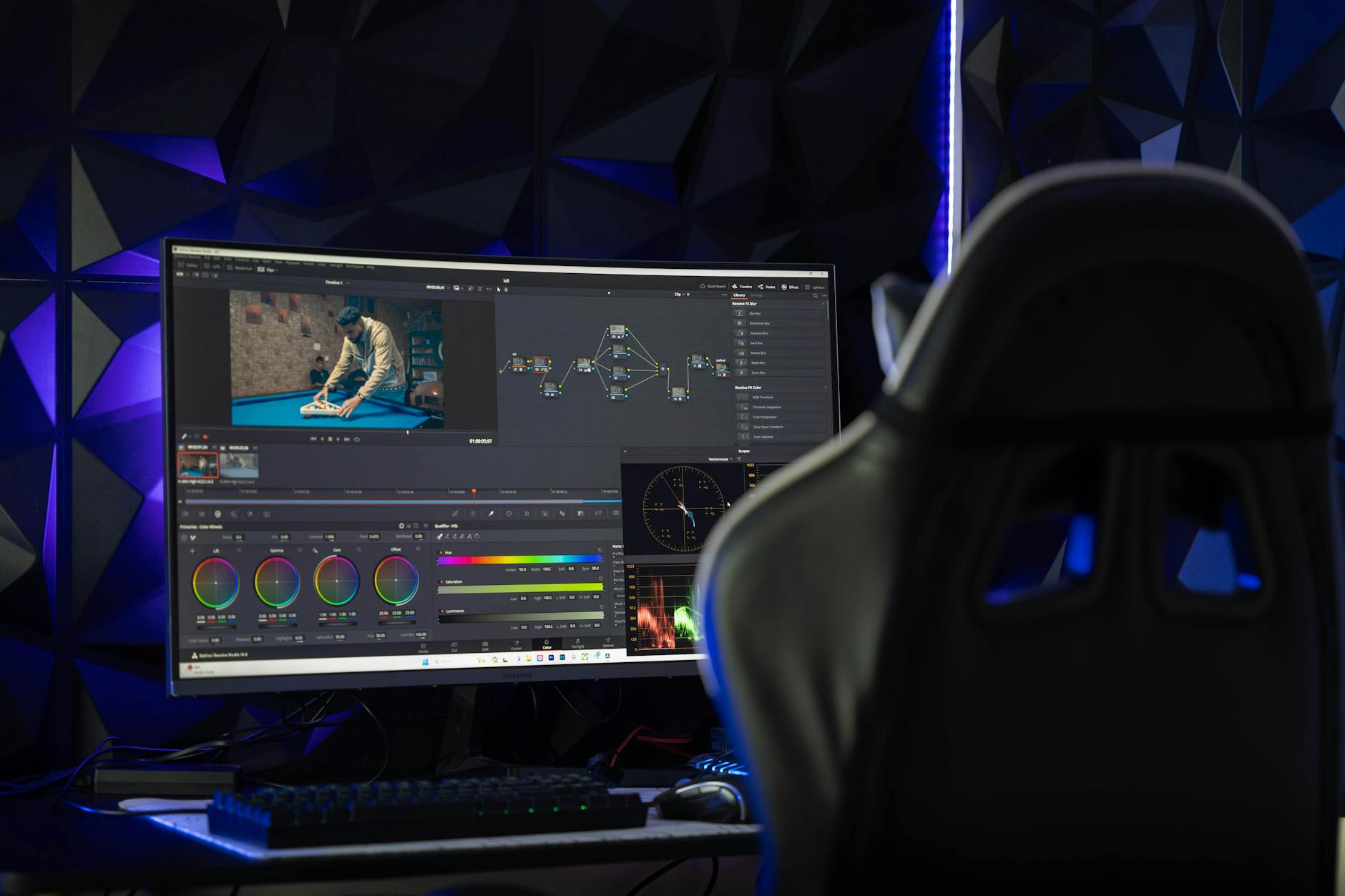
Start by customizing your Premiere Pro workspace to take advantage of AI features. Navigate to Window > Workspaces and select “Color” or create a custom workspace that includes the Lumetri Color panel, Essential Graphics panel, and Audio workspace elements.
Enable GPU acceleration in Preferences > Media to ensure smooth playback when using AI processing. Set your renderer to Mercury Playback Engine GPU Acceleration for optimal performance with AI features.
Import your footage and create a new sequence. Premiere Pro now automatically detects optimal sequence settings based on your source material, similar to how advanced workflow automation tools streamline repetitive tasks.
2. Using Auto Color Correction
Access the Lumetri Color panel and locate the Auto button in the Basic Correction section. Click Auto to apply intelligent color correction that analyzes your footage and makes adjustments to exposure, highlights, shadows, and color balance.
The AI algorithm examines skin tones, lighting conditions, and overall image characteristics to create natural-looking corrections. For most footage, this provides an excellent starting point that previously required manual adjustment across multiple parameters.
Fine-tune the auto corrections by adjusting individual sliders. The Temperature and Tint controls often need minimal tweaking after auto correction, while Exposure and Contrast may require personal preference adjustments.
3. Scene Edit Detection and Auto-Reframe
Right-click on your timeline footage and select Scene Edit Detection. Premiere Pro analyzes your video using machine learning to identify natural cut points, transitions, and scene changes automatically.
This feature proves invaluable when working with long-form content like interviews, presentations, or event footage. The AI identifies optimal edit points based on visual and audio cues, creating markers you can use for quick cuts.
For social media content, use Auto-Reframe by right-clicking your sequence and selecting Auto-Reframe Sequence. Choose your target aspect ratio (square, vertical, or custom), and Premiere Pro intelligently crops and tracks subjects throughout your video.
4. AI-Powered Audio Enhancement
The Audio workspace now includes Enhanced Speech and Auto Ducking features. Apply Enhanced Speech to dialogue tracks by selecting the audio clip and navigating to Audio > Enhanced Speech in the Essential Sound panel.
This AI tool removes background noise, normalizes audio levels, and enhances speech clarity without requiring detailed audio engineering knowledge. The algorithm identifies and isolates vocal frequencies while suppressing unwanted ambient sound.
Auto Ducking automatically lowers music and background audio when dialogue is present. Select your music track, enable Auto Ducking in the Essential Sound panel, and choose which tracks contain dialogue. The AI creates smooth volume transitions that maintain professional audio balance.
5. Color Match and Style Transfer
Color Match allows you to match color grades between clips using AI analysis. Select your target clip, then in the Lumetri Color panel, click the Comparison View button and choose your reference shot.
Click Apply Match to transfer the color characteristics from your reference to the current clip. This feature maintains consistency across different lighting conditions and camera setups, essential for professional-looking edits.
For creative color grading, explore the new LUT application system that uses machine learning to suggest complementary looks based on your footage characteristics. The AI analyzes scene content, lighting, and mood to recommend appropriate color treatments.
6. Smart Trimming and Content-Aware Fill
The Morph Cut transition uses AI to create seamless cuts in talking-head footage by analyzing facial expressions and generating intermediate frames. This eliminates jump cuts when removing “ums,” pauses, or mistakes from interviews.
Apply Morph Cut by selecting the transition from the Effects panel and placing it between two clips of the same speaker. The AI algorithm analyzes facial features, lighting, and background elements to create natural-looking transitions.
Content-Aware Fill removes unwanted objects from video by analyzing surrounding pixels and motion patterns. Select the area to remove using the masking tools, then apply the effect. The AI fills the masked area with appropriate background content across all frames.
7. Optimizing Export Settings with AI
The Media Encoder now includes AI-enhanced export presets that optimize compression based on content analysis. When exporting, select destination platforms like YouTube, Instagram, or TikTok for automatic optimization.
The AI examines your video content, identifying motion levels, detail complexity, and color range to select optimal bitrate and compression settings. This ensures maximum quality while meeting platform requirements and file size limitations.
Enable hardware acceleration in export settings to leverage GPU processing for faster rendering times when using AI features. Modern graphics cards significantly reduce export times for AI-processed content.
8. Troubleshooting AI Features
AI processing requires substantial system resources. If features run slowly or produce poor results, check that you’re running the latest Premiere Pro version and have adequate RAM (16GB minimum recommended for AI features).
Some AI tools work better with specific footage types. Enhanced Speech performs best on clean audio recordings, while Auto-Reframe requires clear subject definition and adequate source resolution for quality results.
If auto color correction produces unnatural results, it often indicates footage with extreme lighting conditions or unusual color temperatures. In these cases, manual adjustment of basic parameters before applying AI enhancement yields better outcomes.
Key Takeaways
Adobe Premiere Pro’s AI integration represents a significant evolution in video editing accessibility and efficiency. These tools don’t replace creative decision-making but dramatically reduce the technical barrier to professional results.
The auto color correction alone can save hours per project, while features like Scene Edit Detection and Enhanced Speech streamline workflows that previously required specialized knowledge. Just as advanced note-taking systems organize complex information automatically, these AI tools handle technical processes so editors can focus on storytelling.
Success with AI-enhanced editing comes from understanding when to apply these tools and when manual control produces better results. Start with auto corrections as a foundation, then refine based on your creative vision and project requirements.
Regular practice with these features will reveal their strengths and limitations, helping you integrate AI assistance into an efficient, professional editing workflow that maintains your creative control while leveraging computational power for technical excellence.
Frequently Asked Questions
Does Adobe Premiere Pro have AI color correction?
Yes, Premiere Pro includes auto color correction that uses AI to analyze footage and automatically adjust exposure, color balance, and lighting.
What AI features are available in current Premiere Pro versions?
Current versions include Enhanced Speech, Auto-Reframe, Scene Edit Detection, Color Match, Auto Ducking, and Content-Aware Fill powered by AI.