



Why Unraid Beats a Prebuilt NAS for Most Home Labs
Most consumer NAS devices ship with locked-down operating systems, limited app ecosystems, and storage configurations that punish you the moment you try to expand beyond the manufacturer’s preferred setup. Unraid takes a different approach entirely – it runs on standard x86 hardware, lets you mix drives of any size without forcing them into a traditional RAID array, and treats application hosting as a first-class feature rather than an afterthought. The result is a home server that stores your files, runs Docker containers, and hosts virtual machines from a single web interface.
The setup process is more hands-on than plugging in a Synology, but the payoff is a system you fully control. This guide walks through everything: getting Unraid running on a USB drive, configuring your storage array, setting up network shares, and deploying your first containerized apps through the Community Applications plugin.

Hardware Requirements and Creating the Boot Drive
Unraid boots from a USB flash drive and runs entirely in RAM, which means your actual storage drives stay dedicated to data rather than the OS. The minimum spec is modest – a 64-bit processor, 2GB of RAM, and a USB drive with at least 1GB of capacity. In practice, you want 8GB or more of RAM if you plan to run Docker containers, and 16GB or more if you intend to use virtual machines. The USB drive should be a quality brand like Samsung or Kingston; a cheap no-name stick that fails will bring your server down until you restore from backup.
To create the boot drive, download the Unraid USB Creator tool from the Lime Technology website. Connect your USB drive, launch the tool, select your drive from the dropdown, and click Write. The tool formats the drive, installs the Unraid OS files, and adds a unique GUID tied to your license. When finished, safely eject the drive. Before booting, go into your server’s BIOS and set the USB drive as the first boot device. Also disable any fast-boot options that might skip the USB enumeration step. Once the system boots, Unraid starts a local web server and you access the UI at http://tower.local or the machine’s IP address on port 80.
Licensing, Initial Configuration, and the Array
Unraid operates on a paid license model, but a 30-day free trial starts automatically when you first boot. The Basic license covers up to 6 storage devices and costs a one-time fee; Plus and Pro tiers remove the drive limit. Your license is tied to the USB drive’s GUID, not to hardware, so you can move it between machines without repurchasing. Registering is done directly from the web UI under the Tools menu.
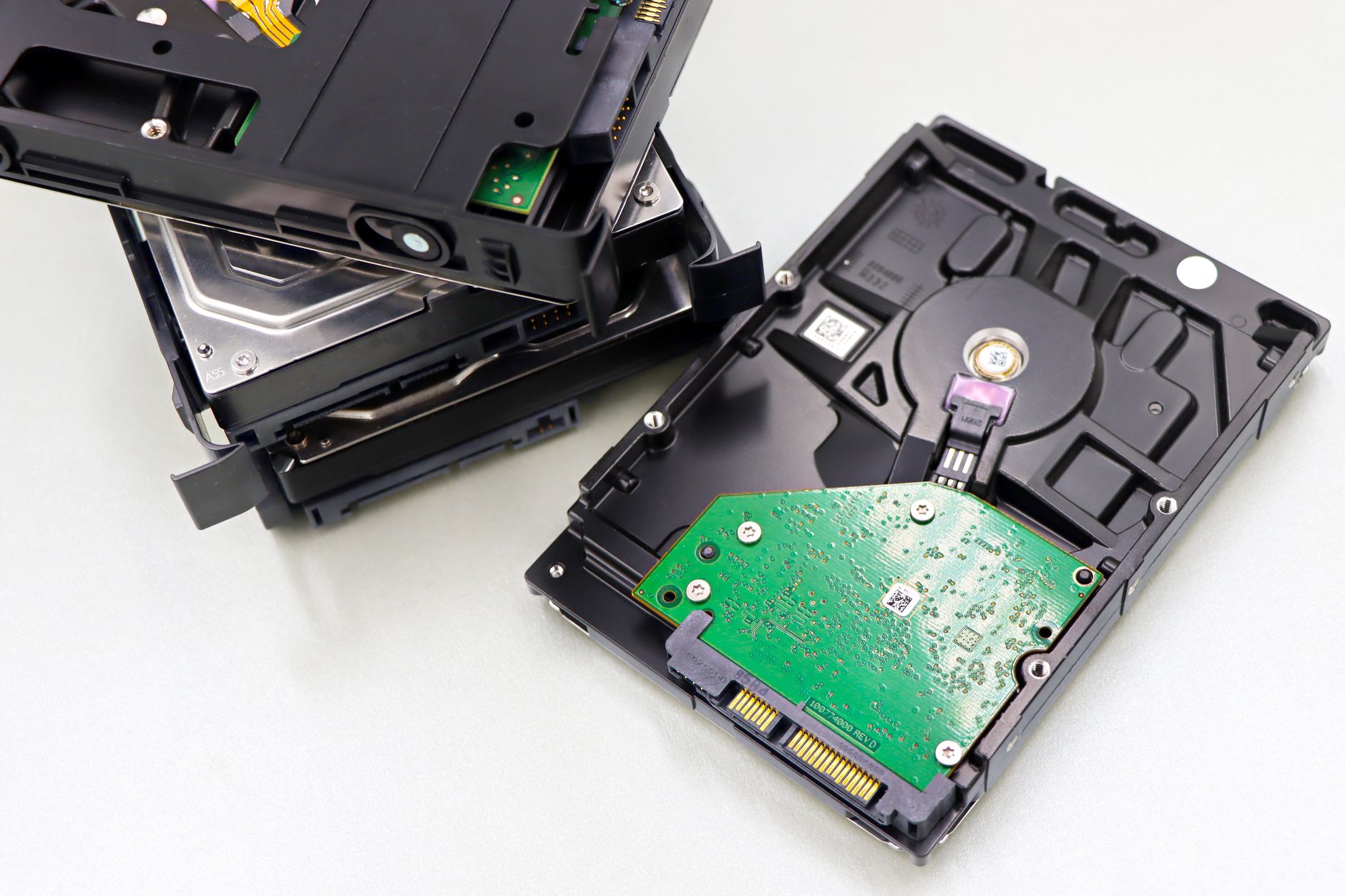
Once you are logged into the interface, navigate to the Main tab. This is where you assign drives to the array. Unraid’s storage model uses one or two parity drives and any number of data drives. The parity drive must be equal to or larger than the largest data drive in the array. Assign your parity drive first using the dropdown next to Parity, then assign data drives to the numbered disk slots below. You can mix a 4TB drive with a 2TB drive and an 8TB drive without any issue – Unraid does not require matched capacities.
After assigning drives, click Start to initialize the array. First-time initialization writes parity data across all drives, which can take many hours depending on total capacity. You can use the system during this process, but read and write speeds will be slower until parity finishes. Once the array is running, you will want to format each new drive through the UI before Unraid will allow data to be written to it. The default filesystem is XFS, which is a solid choice for most setups. If you plan to run virtual machine images directly on array disks, BTRFS offers snapshot support that can be useful for rollback scenarios.
Unraid also supports a separate pool called the Cache Pool, typically built from SSDs. Writes can be directed to cache first for speed, then moved to the slower array overnight by a background process called Mover. This is particularly useful for applications that write small, frequent files – Docker container data and VM images are common candidates. Assign your SSD to the cache slot on the Main tab and format it as BTRFS if you want to use multiple drives in the pool with redundancy.
Setting Up Network Shares
Network shares in Unraid are created under the Shares tab. Each share appears as a folder on your array and can be accessed from Windows, macOS, or Linux clients. When creating a share, you set a name, choose whether the share lives on the cache, the array, or both (using the cache write-then-move workflow), and configure SMB or NFS export settings. SMB is the default and works well for Windows and macOS. Set the security mode to Private if you want per-user passwords, or Public if the share is accessible to anyone on the local network.
From a Windows machine, open File Explorer and type \\tower in the address bar to browse shares. On macOS, use Finder, press Command-K, and connect to smb://tower.local. You can map shares as persistent network drives on both platforms for easier access. If you are running anything self-hosted that ingests media or files – a home inventory tracker like Homebox, for example – pointing it at an Unraid share keeps all your data in one organized, backed-up location.
Installing Docker Apps Through Community Applications
The Community Applications plugin transforms Unraid into a full app server. Install it by going to Apps in the top navigation – if it is not already present, Unraid will prompt you to install the plugin. Once active, the Apps tab gives you a searchable catalog of Docker container templates maintained by the community. Each template pre-fills port mappings, volume paths, and environment variables so you are not manually crafting Docker run commands from scratch.
Search for an application, click Install, and review the template settings before clicking Apply. Container data is typically stored in /mnt/user/appdata/ on the array or cache, keeping it separate from your media shares. Unraid’s Docker manager handles starting, stopping, and updating containers through the same web interface. You can view logs, open a terminal inside a container, or edit configuration variables without leaving the browser. For applications that need to talk to each other – a media server and its metadata agent, for instance – place them on the same custom Docker network under the Advanced settings toggle.
Virtual machines are managed through the VMs tab using KVM and QEMU under the hood. You can run Windows, Linux, or macOS VMs and pass through physical hardware like GPUs or USB controllers directly to the guest. This is where Unraid’s hardware flexibility becomes obvious: a single machine can run Plex as a Docker container, a Windows gaming VM with a dedicated GPU passed through, and a Linux development environment simultaneously, all managed from one dashboard. VM performance with GPU passthrough is close to bare-metal, making it practical rather than just a novelty.