



Why Your Hard Drives Are Probably Failing Right Now
Hard drives fail quietly. There is no warning light on your desk, no notification from your operating system, and no countdown timer telling you that the spinning platter inside your NAS or desktop tower is weeks away from becoming an expensive paperweight. Most people discover drive failure at the worst possible moment – when they actually need the data stored on it.
Self-hosted health monitoring changes that equation entirely. By running your own SMART (Self-Monitoring, Analysis, and Reporting Technology) monitoring stack, you get continuous visibility into drive temperature, reallocated sector counts, spin retry counts, and dozens of other low-level indicators that predict failure well before it happens. Cloud services exist for this purpose, but they require you to hand over your hardware data to a third party and often throttle alerting behind a paywall.
This guide walks through setting up a self-hosted hard drive health monitoring system using smartmontools and Scrutiny, a modern web dashboard that pairs SMART data collection with a clean visual interface and configurable alerts.
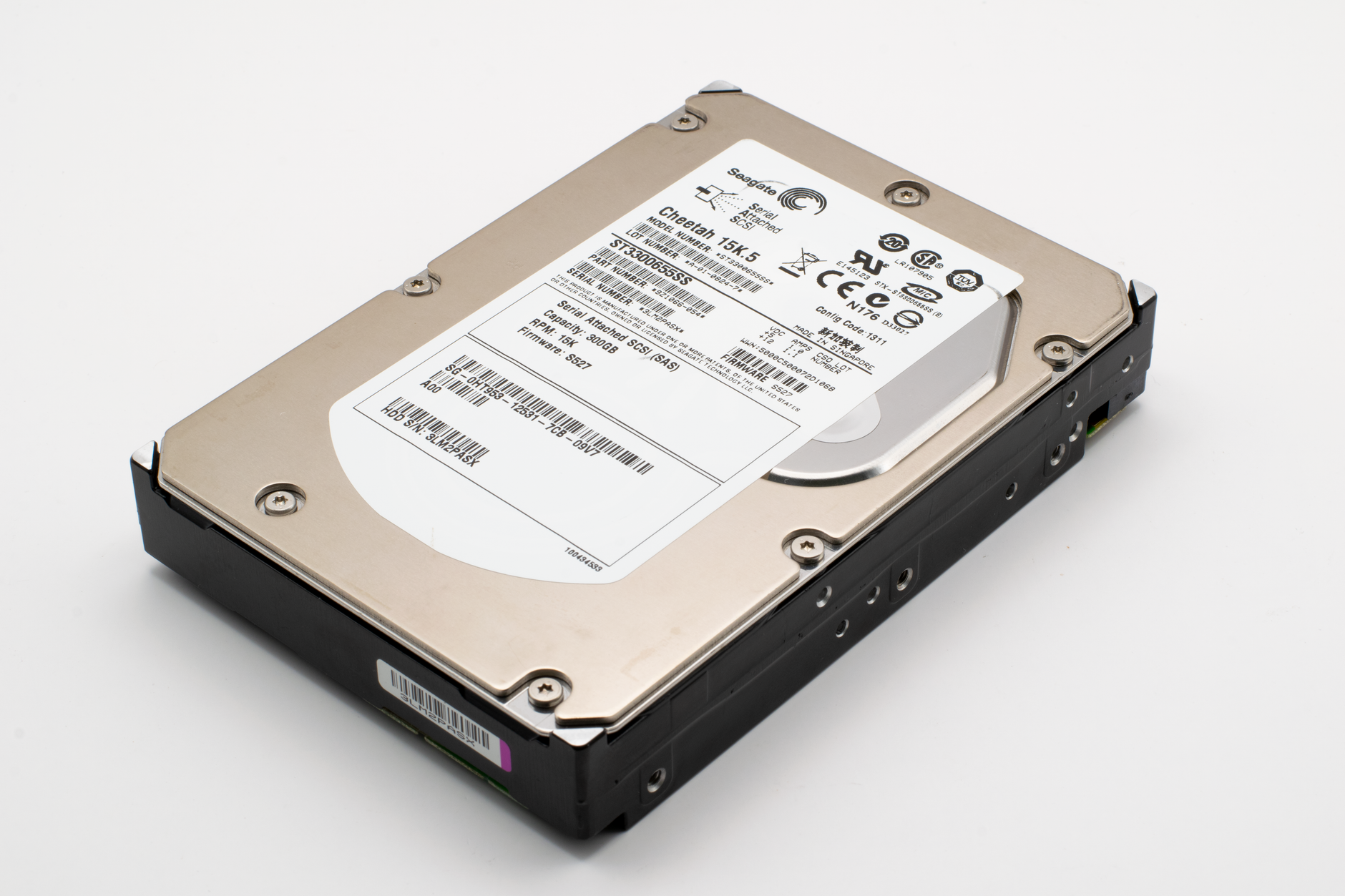
What You Need Before Starting
Scrutiny runs as a Docker container, so a working Docker installation is the baseline requirement. Any Linux host works – a Raspberry Pi 4, a dedicated home server, or a spare desktop running Ubuntu Server are all valid targets. The machine running Scrutiny does not need to be the same machine whose drives you are monitoring, but starting with a local setup is the simplest path. You will also need smartmontools installed on the host, since Scrutiny relies on the smartctl binary to actually query the drives.
Install smartmontools on Debian or Ubuntu with sudo apt install smartmontools. On Fedora or RHEL-based systems, use sudo dnf install smartmontools. Verify the installation by running smartctl --version. You should see version output and a list of supported device types. If you get a “command not found” error, the package did not install correctly – double-check your package manager’s output for errors before continuing.
Before deploying Scrutiny, run a quick manual check on one of your drives to confirm SMART data is accessible: sudo smartctl -a /dev/sda. Replace /dev/sda with the actual device path for your drive. The output should include a long block of SMART attribute data. If you see “SMART support is: Disabled” in the output, enable it with sudo smartctl -s on /dev/sda. Some consumer drives ship with SMART disabled to reduce overhead, which is a strange default given what SMART is designed to do.

Deploying Scrutiny with Docker Compose
Scrutiny’s recommended deployment method uses a single container that bundles both the web UI and the data collection agent. Create a directory for the project – something like ~/scrutiny – and add a docker-compose.yml file with the following structure. The container needs privileged access or explicit device pass-through to read SMART data directly from the drives, so you will pass each physical drive as a device entry in the compose file.
A basic compose configuration looks like this. Under the services key, define a scrutiny service using the image ghcr.io/analogj/scrutiny:master-omnibus. Set the container to restart unless stopped. Pass cap_add: - SYS_RAWIO to grant the necessary low-level access. Under devices, list every drive you want to monitor – for example /dev/sda:/dev/sda and /dev/sdb:/dev/sdb. Mount two volumes: one for configuration at /opt/scrutiny/config and one for the embedded database at /opt/scrutiny/influxdb. Expose port 8080 on the host. Run docker compose up -d and give the container about thirty seconds to initialize before opening a browser to http://your-server-ip:8080.
Once the dashboard loads, you will see each monitored drive listed with its current SMART status. Scrutiny color-codes drives based on health thresholds – green for healthy, yellow for attributes approaching failure thresholds, and red for drives showing active failure indicators. The default thresholds are based on Backblaze’s published hard drive failure research, which is one of the most credible public datasets available on drive reliability at scale. You can override individual attribute thresholds through the settings panel if your drives consistently report elevated temperatures due to environmental factors rather than hardware degradation.
Configuring Scheduled Scans and Email Alerts
Scrutiny runs SMART scans on a schedule you control. The default is a short self-test every day and a long self-test every week. Long self-tests on a large spinning disk can take several hours and cause noticeable IO slowdown, so schedule them during off-peak hours – typically overnight on a weekend. Edit the configuration file at /opt/scrutiny/config/scrutiny.yaml to adjust the cron expressions for both test types. The config file uses standard cron syntax, and Scrutiny will pick up changes on container restart without requiring a full redeployment.
For alerting, Scrutiny supports SMTP email out of the box, with webhook support for tools like Gotify, Ntfy, and Discord. To configure email alerts, add a notify block to scrutiny.yaml with your SMTP server address, port, sender address, and recipient. If you are running a self-hosted mail relay like Postfix on the same machine, point Scrutiny at localhost:25 and skip the authentication fields entirely. For those already running a self-hosted document management setup like Paperless-NGX, the same SMTP relay configuration used there applies directly here.
Test your alert configuration before trusting it. Scrutiny includes a test notification button in the settings panel – use it immediately after setup rather than waiting to find out your email config was wrong during an actual drive failure event. A health alert that never arrives is functionally identical to having no monitoring at all. If the test notification fails, check the container logs with docker compose logs scrutiny – the error output will tell you whether the failure is a connection issue, an authentication problem, or a misconfigured recipient address.

Reading the Data That Actually Matters
SMART data contains dozens of attributes, but a handful carry most of the predictive weight. Reallocated Sectors Count (attribute 5) tracks how many bad sectors the drive has silently mapped around – any non-zero value on a drive that is not brand new deserves attention. Current Pending Sector Count (attribute 197) indicates sectors that could not be read and are waiting to be reallocated or confirmed bad. Uncorrectable Sector Count (attribute 198) means the drive encountered errors it could not fix at all. Scrutiny flags all three of these automatically, but understanding what they represent lets you make better decisions about whether a flagged drive needs immediate replacement or just closer monitoring over the next few weeks. A drive with a reallocated sector count of 1 that has been stable for months is a different situation from a drive whose pending sector count climbs by ten every day.
Drive temperature is the attribute most people check first and the one that matters least in isolation. A drive running at 45C in a well-ventilated case is fine. A drive running at 45C because its reallocated sector count has been climbing for a week is a drive that is telling you something specific. Scrutiny’s historical graphs let you correlate attribute trends over time, which turns a single snapshot of SMART data into an actual diagnostic picture. Back up what is on that flagged drive today – not after the next long self-test completes.



