


Why Self-Hosting Your Document Archive Makes Sense
Every household and small business generates a constant stream of documents – invoices, receipts, contracts, medical records, warranty cards, tax filings. Most people default to a folder full of scanned PDFs, a drawer stuffed with paper, or a cloud service they hope stays solvent. Paperless-NGX offers a different approach: a self-hosted, open-source document management system that stores, indexes, and makes every document you own fully searchable by its actual content, not just its filename.
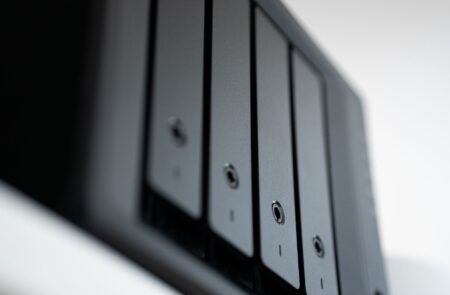
Paperless-NGX is the community-maintained fork of the original Paperless and Paperless-ng projects, and it has matured considerably over the past few years. It runs as a Docker-based application, comes with an optical character recognition (OCR) engine built in, and lets you tag, classify, and retrieve documents through a clean web interface. If you already run a home server or a NAS device capable of running Docker, adding Paperless-NGX to that setup is straightforward. This guide walks through every step from installation to first document import.
Prerequisites and Planning Your Setup
Before pulling any Docker images, make sure your host machine meets the minimum requirements. Paperless-NGX is not particularly demanding, but OCR processing is CPU-intensive during the initial bulk import if you are digitizing years of existing documents. A machine with at least 2GB of RAM dedicated to the application and a modern dual-core CPU will handle day-to-day ingestion without stalling. Storage requirements depend entirely on your document volume – plan for roughly 1-2MB per average scanned page, though PDFs with embedded text compress much smaller. A Raspberry Pi 4 with 4GB of RAM is a workable option for light use, while an old desktop or a proper home server will process large batches faster.
You will also need Docker and Docker Compose installed on the host. If you plan to access Paperless-NGX from outside your home network or want to run it under a proper domain name with HTTPS, setting up a reverse proxy beforehand is worth doing – Nginx Proxy Manager is a good option for handling that layer without requiring manual Nginx configuration. For this guide, the assumption is that you are running on a local network with Docker Compose available at the command line.
Installing Paperless-NGX with Docker Compose
The Paperless-NGX project maintains an official Docker Compose configuration that bundles everything the application needs: the main web server, a Redis broker for background task queuing, and a database backend. The simplest way to get started is to download the official docker-compose.yml and .env example files directly from the project’s GitHub releases page. Create a directory for the application – something like /opt/paperless-ngx – and place both files there.
Open the .env file in a text editor. The key variables to set immediately are PAPERLESS_SECRET_KEY, which should be a long random string you generate yourself, and PAPERLESS_URL, which should match the address you plan to use to access the application. If you are running this on a machine with the local IP address 192.168.1.50, set PAPERLESS_URL=http://192.168.1.50:8000. You can also configure USERMAP_UID and USERMAP_GID to match the user that owns your storage directories, which prevents permission issues when files are written to disk.
The docker-compose.yml file defines volume mounts for four directories: data, media, export, and consume. The consume directory is the most important one to understand early – any file you drop into it gets automatically picked up, processed through OCR, and imported into the archive. Map these volumes to real paths on your host machine. For example, ./data:/usr/src/paperless/data keeps the database and index files in your application directory, while /mnt/storage/paperless/media:/usr/src/paperless/media might point to a larger drive where scanned documents are stored.
Once the configuration is in place, start the stack with docker compose up -d from inside the application directory. Docker will pull the required images – this takes a few minutes on first run. After the containers are running, create your admin user by executing into the web container: docker compose exec webserver createsuperuser. Follow the prompts to set a username, email, and password. Open a browser, navigate to port 8000 on your host machine, and log in with those credentials.
Configuring OCR, Tags, and Correspondent Rules
Out of the box, Paperless-NGX uses Tesseract for OCR, which handles most printed English text reliably. If your documents are primarily in another language, set the PAPERLESS_OCR_LANGUAGE variable in your .env file before starting the stack – it accepts standard ISO 639-2 language codes, and Tesseract language packs are installed automatically for common languages. For most home users, the default settings produce clean, searchable text from typical scanned documents.
The real power of Paperless-NGX comes from its automation rules. Under Settings in the web interface, you can define correspondents (senders or organizations associated with documents), document types, tags, and storage paths. More usefully, you can create matching rules that automatically apply these attributes when a document is imported. A rule might check whether the document text contains the word “invoice” and a specific company name, then automatically assign the correspondent, apply a tag called “Finance,” and move the file to a defined subfolder. Building out these rules takes an hour or two upfront, but once in place the system classifies most incoming documents without any manual input.
Importing Existing Documents and Setting Up a Scan Workflow
If you have a backlog of existing PDFs or scanned images, the fastest import method is to copy them directly into the consume directory. Paperless-NGX polls that directory at a regular interval and processes whatever it finds. For large batches, monitor the task queue through the web interface under Tasks – you will see each document move through the pipeline and can catch any that fail OCR or hit errors. Processing speed depends on your hardware, but a modern desktop CPU can typically handle several hundred pages per hour without bottlenecking.
For ongoing scanning, the best workflow is a scanner with a document feeder that supports network scanning directly to a folder. Many mid-range office scanners and multifunction printers support SMB or FTP as output destinations, which means you can configure the scanner to deposit files straight into the consume directory. If your scanner only supports email output, Paperless-NGX also supports consuming documents from an IMAP mailbox – configure the relevant environment variables in your .env file and the application will pull attachments from a designated email account on a schedule.
For mobile capture, the Paperless-NGX community has built integrations with apps like Paperless Mobile (available on Android and iOS), which connect directly to your instance’s API and let you photograph documents or upload existing PDFs from your phone. This closes the gap for receipts, handwritten notes, and anything that comes through your phone rather than a physical scanner.
Backup Strategy and Long-Term Maintenance
A document archive is only worth building if the data behind it is protected. Paperless-NGX stores documents in two places that both need to be included in any backup: the media directory, which holds the original document files, and the database, which holds all metadata, tags, correspondents, and search index data. Losing either one independently breaks the archive. The application includes a built-in export command – docker compose exec webserver document_exporter ../export – that writes every document along with a JSON metadata file into the export directory. Running this on a schedule and syncing the output to a remote location or external drive gives you a portable, self-contained backup that can be restored to a fresh instance.
On the maintenance side, Paperless-NGX updates frequently. Because it runs in Docker, updates are as simple as pulling the new image and restarting the stack – docker compose pull && docker compose up -d. The database schema is migrated automatically on startup. Keeping the application current matters because OCR quality improvements and new classifier features appear regularly in minor releases. If you set up the document archive and then leave it running without updates for a year, you are missing out on classification accuracy gains that make the automation rules significantly more reliable over time.