



Pushing the Pi 5 Past Its Defaults
The Raspberry Pi 5 ships with a 2.4GHz clock speed – already a serious leap over its predecessor – but that number is not a ceiling. The board’s Broadcom BCM2712 chip has room to breathe, and with the right configuration, most Pi 5 units can run stably at 3.0GHz or beyond without touching a soldering iron. The question is not whether overclocking is possible. The question is whether you know exactly what you are doing before you start editing config files.
Overclocking a Pi 5 incorrectly does not just cause crashes. It can corrupt your SD card mid-write, destabilize USB peripherals, or produce thermal throttling so aggressive that the board runs slower than stock settings. Done right, though, the performance gains are real – faster compile times, smoother desktop environments, and noticeably better emulation performance for more demanding systems. This guide covers how to get there without the drama.

What You Need Before You Start
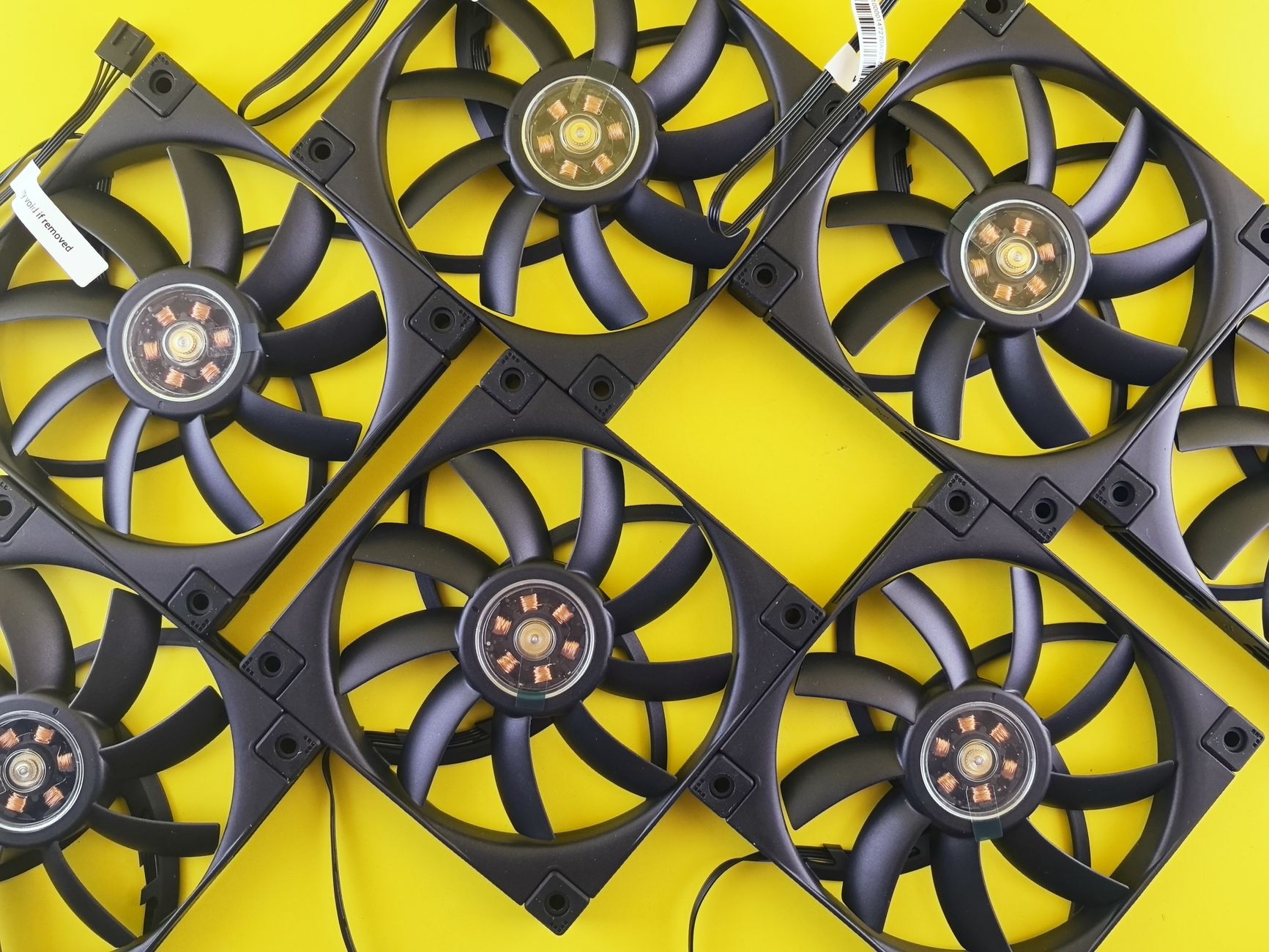
Hardware preparation is not optional. The Pi 5 runs hotter than the Pi 4 even at stock speeds, and pushing the clock higher without adequate cooling will trigger the thermal governor before you see any real benefit. The official Raspberry Pi Active Cooler is the minimum viable solution here – it mounts directly to the board and keeps temperatures manageable under sustained load. A quality third-party heatsink with a fan will also work, but passive cooling alone is not sufficient for serious overclocking.
Beyond cooling, your power supply matters more than most guides admit. The Pi 5 requires a USB-C power supply rated at 5V/5A – the official 27W adapter – to operate at full capacity. Running overclocked on an underpowered supply produces unpredictable behavior that looks exactly like instability from bad clock settings. If you are troubleshooting crashes after overclocking and you are not using a proper 5A supply, start there before touching any configuration.
Your storage medium also plays a role. A high-speed microSD card or, better, an NVMe SSD via the Pi 5’s PCIe connector will ensure the system’s I/O is not a bottleneck when the CPU is running faster. Slow storage under a faster CPU creates a mismatch that can make benchmark results misleading and everyday use frustrating.
Editing the Config File
All overclocking on the Pi 5 happens through the /boot/firmware/config.txt file. Open it with sudo nano /boot/firmware/config.txt and scroll to the bottom. The three values you are working with are arm_freq, over_voltage_delta, and gpu_freq. A conservative starting point looks like this:
- arm_freq=2800 – brings the CPU to 2.8GHz, a modest step up from stock
- over_voltage_delta=50000 – provides a small additional voltage to support the higher clock
- gpu_freq=910 – slightly boosts the GPU alongside the CPU
Save the file, reboot, and run a stress test before touching the numbers again. The stress-ng package is straightforward to install via apt and will push all four cores to 100% for however long you set it. Run it for at least 15 minutes while monitoring temperature with vcgencmd measure_temp in a second terminal. If the board holds below 80 degrees Celsius and does not crash or throttle, the configuration is stable at that level.
Pushing to 3.0GHz requires increasing arm_freq=3000 and typically bumping over_voltage_delta to around 60000. Some units will handle this without issue. Others will crash during the stress test or refuse to boot entirely – silicon quality varies, and there is no guarantee every Pi 5 will hit the same ceiling. If the board fails to boot after a config change, hold Shift during startup to enter recovery mode, or remove the SD card and edit the config file from another machine. That fail-safe is worth knowing before you need it.
Going beyond 3.0GHz enters genuinely experimental territory. Some users report stable operation at 3.2GHz or even 3.4GHz with aggressive voltage settings, but the thermal load at those levels becomes difficult to manage without custom cooling solutions, and the over_voltage_delta values required start introducing long-term wear questions that no one has fully answered yet. The Pi 5 is not old enough to have reliable longevity data at extreme overclock settings.
Reading the Results Honestly
Benchmark numbers after overclocking will look impressive on paper. A jump from 2.4GHz to 3.0GHz on a synthetic CPU test produces a proportional score increase, but real-world workloads rarely see the same gains. Tasks that are memory-bound or I/O-bound will not scale with CPU frequency. If you are overclocking specifically to speed up a Python data processing script or a home automation server, profile that specific workload before and after – do not rely on general benchmarks to tell you whether the change helped your use case.
Emulation is one area where the gains are concrete and immediate. Running Nintendo 64 or PlayStation Portable titles through RetroArch on a stock Pi 5 is already solid, but demanding games that stutter at 2.4GHz often smooth out noticeably at 3.0GHz. The same applies to Kodi with high-bitrate video processing, local AI inference tasks using small language models, and real-time audio processing projects. These workloads are CPU-hungry in ways that actually respond to a faster clock.
Thermal behavior over long sessions is the metric most overclockers underreport. A system can pass a 15-minute stress test and still throttle during a two-hour compile job as the heatsink saturates and ambient temperature rises. Check your clock speed mid-workload with vcgencmd measure_clock arm – if the number is lower than your configured arm_freq, the board is throttling back to protect itself, and your overclock is not actually delivering what you set up.
The sweet spot for most Pi 5 owners who want genuine, reliable performance without constant monitoring sits at 2.8GHz with a quality active cooler. It is stable across essentially all retail units, requires only a modest voltage bump, and delivers a measurable improvement over stock without the trial-and-error ceiling-finding that 3.0GHz and above demands. Whether that extra 200MHz beyond 2.8GHz is worth the additional complexity depends entirely on what you are building – and how much time you want to spend troubleshooting instead of using it.