


What You Need to Know
Unreal Engine 5 has transformed architectural visualization from static renderings into immersive, real-time experiences. The engine’s photorealistic lighting systems, advanced material workflows, and virtual production capabilities make it a powerful alternative to traditional rendering software. Unlike conventional CAD-to-render pipelines that can take hours for single frames, UE5 delivers immediate visual feedback and allows clients to walk through spaces before construction begins.
This shift requires a different approach to project setup. You’ll need adequate hardware specifications, proper file organization, and an understanding of UE5’s unique asset management system. The learning curve exists, but the payoff includes faster iteration cycles, dynamic lighting scenarios, and interactive presentations that traditional rendering cannot match.

1. System Requirements and Hardware Setup
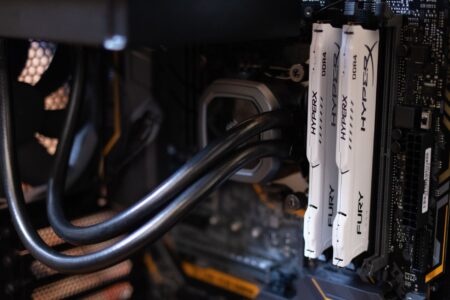
Your hardware directly impacts UE5’s performance for architectural work. The minimum viable setup includes an NVIDIA GTX 1060 or AMD RX 580, 16GB RAM, and an Intel i7 or AMD Ryzen 7 processor. However, architectural visualization benefits significantly from higher specifications.
For professional workflows, target an RTX 3070 or better for real-time ray tracing capabilities. Lumen global illumination and Nanite virtualized geometry systems demand substantial GPU memory. 32GB of system RAM prevents bottlenecks when handling large architectural models with detailed materials and textures.
Storage configuration matters more than many realize. Install UE5 on an SSD, preferably NVMe, with at least 100GB free space for the engine and initial projects. Architectural projects with high-resolution textures can consume 20-50GB per project, so plan accordingly.
2. Download and Installation Process
Navigate to Epic Games’ official website and download the Epic Games Launcher. Create an Epic Games account if needed, then locate Unreal Engine in the launcher’s library section. The current UE5 version requires approximately 15GB of download bandwidth and 30GB of installation space.
During installation, customize the components based on your architectural needs. Include the Starter Content for basic materials and meshes, but skip game development templates unless specifically needed. The Architecture, Engineering, and Construction template provides relevant starting assets.
Enable additional plugins during setup. Datasmith import capabilities prove essential for CAD file workflows, while Chaos Physics supports advanced simulations. The installation process typically completes within 30-60 minutes depending on internet speed and system specifications.
3. Project Creation and Template Selection
Launch UE5 and select “Games” as your project category, then choose the “Architectural Visualization” template. This template includes optimized lighting settings, material libraries, and example scenes designed for architectural content. Set your target platform to “Desktop” and enable ray tracing features if your hardware supports them.
Name your project using clear, consistent conventions. Avoid spaces and special characters in project names, as these can cause issues with file paths later. Create a dedicated folder structure on your primary drive with adequate space for project growth.
Configure initial project settings before adding content. Navigate to Project Settings > Rendering and verify that Lumen Global Illumination and Lumen Reflections are enabled. These systems provide real-time lighting updates essential for architectural visualization workflows.
4. CAD File Import and Preparation
Architectural models require preparation before UE5 import. Most CAD software exports to formats like FBX, OBJ, or uses Datasmith for direct integration. Datasmith supports Revit, SketchUp, 3ds Max, and Rhino files with maintained material assignments and scene hierarchy.
Before export, optimize your CAD models by removing unnecessary geometry, consolidating materials, and ensuring proper scale units. UE5 uses centimeters as default units, so verify your model’s scale during import. Large architectural models may require splitting into multiple mesh components for better performance management.
Import your prepared models through the Content Browser’s import function. Datasmith files maintain more scene information than standard FBX exports, including lighting setups and material networks. The import process creates a folder structure mirroring your original file organization, making asset management more intuitive.
5. Material Setup and PBR Workflow
Unreal Engine 5 uses Physically Based Rendering (PBR) materials that simulate real-world surface properties. Create materials through the Content Browser’s right-click menu, selecting “Material” from the create options. The material editor opens a node-based system for building complex surface behaviors.
Architectural materials require specific input types: Base Color for surface appearance, Normal maps for surface detail, Roughness for surface smoothness variation, and Metallic values for material conductivity. Import texture maps at appropriate resolutions – typically 1024×1024 or 2048×2048 pixels for architectural surfaces.
Connect texture nodes to material inputs using the visual node editor. Enable “Use Full Precision UVs” for large architectural surfaces to prevent texture stretching artifacts. Test materials on sample geometry before applying to final architectural elements, as lighting conditions significantly affect material appearance.
6. Lighting Configuration and Environment Setup
Lighting defines the quality of architectural visualization. UE5’s Lumen system provides real-time global illumination without pre-baked lighting calculations. Place a Directional Light actor for sun simulation, adjusting intensity and color temperature to match desired environmental conditions.
Add Sky Light actors for ambient illumination and HDRI environment backgrounds. High Dynamic Range Images provide realistic environment lighting and reflections. The UE5 content examples include several architectural-appropriate HDRI options, or import custom environment maps for specific project requirements.
Configure Lumen settings through the Post Process Volume actor. Increase Lumen Scene Detail and Final Gather Quality for higher-quality illumination at the cost of performance. Enable Screen Space Reflections as a fallback for surfaces where Lumen reflections may not provide sufficient detail.
7. Camera Setup and Composition Tools
Architectural visualization requires precise camera control for consistent viewpoints and professional presentation. Create Camera actors through the Modes panel, positioning them at eye level (approximately 160-170cm height) for human-scale perspectives. Enable “Constrain Aspect Ratio” to maintain consistent framing across different output formats.
Use the Sequencer tool for animated camera movements and lighting changes. Create level sequences to demonstrate different times of day, seasonal variations, or design alternatives. The Cine Camera actor provides professional camera controls including focal length, aperture, and depth of field settings that match real photography equipment.
Configure camera settings for architectural photography standards. Set focal lengths between 24-35mm for interior spaces and 50-85mm for exterior elevations. Adjust exposure compensation through the camera’s exposure settings or post-process volume controls to achieve proper architectural lighting balance.
8. Performance Optimization Techniques
Architectural models often contain millions of polygons that can overwhelm rendering systems. UE5’s Nanite virtualized geometry system automatically manages polygon complexity, but requires proper setup. Enable Nanite on imported static meshes through the mesh editor’s details panel, particularly for detailed architectural elements and landscaping.
Implement Level of Detail (LOD) systems for objects viewed at varying distances. Create simplified geometry versions for distant viewing angles while maintaining detail for close inspection. The automatic LOD generation tools provide starting points, though manual optimization often yields better results for architectural content.

Monitor performance through UE5’s Stat commands. Type “stat fps” in the console to display frame rate information, and “stat gpu” to identify rendering bottlenecks. Architectural projects typically target 30-60 FPS for real-time walkthroughs, though higher frame rates improve user experience during interactive presentations.
Key Takeaways
Unreal Engine 5 architectural visualization setup requires methodical attention to hardware specifications, proper file organization, and understanding of real-time rendering workflows. The engine’s Lumen lighting system and Nanite geometry handling provide immediate visual feedback that traditional rendering workflows cannot match, but demand modern hardware capabilities and optimized asset preparation.
Success depends on balancing visual quality with performance requirements. Professional architectural visualization projects benefit from dedicated GPU hardware, systematic material development, and careful scene optimization. The initial learning investment pays dividends through faster client iterations and more engaging project presentations.
Consider whether your current workflow truly benefits from real-time capabilities – some projects may achieve better results with traditional rendering approaches, particularly those requiring specific lighting conditions or ultra-high-resolution outputs that exceed UE5’s real-time limitations.