

What You Need to Know
AMD’s Ryzen 9000 series processors bring serious computational power to AI development workloads. Built on the Zen 5 architecture with support for advanced vector instructions and high core counts, these CPUs excel at machine learning tasks, data preprocessing, and AI model training when properly configured.
Setting up your Ryzen 9000 system for AI development requires more than just installing Python and TensorFlow. You’ll need to optimize memory configurations, enable specific CPU features, configure threading properly, and select the right development environment. This guide walks you through each step to maximize your AI development performance.
The Ryzen 9000 series supports AVX-512 instructions and features improved branch prediction, making it particularly effective for mathematical operations common in machine learning. However, unlocking this potential requires careful system setup and software configuration.
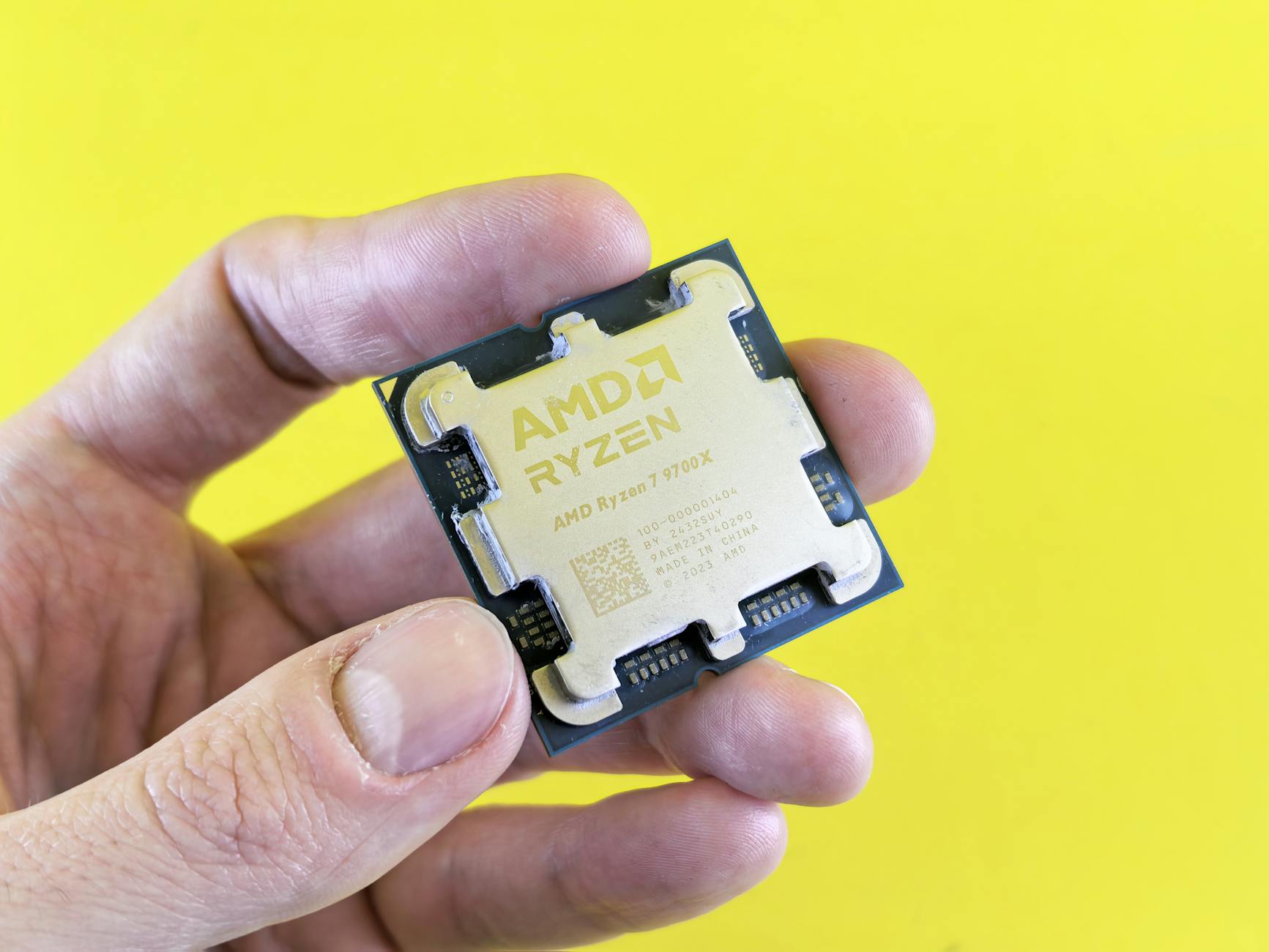
1. Verify Your Hardware Configuration
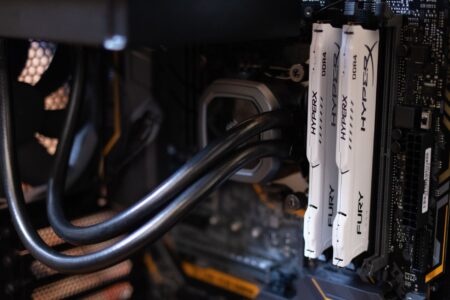
Before diving into software setup, confirm your hardware meets AI development requirements. Your Ryzen 9000 processor should be paired with at least 32GB of DDR5 RAM running at 5600 MHz or higher. AI workloads are memory-intensive, and insufficient RAM will bottleneck performance regardless of CPU power.
Check your motherboard’s memory configuration in BIOS. Enable EXPO (Extended Profiles for Overclocking) profiles to ensure your RAM runs at rated speeds. Many systems default to JEDEC standards, leaving performance on the table.
Verify your cooling solution can handle sustained high loads. AI training sessions can run for hours or days, maintaining high CPU utilization. A quality air cooler or AIO liquid cooling system prevents thermal throttling that would reduce performance.
Install a fast NVMe SSD for your AI datasets and model storage. Large language models and image datasets can exceed hundreds of gigabytes. A PCIe 4.0 SSD provides the bandwidth needed for efficient data loading during training.
2. Install and Configure Ubuntu for AI Development
While Windows supports AI development, Ubuntu provides better performance and compatibility with AI frameworks. Download Ubuntu 22.04 LTS or 24.04 LTS for the best balance of stability and modern package support.
During installation, allocate sufficient swap space. Even with abundant RAM, AI workloads can benefit from swap during memory-intensive operations. Set swap size to match your RAM amount for systems with 32GB or less.
After installation, update the kernel to the latest version compatible with your Ryzen 9000 processor. New kernels include optimizations for Zen 5 architecture features.
Configure CPU scaling governors for performance. Edit `/etc/default/grub` and add `intel_pstate=disable` to GRUB_CMDLINE_LINUX_DEFAULT, then install and configure cpufrequtils to maintain high clock speeds during AI workloads.
3. Optimize System Settings for AI Workloads
Modify system limits to handle AI development requirements. Edit `/etc/security/limits.conf` and increase the maximum number of open files and processes. AI frameworks often open numerous temporary files during model training.
Configure transparent huge pages for better memory management. Add `transparent_hugepage=madvise` to your kernel parameters. This allows applications to request large pages when beneficial while maintaining system stability.
Disable unnecessary services that consume CPU cycles. Stop services like cups, bluetooth, and other desktop services if running a dedicated AI development system. Every CPU cycle counts during intensive training sessions.
Set CPU affinity for AI processes to prevent context switching overhead. Modern AI frameworks can utilize all available cores effectively when properly configured.
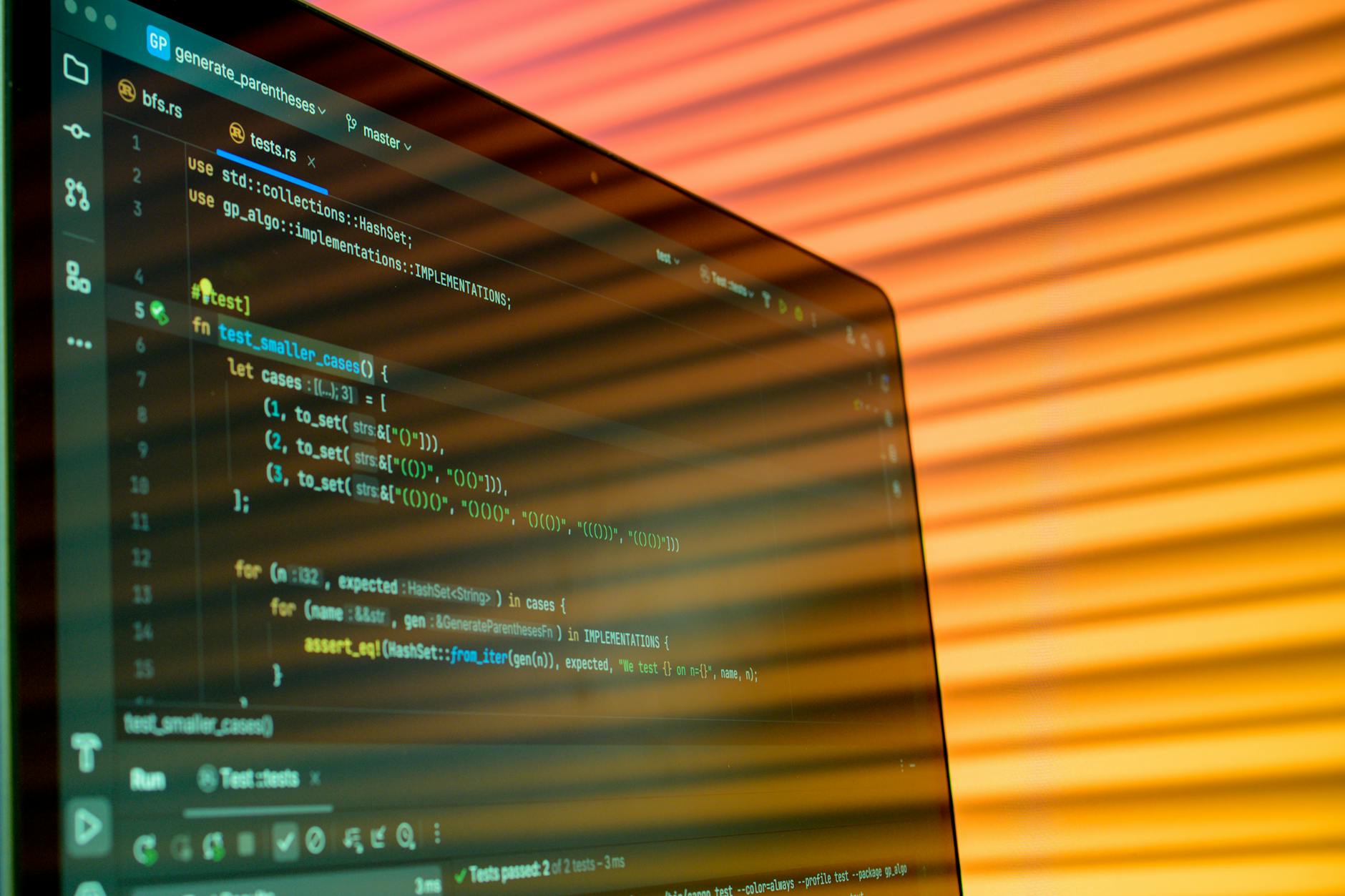
4. Install AI Development Frameworks and Libraries
Start with Miniconda or Anaconda for Python environment management. AI development requires specific versions of numerous packages, and conda environments prevent conflicts between projects.
Create a dedicated environment for your AI work: `conda create -n ai-dev python=3.11`. Python 3.11 offers performance improvements particularly beneficial for numerical computing.
Install PyTorch with CPU optimizations. Use `conda install pytorch cpuonly -c pytorch` to get the CPU-optimized build. PyTorch automatically detects and utilizes AVX-512 instructions on Ryzen 9000 processors.
Add TensorFlow with Intel optimizations: `pip install intel-tensorflow`. Intel’s optimized TensorFlow build includes mathematical kernel library (MKL) optimizations that significantly improve performance on x86 processors.
Install NumPy, SciPy, and scikit-learn built with optimized BLAS libraries. Use `conda install numpy scipy scikit-learn` to get versions linked against Intel MKL or OpenBLAS.
5. Configure Threading and Parallelization
Set environment variables to optimize threading behavior. Add these to your `.bashrc` or conda environment activation script:
`export OMP_NUM_THREADS=16` (adjust based on your CPU core count)
`export MKL_NUM_THREADS=16`
`export OPENBLAS_NUM_THREADS=16`
Configure TensorFlow threading: `export TF_CPP_MIN_LOG_LEVEL=2` and `export TF_ENABLE_ONEDNN_OPTS=1` for additional optimizations.
For PyTorch, set `torch.set_num_threads(16)` in your training scripts. This prevents over-subscription when running multiple processes.
Consider using taskset to bind AI processes to specific cores, especially beneficial for multi-process training setups or when running multiple experiments simultaneously.
6. Install Development Tools and IDEs
Install Visual Studio Code with Python and Jupyter extensions for interactive development. VS Code provides excellent debugging support for AI projects and integrates well with conda environments.
Set up Jupyter Lab for notebook-based development: `conda install jupyterlab`. Configure Jupyter to use your optimized environment and enable extensions for enhanced functionality.
Install Git for version control and DVC (Data Version Control) for managing datasets and model versions. Large AI projects require robust version control for both code and data.
Consider installing Docker for containerized development environments. Container-based workflows ensure reproducibility across different development and deployment environments.
7. Benchmark and Validate Your Setup
Run benchmark tests to verify your configuration performs optimally. Use PyTorch’s built-in benchmarking tools or TensorFlow’s performance testing utilities to measure training throughput.
Test memory bandwidth with tools like STREAM benchmark to ensure your RAM configuration provides expected performance. AI workloads are often memory-bound, making RAM performance critical.
Monitor CPU temperatures and clock speeds during extended training sessions using tools like htop, sensors, or dedicated monitoring software. Thermal throttling can significantly impact training performance.
Validate that your setup can handle your specific AI workloads by running sample training jobs with datasets similar to your actual projects.

Key Takeaways
Setting up AMD Ryzen 9000 series processors for AI development requires attention to both hardware configuration and software optimization. Proper memory setup, kernel configuration, and framework installation unlock the full potential of these powerful CPUs.
The combination of high core counts, advanced vector instructions, and optimized AI frameworks makes Ryzen 9000 processors excellent choices for AI development workloads. Following these configuration steps ensures you maximize performance while maintaining system stability.
Remember that AI development is iterative. Start with basic configurations and gradually optimize based on your specific workloads and performance requirements. Monitor system performance regularly and adjust settings as your projects evolve.
Similar to setting up dual boot environments for development, proper initial configuration saves countless hours of troubleshooting and performance issues later in your AI development journey.
Frequently Asked Questions
What RAM configuration works best with Ryzen 9000 for AI development?
At least 32GB DDR5 at 5600 MHz or higher with EXPO profiles enabled for optimal AI workload performance.
Should I use Windows or Linux for AI development on Ryzen 9000?
Ubuntu Linux typically provides better performance and framework compatibility for AI development workloads.