



Why Jellyfin Is Worth Your Time
Streaming subscriptions have quietly stacked up into a significant monthly expense for most households. Between the rotating catalogs, password-sharing crackdowns, and ads creeping into tiers that used to be ad-free, the value proposition of renting access to someone else’s library has gotten harder to justify. Jellyfin offers a different model entirely: run your own media server, stream your own files, and pay nothing beyond the hardware you already own.
Jellyfin is free, open-source, and built without the telemetry or premium paywalls found in alternatives like Plex or Emby. It handles movies, TV shows, music, and live TV through a single web interface that looks and feels close enough to a commercial streaming service that household members rarely complain. Getting it running takes about 30 minutes if you follow the steps correctly, and the setup covered here uses Docker, which keeps everything clean and easy to update.
What You Need Before Starting
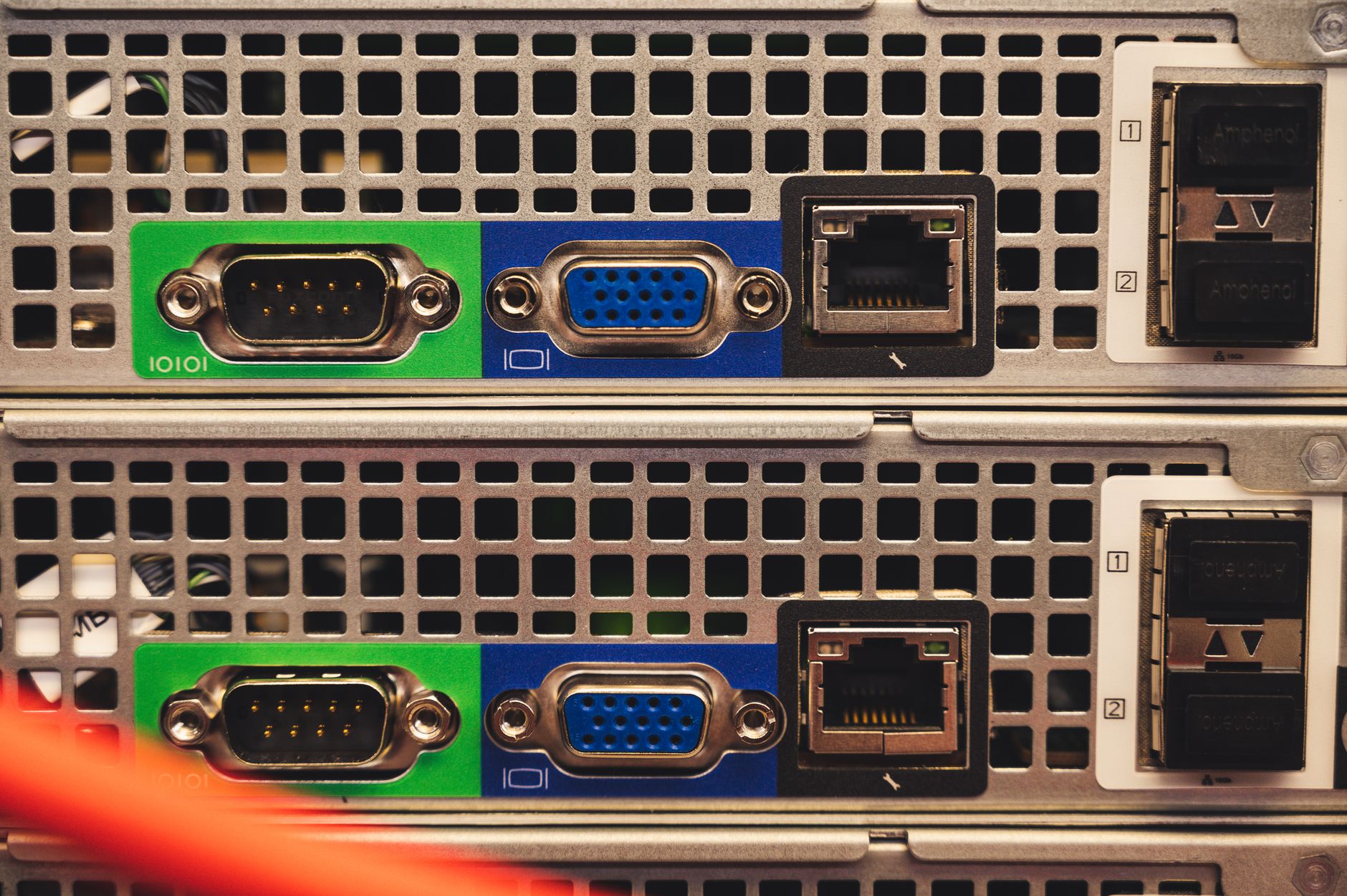
The minimum requirements are modest. A machine running Linux (Ubuntu 22.04 LTS works well), Docker and Docker Compose installed, and a drive with enough space to hold your media library. A Raspberry Pi 4 with 4GB RAM can handle a couple of simultaneous streams at standard definition, but for 4K transcoding you want a proper x86 machine or a device with hardware acceleration support – Intel Quick Sync or an NVIDIA GPU being the most reliable options. If your server is already running Docker, you may already have Portainer set up for visual container management, which makes monitoring Jellyfin’s container straightforward.
Before writing a single line of configuration, decide where your media will live. Jellyfin does not move or copy files – it reads them in place. Create a clean directory structure before you start: separate folders for Movies, TV Shows, and Music. Jellyfin’s metadata scrapers work best when your files follow a predictable naming pattern. For movies, use Movie Title (Year).mkv. For TV episodes, use Show Name/Season 01/Show Name S01E01.mkv. Sloppy naming causes mismatched posters and missing episode data, which is the most common frustration new users run into.

Installing Jellyfin With Docker Compose
Create a project directory and inside it a file called docker-compose.yml. The configuration below is the standard starting point, adapted for a typical Linux home server setup. Paste the following into that file:
version: “3.5”
services:
jellyfin:
image: jellyfin/jellyfin:latest
container_name: jellyfin
network_mode: host
volumes:
– /path/to/config:/config
– /path/to/cache:/cache
– /path/to/media:/media:ro
restart: unless-stopped
Replace the volume paths with your actual directories. The :ro flag on the media mount sets it to read-only, which is good practice – Jellyfin has no reason to write to your media files. Run docker compose up -d from the project directory, wait for the image to pull, and then navigate to http://your-server-ip:8096 in a browser. The setup wizard walks you through creating an admin account and adding your first media library. Point it at the directories you created earlier and let the initial metadata scan finish before judging the results – it can take several minutes on a large library.
Hardware acceleration needs one additional step. If you have an Intel CPU with integrated graphics, add the following to the service block in your Compose file, then run docker compose down and docker compose up -d again to apply it:
devices:
– /dev/dri:/dev/dri
Inside Jellyfin’s dashboard, go to Admin – Dashboard – Playback – Transcoding and set the hardware acceleration type to Video Acceleration API (VAAPI). This offloads transcoding from the CPU, which makes a meaningful difference when multiple people are streaming simultaneously or when the source file is in a format the client cannot play natively.
Connecting Clients and Going Further
Jellyfin has official apps for Android, iOS, Android TV, and Amazon Fire TV. On smart TVs without a dedicated app, the web interface works through any Chromium-based browser, and Kodi users can install the Jellyfin for Kodi add-on to bring their existing Kodi setup into the same ecosystem. The web client at port 8096 handles most use cases well enough that many users never install a dedicated app.
Remote access – streaming your library when you are away from home – requires either opening port 8096 on your router and pointing a domain at your server’s public IP, or running Jellyfin behind a reverse proxy like Nginx Proxy Manager with HTTPS enabled. A self-signed certificate is enough to encrypt traffic, but a proper domain with a Let’s Encrypt certificate keeps browser warnings away. Skip this step if you only plan to use Jellyfin on your local network; there is no functional reason to expose it to the internet if you do not need it.

Metadata quality depends heavily on which sources Jellyfin is configured to pull from. The default scrapers use TheMovieDB and TheTVDB, both of which cover mainstream releases well but can fall short on foreign films, documentary series, or niche content. You can install community plugins through the dashboard under Admin – Plugins – Catalog. The AniDB plugin handles anime libraries significantly better than the default scrapers. The Playback Reporting plugin adds watch history graphs if you want visibility into what actually gets watched.
One area where Jellyfin still lags behind Plex is the overall polish of mobile apps and the reliability of offline sync. The iOS and Android apps have improved considerably over the past two years, but audio-only mode, background playback, and download-for-offline features are inconsistently implemented depending on which app version and server version you pair. If offline downloads are a hard requirement for how your household uses media, test this thoroughly before fully committing and decommissioning existing subscriptions. The desktop browser experience and the Android TV app are consistently the strongest interfaces – both are stable and rarely produce the buffering or login issues that sometimes appear in the mobile clients.



