



What You Need to Know
Setting up a home AI assistant for multi-language family communication bridges language barriers and creates a more inclusive smart home environment. Whether you’re managing a household where parents speak Spanish, kids prefer English, and grandparents are most comfortable with Mandarin, today’s AI assistants can handle multiple languages simultaneously.
The key lies in proper configuration of language settings, voice recognition profiles, and communication preferences. Most modern AI assistants including Amazon Alexa, Google Assistant, and Apple Siri support multilingual households, but the setup process requires specific steps to ensure smooth operation across different languages.
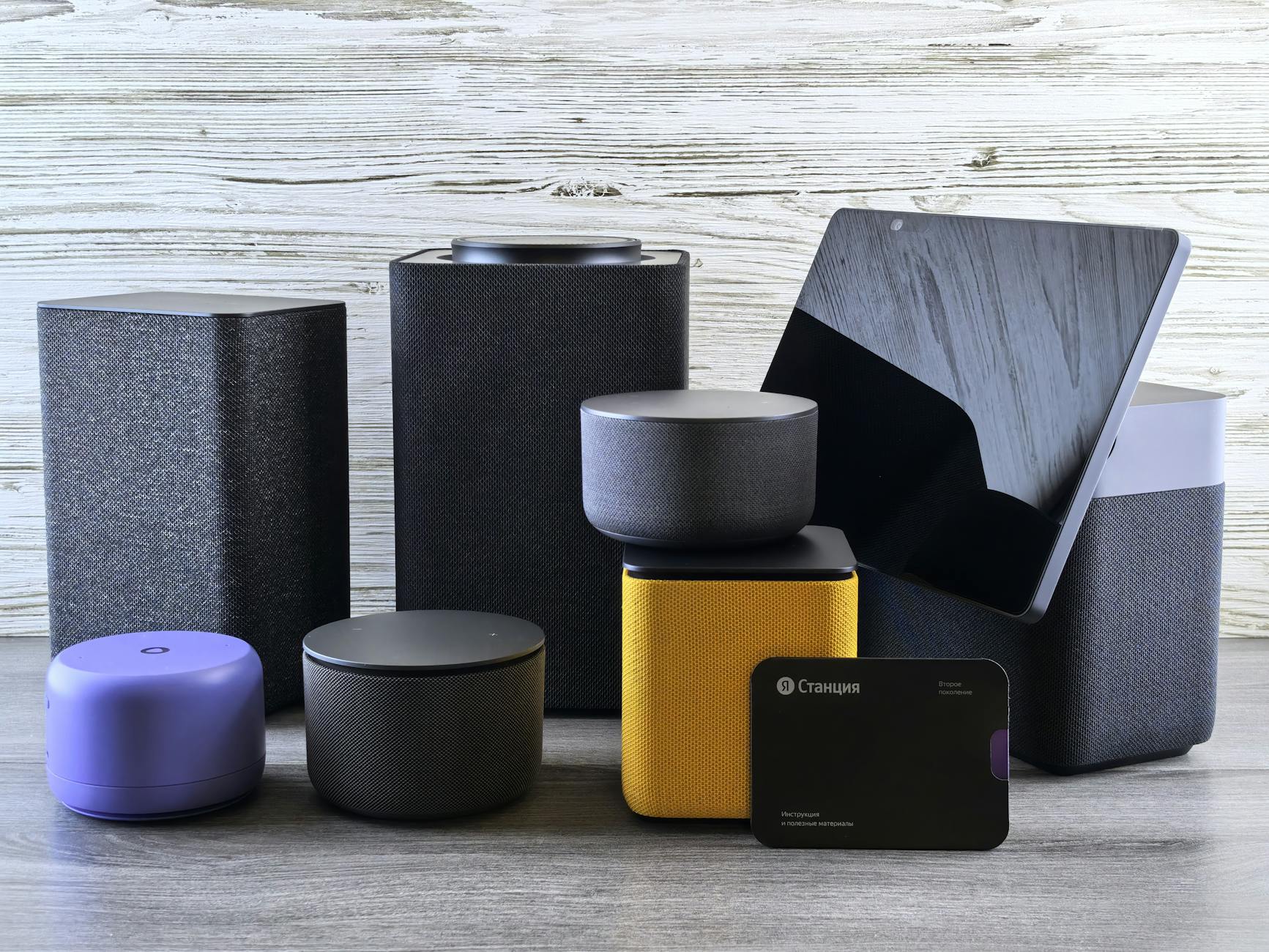
Step 1: Choose Your Multi-Language AI Assistant Platform
Start by selecting an AI assistant that supports your family’s languages. Google Assistant currently supports over 30 languages and can understand multiple languages in a single conversation. Amazon Alexa supports bilingual mode for English paired with Spanish, French, German, Japanese, or Hindi. Apple Siri works with over 20 languages but requires manual switching between them.
Google Assistant offers the most flexibility for true multilingual families, as it can detect and respond in the language you’re speaking without requiring mode switches. Download the Google Home app on your smartphone and ensure your smart speakers or displays are compatible with multilingual features.
Step 2: Configure Primary Language Settings
Open your AI assistant’s main app and navigate to language settings. For Google Assistant, go to Settings > Assistant > Languages. You can add up to two languages that the assistant will understand simultaneously. Select your family’s two most commonly used languages first.
If your family uses more than two languages regularly, prioritize the ones used most frequently for smart home commands. You can always adjust these settings later as usage patterns become clear. Make sure to select the appropriate regional dialect for each language, as this affects accent recognition and local information delivery.
Step 3: Create Individual Voice Profiles
Set up voice recognition profiles for each family member to ensure personalized responses in their preferred language. In Google Home, go to Assistant Settings > Your People > Voice Match. Each family member should train the assistant by saying “Hey Google” and “OK Google” multiple times.
During voice training, have each person speak in their preferred language. This helps the AI associate specific voice patterns with language preferences. The assistant will learn to respond to each family member in their trained language while understanding commands in any configured language.
Step 4: Configure Smart Home Device Language Preferences
Walk through your connected smart home devices and configure language settings for each room or device group. Smart displays in the kitchen might default to the primary household language, while devices in individual bedrooms can be set to each person’s preferred language.
For devices that support routine customization, create language-specific routines. A “good morning” routine might announce weather in English for one family member and Spanish for another. Label your smart home devices with names that work across all configured languages to avoid confusion.
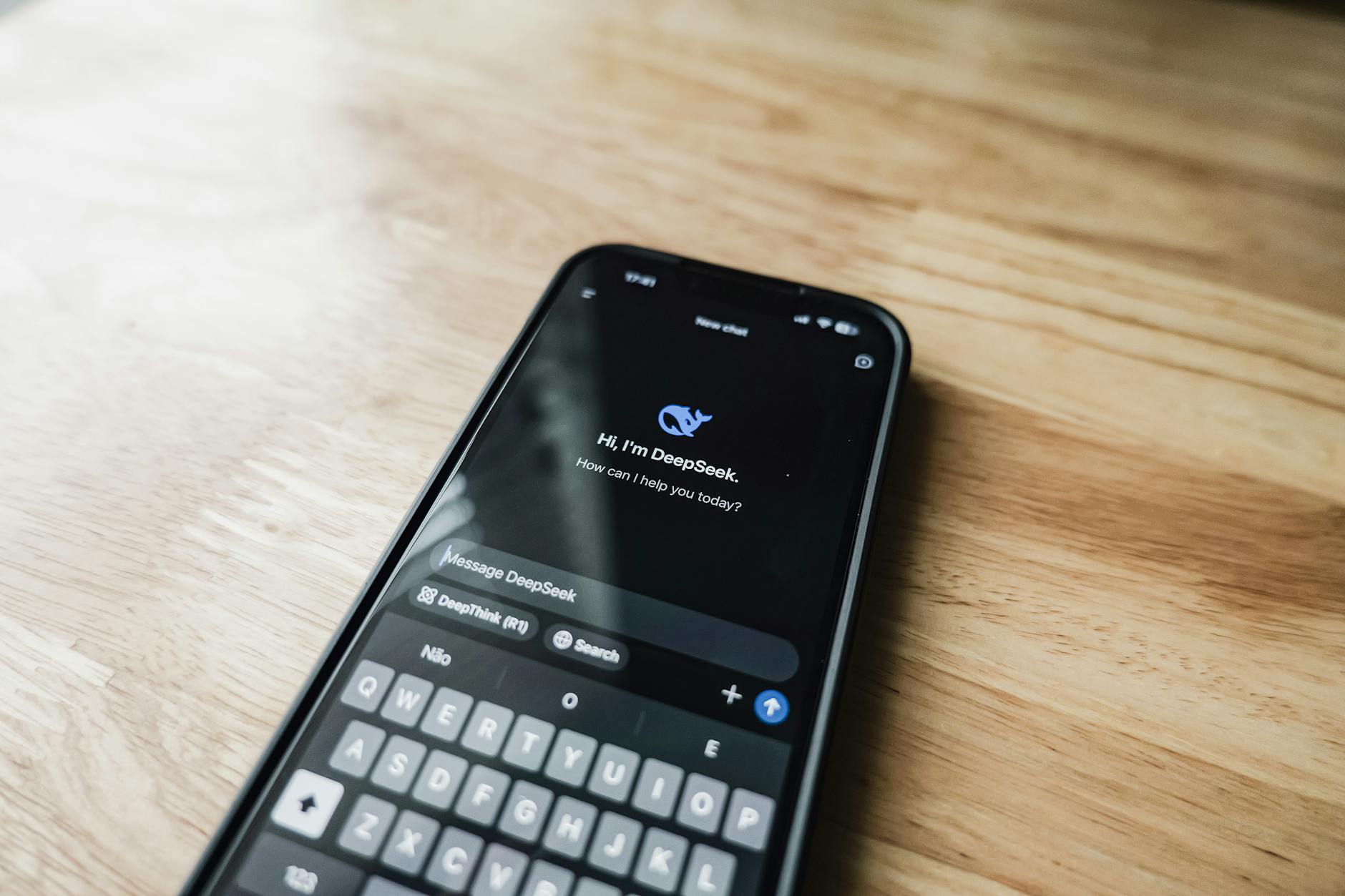
Step 5: Set Up Translation and Communication Features
Enable interpreter mode or conversation features that allow real-time translation between family members. Google Assistant’s interpreter mode supports conversation between two people speaking different languages, making it perfect for helping family members communicate across language barriers.
Create shortcuts for common translation needs. Set up routines like “family translation time” that automatically activates interpreter mode between your two most-used languages. This feature proves invaluable during family gatherings or when helping children with homework in a non-native language.
Step 6: Configure Calendar and Messaging in Multiple Languages
Connect family calendars and ensure the AI assistant can announce events and reminders in each person’s preferred language. Link Google Calendar, Apple Calendar, or Outlook accounts and verify that event titles and descriptions display correctly in different languages.
Set up family communication features like broadcasting messages throughout the house. The AI assistant can deliver messages in the recipient’s preferred language, even if the sender speaks a different language. This creates seamless communication across language barriers within your home.
Step 7: Test Cross-Language Functionality
Spend time testing various scenarios to ensure smooth operation across languages. Try asking questions in different languages, requesting music or news in specific languages, and using smart home controls with multilingual commands.
Test edge cases like asking for weather in English but wanting the temperature in Celsius, or requesting cooking timers with instructions in Spanish. Document any commands that don’t work as expected and adjust language settings or voice training accordingly.
Step 8: Optimize for Children and Elderly Users
Configure parental controls and child-friendly responses in appropriate languages. Google Family Link and similar services allow you to set content filters and time restrictions that work across language settings. Ensure educational content requests return age-appropriate results in the child’s preferred language.
For elderly family members, simplify voice commands and create custom shortcuts for frequently used functions. Practice common phrases and commands with them in their preferred language, focusing on essential functions like emergency contacts, medication reminders, and entertainment requests.
Step 9: Set Up News and Entertainment Preferences
Configure news sources, music services, and entertainment options for each language. Your AI assistant can deliver Spanish-language news to one family member while providing English headlines to another. Link multiple music streaming accounts if needed to access content in different languages.
Create personalized routines that include language-specific content. A morning routine might include news in English, weather in Spanish, and traffic updates in the language most relevant to the commuter’s destination country or region.

Key Takeaways
Multi-language AI assistant setup transforms your smart home into an inclusive communication hub that serves every family member in their preferred language. The process requires careful attention to voice training, device configuration, and routine customization, but the results create seamless multilingual experiences.
Success depends on choosing the right platform for your language combination, properly training voice recognition for each family member, and regularly testing functionality across different scenarios. Google Assistant currently offers the most comprehensive multilingual support, while Amazon Alexa and Apple Siri provide solid bilingual options.
Remember that language technology continues evolving rapidly. Regularly update your AI assistant software and review new language features as they become available. The investment in proper setup pays dividends in improved family communication and a truly personalized smart home experience for everyone.
Just as setting up development environments requires attention to detail and proper configuration, creating an effective multilingual smart home demands patience and systematic testing to ensure every family member can communicate naturally and effectively with their AI assistant.
Frequently Asked Questions
Can Google Assistant understand multiple languages simultaneously?
Yes, Google Assistant can understand and respond to two languages at once without requiring manual switching between language modes.
Do I need separate devices for different languages?
No, most modern AI assistants can handle multiple languages on the same device through voice recognition profiles and language settings.