


What You Need to Know
Windows 11’s virtual desktop feature transforms how you manage multiple projects and workflows. Instead of juggling dozens of open windows on a single screen, virtual desktops let you create dedicated workspaces for different tasks – one for work projects, another for research, and a third for personal activities.
Virtual desktops aren’t just about organization. They boost productivity by reducing mental clutter and context switching. When you switch between desktops, your brain doesn’t have to filter through irrelevant windows. Each desktop becomes a focused environment tailored to specific work modes.
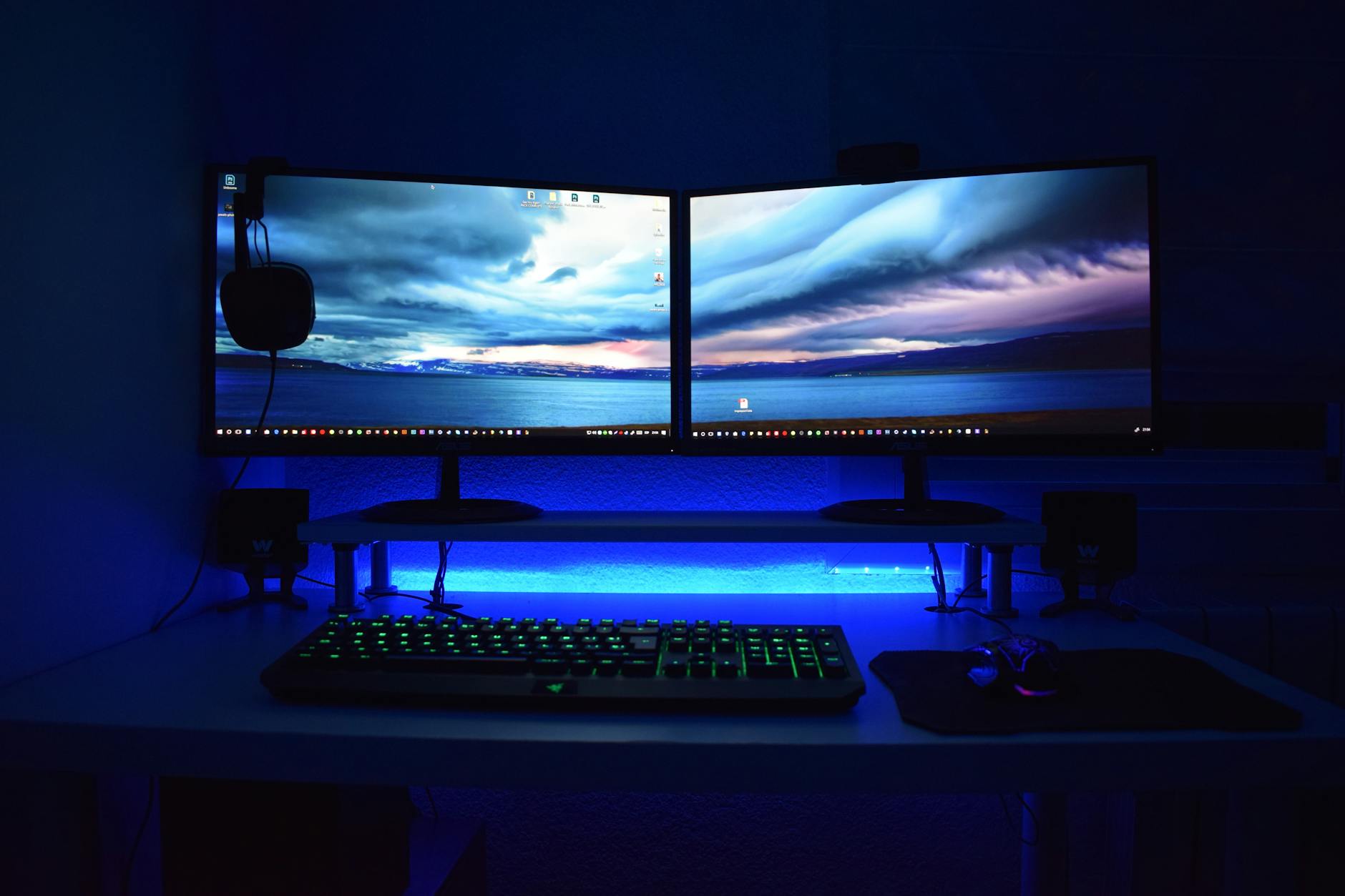
The feature works seamlessly across Windows 11 devices, from laptops to multi-monitor gaming setups where screen real estate management becomes even more crucial. Setting up virtual desktops takes less than five minutes, but the productivity gains compound daily.
Step 1: Access Task View and Create Your First Virtual Desktop
Windows 11 makes virtual desktop creation straightforward through the Task View interface. Press Windows key + Tab to open Task View, or click the Task View button in your taskbar – it looks like two overlapping rectangles.
In the Task View interface, you’ll see thumbnails of your open windows at the bottom and any existing virtual desktops at the top. Click “New Desktop” in the upper-left corner or press Ctrl + Windows key + D for instant desktop creation.
Your new virtual desktop appears as a thumbnail labeled “Desktop 2” by default. Each desktop maintains its own set of open applications and windows, creating completely separate work environments. The desktop you’re currently viewing shows a blue border around its thumbnail.
Step 2: Customize Desktop Names and Wallpapers
Generic desktop names like “Desktop 1” and “Desktop 2” won’t help you remember their purposes. Right-click any desktop thumbnail in Task View and select “Rename” to give it a meaningful name like “Work Projects,” “Research,” or “Creative Tasks.”
Each virtual desktop can have its own wallpaper for instant visual recognition. Right-click your desktop background, select “Personalize,” then choose “Background.” Your wallpaper change applies only to the current virtual desktop, so you can create distinct visual themes.
Consider using color-coded wallpapers or images that reflect each desktop’s purpose. A blue corporate background for work, green nature scenes for research, or dark themes for coding projects help your brain instantly recognize which workspace you’re in.
Step 3: Organize Applications Across Desktops
Moving applications between virtual desktops requires the Task View interface. Press Windows key + Tab to see all your desktops and open windows. Drag any window thumbnail from the bottom section onto your desired desktop thumbnail at the top.
Alternatively, right-click any window thumbnail and select “Move to” followed by your target desktop name. This method works faster when dealing with multiple windows that need relocation.
Some applications work better on dedicated desktops. Email clients, chat applications, and project management tools benefit from having their own space where notifications don’t interrupt focused work on other desktops.

Step 4: Master Keyboard Shortcuts for Rapid Switching
Keyboard shortcuts make virtual desktop navigation lightning-fast. Ctrl + Windows key + Left/Right arrows switches between desktops in order without opening Task View. This becomes muscle memory after a few days of use.
Windows key + Tab opens Task View for visual desktop switching and window management. Ctrl + Windows key + F4 closes the current virtual desktop and moves all its windows to the adjacent desktop.
Alt + Tab cycles through applications on your current desktop only, while Ctrl + Alt + Tab keeps the application switcher open for precise selection. These shortcuts eliminate the need to constantly reach for your mouse during focused work sessions.
Step 5: Configure Desktop-Specific Taskbar Settings
Windows 11 lets you customize how the taskbar behaves across virtual desktops. Right-click your taskbar, select “Taskbar settings,” then scroll to “Taskbar behaviors.”
Under “Show taskbar on all displays,” you’ll find options for how taskbar icons appear across desktops. Choose “All desktops” to see all running applications regardless of which desktop they’re on, or select “Taskbar where window is open” for desktop-specific taskbar icons.
The second option creates cleaner, more focused taskbars where each desktop only shows relevant applications. This reduces visual clutter and makes it easier to identify which programs are running in your current workspace.
Step 6: Set Up Desktop-Specific Startup Programs
Different work modes require different applications at startup. While Windows 11 doesn’t natively support desktop-specific startup programs, you can create this functionality using batch files and Task Scheduler.
Create a text file with the extension .bat containing commands to launch specific applications. For example, a work desktop batch file might include lines like “start outlook.exe” and “start teams.exe” to automatically open your essential work applications.
Save these batch files in an easily accessible folder, then create desktop shortcuts for quick execution. Advanced users can use Task Scheduler to run specific batch files at system startup or at designated times, automatically populating virtual desktops with relevant applications.
Step 7: Optimize Virtual Desktop Performance
Virtual desktops consume system resources based on the applications running across all desktops. Monitor your system’s memory usage through Task Manager to ensure smooth performance across multiple workspaces.
Close unnecessary applications on unused desktops rather than letting them run in the background. Each virtual desktop remembers its window arrangements, so you can safely close applications and reopen them later without losing your workspace organization.
Consider limiting yourself to 3-4 virtual desktops initially. Too many desktops can become as cluttered as a single desktop with too many windows. Focus on creating distinct, purposeful workspaces rather than endless desktop proliferation.
Key Takeaways
Virtual desktops in Windows 11 transform scattered window management into organized, purpose-driven workspaces. The setup process takes minutes, but the productivity benefits accumulate over weeks and months of use.
Start with three desktops – work, personal, and research or creative projects. Name them clearly, assign distinct wallpapers, and use keyboard shortcuts for rapid switching. This foundation provides immediate productivity gains without overwhelming complexity.
The real power emerges when virtual desktops become part of your daily workflow rhythm. Morning email checks happen on the communication desktop, afternoon project work occurs on the work desktop, and evening research or entertainment stays contained on the personal desktop. Each space maintains its own context, reducing the mental overhead of constant task switching.
Remember that virtual desktops work best when combined with good application organization habits. Don’t just recreate the chaos of a cluttered single desktop across multiple virtual spaces. Instead, use this opportunity to develop cleaner, more intentional computing habits that scale across all your work environments.
Frequently Asked Questions
How many virtual desktops can I create in Windows 11?
Windows 11 supports up to 32 virtual desktops, though 3-4 desktops typically provide the best balance of organization and usability.
Do virtual desktops affect computer performance?
Virtual desktops use minimal system resources themselves, but performance depends on the total applications running across all desktops.