



What You Need to Know
Setting up a VPN server on your home router transforms your personal network into a secure gateway you can access from anywhere. Instead of relying on third-party VPN services, running your own server gives you complete control over your data and eliminates monthly subscription costs. Modern routers with built-in VPN capabilities make this process surprisingly straightforward, requiring only basic networking knowledge and about 30 minutes of configuration time.
A home VPN server creates an encrypted tunnel between your remote device and your home network. This setup allows you to access local files, printers, and smart home devices while traveling, plus it routes all internet traffic through your home connection for added security on public Wi-Fi networks.
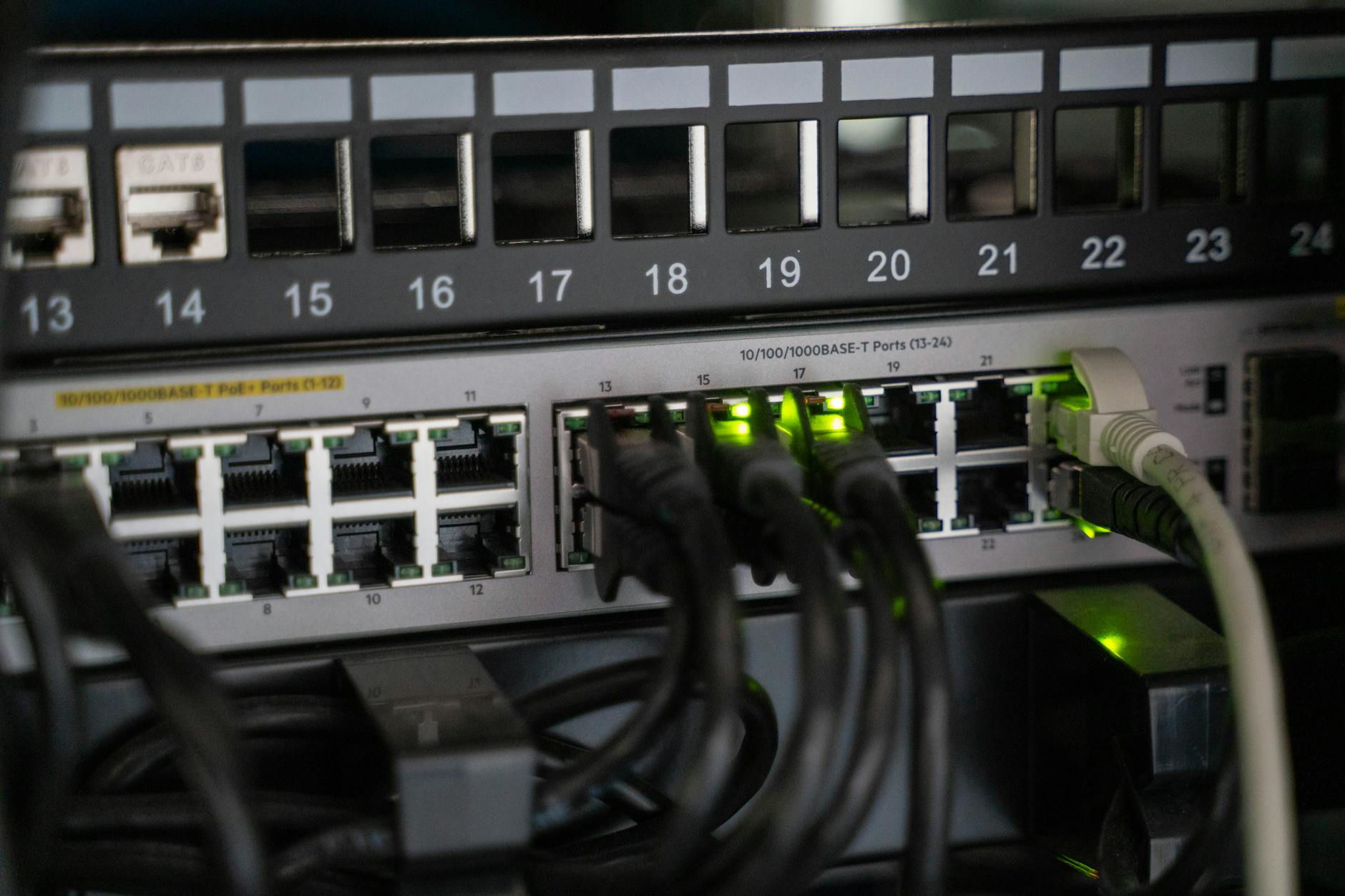
Step 1: Check Router Compatibility and Requirements
Not all routers support VPN server functionality. Check your router’s specifications for built-in VPN server support. Popular router brands like ASUS, Netgear, Linksys, and TP-Link typically include this feature in their mid-range and high-end models. Look for support for OpenVPN, which offers the best balance of security and compatibility across devices.
Your router needs sufficient processing power to handle VPN encryption without significantly impacting network performance. Routers with dual-core processors running at 800MHz or higher typically handle VPN operations smoothly. Also verify your internet connection provides sufficient upload bandwidth, as VPN performance depends heavily on your upload speed rather than download speed.
Before proceeding, ensure your router firmware is updated to the latest version. Manufacturers regularly patch security vulnerabilities and improve VPN functionality through firmware updates.
Step 2: Configure Dynamic DNS Service
Most home internet connections use dynamic IP addresses that change periodically. A Dynamic DNS service creates a permanent domain name that automatically updates when your IP address changes, ensuring consistent VPN access.
Many router manufacturers offer free DDNS services. ASUS provides ASUSCOMM.com domains, while Netgear offers ReadyShare.com addresses. Third-party services like No-IP, DynDNS, and Duck DNS also work well. Create an account with your chosen DDNS provider and note your assigned domain name.
Access your router’s administration panel by typing its IP address (typically 192.168.1.1 or 192.168.0.1) into your web browser. Navigate to the DDNS or Dynamic DNS section, usually found under Advanced Settings or WAN configuration. Enter your DDNS service credentials and enable automatic updates.
Step 3: Enable VPN Server on Router
Locate the VPN server settings in your router’s admin interface. This section might be labeled as “VPN Server,” “OpenVPN Server,” or found under Advanced Settings. Enable the VPN server function and select OpenVPN as the protocol for maximum compatibility.
Configure the basic server settings. Set the VPN port (default is usually 1194), choose the authentication method, and specify the IP address range for VPN clients. Most routers automatically suggest appropriate settings, but you can customize the client IP range to avoid conflicts with your local network addressing scheme.
Generate the necessary certificates and keys. Modern routers automate this process through a built-in certificate authority. The router creates a server certificate, certificate authority certificate, and client certificates needed for secure connections. This process may take several minutes to complete.

Step 4: Configure Firewall and Port Forwarding
Your router’s firewall needs to allow incoming VPN connections. Most routers automatically configure firewall rules when you enable the VPN server, but some require manual configuration. Ensure the VPN port (typically 1194 for OpenVPN) is open for both TCP and UDP traffic.
If your router is connected behind another router or modem, configure port forwarding on the upstream device. Forward the VPN port to your router’s internal IP address. This step is crucial for VPN connections to reach your server from external networks.
Test the firewall configuration using online port checking tools. Enter your external IP address and VPN port number to verify the port is accessible from the internet. If the port shows as closed, double-check your firewall and port forwarding settings.
Step 5: Download and Configure Client Certificates
Your router generates client configuration files containing the certificates and settings needed to connect to your VPN server. Download these files from the router’s VPN section. The files typically have .ovpn extensions for OpenVPN clients.
Some routers provide a single configuration file, while others generate separate files for each client device. Download the appropriate files and store them securely, as they contain the keys needed to access your network.
Review the client configuration file contents. The file should include your DDNS domain name, port number, and embedded certificates. If using a static IP address instead of DDNS, manually edit the configuration file to replace the IP address when it changes.
Step 6: Install VPN Client Software
Install OpenVPN client software on devices you want to connect to your home VPN. Popular options include OpenVPN Connect for mobile devices, OpenVPN GUI for Windows, and Tunnelblick for macOS. These applications are free and available from their respective app stores or official websites.
Import the client configuration file into your VPN client software. Most applications support drag-and-drop or have an import function in their settings menu. The client automatically configures connection settings based on the imported file.
Test the VPN connection from outside your home network using mobile data or a different internet connection. A successful connection should show your home IP address when checking online IP lookup services. You should also be able to access local network resources like shared folders or printers.
Step 7: Optimize Performance and Security
Monitor VPN performance and adjust settings as needed. If connections feel slow, try changing the encryption cipher to a less resource-intensive option like AES-128 instead of AES-256. However, maintain strong security by keeping authentication methods robust.
Configure client-specific settings if your router supports this feature. You can assign static IP addresses to specific devices, limit bandwidth usage, or restrict access to certain network resources based on the connecting client.
Regularly update client certificates before they expire. Most router-generated certificates remain valid for several years, but setting calendar reminders ensures uninterrupted VPN access. Also monitor your router’s logs for unusual connection attempts or potential security issues.

Consider integrating your VPN setup with other home network projects. If you’re building a comprehensive home lab or setting up cloud gaming streaming, a VPN server provides secure remote access to these services while traveling.
Key Takeaways
Setting up a VPN server on your home router provides secure remote access to your network without ongoing subscription costs. The process requires a compatible router, dynamic DNS configuration, proper firewall settings, and client certificate management. Most modern routers automate much of the technical complexity, making home VPN servers accessible to users with basic networking knowledge.
Regular maintenance ensures optimal performance and security. Monitor connection logs, update firmware, refresh certificates before expiration, and test connectivity periodically from different locations. A properly configured home VPN server offers years of reliable, secure remote access to your personal network resources.
Frequently Asked Questions
Do all routers support VPN server functionality?
No, only mid-range and higher routers typically include built-in VPN server capabilities. Check your router’s specifications for OpenVPN support.
How does a home VPN server differ from commercial VPN services?
Home VPN servers route traffic through your home connection and provide access to local resources, while commercial services focus on privacy and geo-location changing.