

What You Need to Know
Multiple monitors transform your workspace from cramped to commanding. Research shows that dual-monitor setups can increase productivity by up to 42%, while triple-monitor configurations push that number even higher. The secret lies in eliminating the constant alt-tab dance and keeping all your essential applications visible simultaneously.
Setting up a multi-monitor workstation involves more than plugging in extra screens. You need the right hardware, proper positioning, and smart software configuration to maximize your investment. Whether you’re managing spreadsheets and emails or running complex development environments, the right setup can revolutionize how you work.

1. Choose Your Monitor Configuration
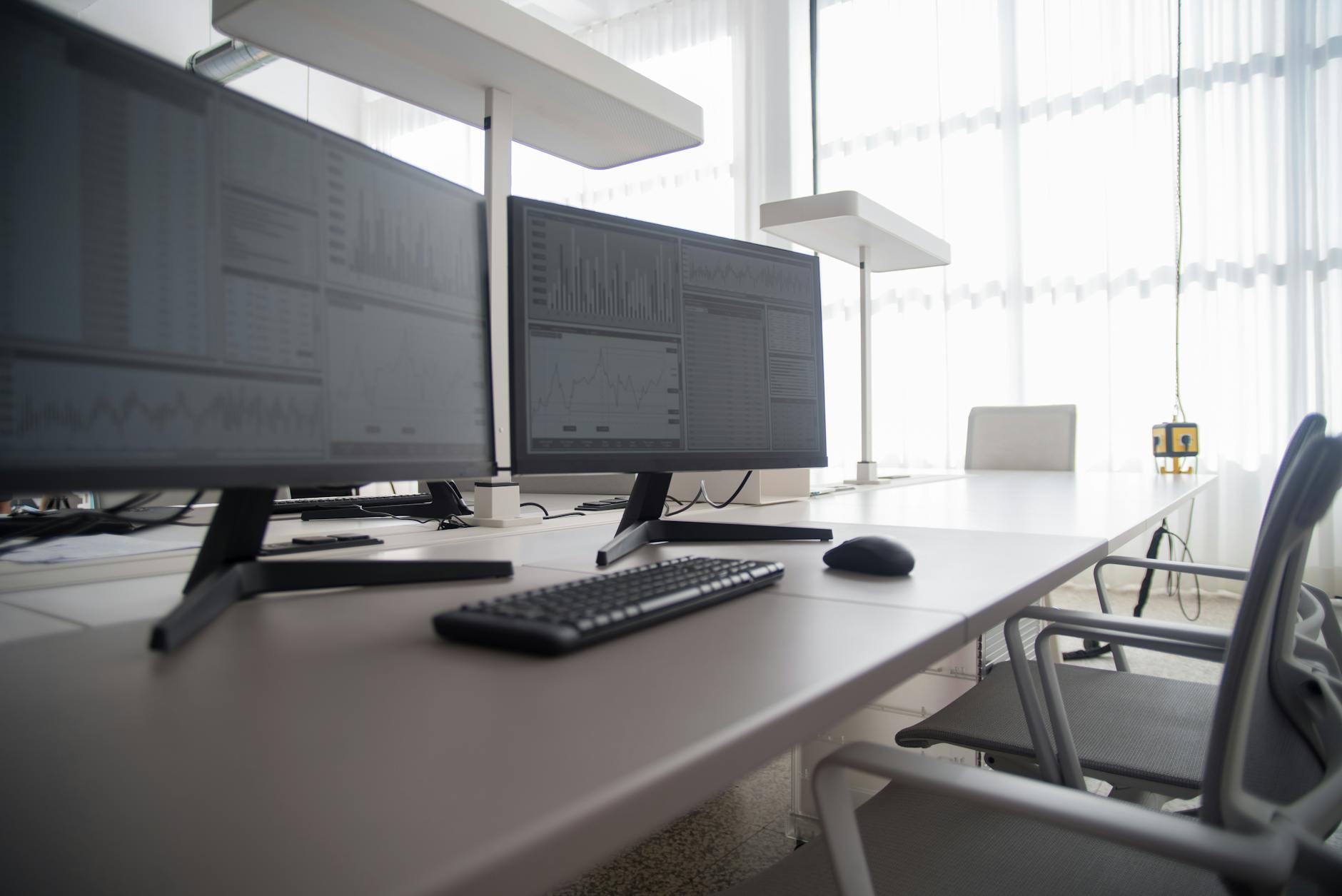
Start by determining how many monitors you actually need. Two monitors work perfectly for most office tasks – email on one screen, documents or web browsing on the other. Three monitors suit heavy multitaskers who juggle communication tools, reference materials, and active projects simultaneously.
Consider your desk space and budget. Two 24-inch monitors often cost less than one premium 32-inch ultrawide, while offering similar screen real estate with better multitasking flexibility. For coding or design work, prioritize higher resolution monitors over quantity – crisp text reduces eye strain during long sessions.
Match your monitors when possible. Different sizes, resolutions, or refresh rates create visual inconsistencies that can be distracting. If you must mix monitors, place the primary display directly in front of you and position secondary screens as support displays.
2. Check Your Graphics Card Capabilities
Modern graphics cards support multiple displays, but verify your specific model’s limitations before purchasing monitors. Most dedicated graphics cards handle three or four monitors easily, while integrated graphics may struggle with high-resolution displays across multiple screens.
Count your available ports: HDMI, DisplayPort, DVI, and USB-C all work for monitor connections. DisplayPort typically offers the best performance for high-resolution displays, while HDMI works fine for standard office monitors. USB-C provides power and video through a single cable on compatible monitors.
If you lack enough ports, consider a USB docking station with multiple video outputs. These devices connect to your laptop via USB-C and provide additional HDMI or DisplayPort connections, though they may introduce slight latency for gaming or video editing.
3. Plan Your Physical Setup
Position your primary monitor directly in front of you at arm’s length. The top of the screen should align with your eye level when sitting upright. This reduces neck strain and maintains proper posture throughout your workday.
Angle secondary monitors slightly toward your center position to minimize head turning. A gentle 15-30 degree angle keeps peripheral displays easily readable without forcing uncomfortable neck positions. Avoid placing monitors too far apart – you should access any screen with minimal head movement.
Invest in adjustable monitor arms rather than using built-in stands. Arms provide better positioning flexibility, free up valuable desk space, and make cable management significantly easier. Look for arms rated for your monitors’ combined weight with VESA mount compatibility.
4. Configure Display Settings
Windows and macOS both offer built-in multi-monitor management, but the setup process varies between operating systems. In Windows, right-click your desktop and select “Display settings” to arrange your monitors. Drag the display rectangles to match your physical layout – this ensures your mouse cursor moves logically between screens.
Set appropriate resolutions for each monitor. Higher resolutions provide more screen real estate but may make text appear smaller. Adjust scaling settings if text appears too small on high-resolution displays – 125% or 150% scaling maintains readability without losing workspace benefits.
Choose which monitor serves as your primary display. This screen will show your taskbar, desktop icons, and new application windows by default. Most users prefer their largest or highest-quality monitor as the primary display, positioned directly in front of their usual seating position.
5. Optimize Software and Workflows
Learn keyboard shortcuts for moving windows between monitors. Windows key + Shift + Arrow keys move active windows between displays in Windows, while Command + Arrow keys provide similar functionality on macOS. These shortcuts eliminate the need to drag windows manually.
Configure specific applications to remember their preferred displays. Email clients work well on secondary monitors, keeping your inbox visible while you work on primary tasks. Development environments benefit from spreading code editors, terminals, and documentation across multiple screens.
Consider window management utilities for advanced features. Windows PowerToys includes FancyZones for creating custom window layouts, while macOS users can explore Rectangle or Magnet for enhanced window snapping. These tools make it easier to organize applications across your expanded workspace.
6. Set Up Efficient Cable Management
Route all cables behind your monitors to maintain a clean workspace. Use cable clips or adhesive cable organizers to prevent cords from tangling or falling behind your desk. A cluttered cable setup makes future changes or troubleshooting unnecessarily difficult.
Group power cables separately from video cables to reduce interference. Use a power strip mounted under your desk to keep power connections organized and accessible. Label cables with small tags if you frequently connect and disconnect devices.
Consider a USB hub positioned conveniently on your desk for frequently used devices. This reduces the need to reach behind monitors or under your desk for common connections like flash drives or external hard drives. Just like when you set up automated backup systems, organization and planning prevent future headaches.
7. Fine-tune Colors and Brightness
Match color temperatures across all monitors to prevent jarring visual transitions. Most monitors offer preset modes like “sRGB” or “Standard” that provide consistent color reproduction. Avoid overly blue or warm settings that cause eye strain during extended use.
Adjust brightness to match your ambient lighting conditions. Monitors should appear neither dim nor glowing compared to your surrounding environment. Many operating systems include automatic brightness adjustment, but manual control often provides better results for consistent work environments.
Enable blue light filtering during evening hours. Windows Night Light and macOS Night Shift reduce blue light emission that can interfere with sleep patterns. Some monitors include hardware-level blue light reduction, which may provide better results than software solutions.
Key Takeaways
A well-configured multi-monitor setup transforms your productivity by eliminating constant window switching and providing dedicated spaces for different types of work. Start with your graphics card capabilities and physical space constraints, then build your configuration around your specific workflow needs.
Remember that more monitors don’t automatically equal better productivity. Two properly positioned, high-quality displays often outperform three smaller or poorly arranged screens. Focus on creating a comfortable, efficient workspace that reduces eye strain and supports your natural working patterns.
Take time to learn your operating system’s multi-monitor shortcuts and consider third-party window management tools for advanced features. The initial setup investment pays dividends through improved workflow efficiency and reduced context switching throughout your workday.
Frequently Asked Questions
How many monitors do I need for maximum productivity?
Two monitors provide the biggest productivity boost for most users, while three monitors benefit heavy multitaskers who manage multiple applications simultaneously.
Can my graphics card handle multiple monitors?
Most modern graphics cards support multiple displays, but check your specific model’s port count and resolution limitations before purchasing additional monitors.