

What You Need to Know
The RTX 4080 stands as one of the most powerful graphics cards available today, capable of driving multiple high-resolution displays simultaneously while maintaining exceptional gaming performance. Setting up a multi-monitor gaming configuration with this GPU requires careful planning, proper hardware selection, and systematic installation to achieve optimal results.
Multi-monitor gaming transforms your experience by providing expanded field of view, enhanced immersion, and improved productivity during downtime. The RTX 4080’s robust specifications make it an ideal choice for powering two, three, or even four monitors without compromising frame rates in demanding games.
Before diving into the setup process, understand that successful multi-monitor gaming depends on more than just GPU power. Your monitor selection, cable choices, system configuration, and game settings all play crucial roles in achieving smooth, synchronized gameplay across all displays.
Step 1: Choose Your Monitor Configuration
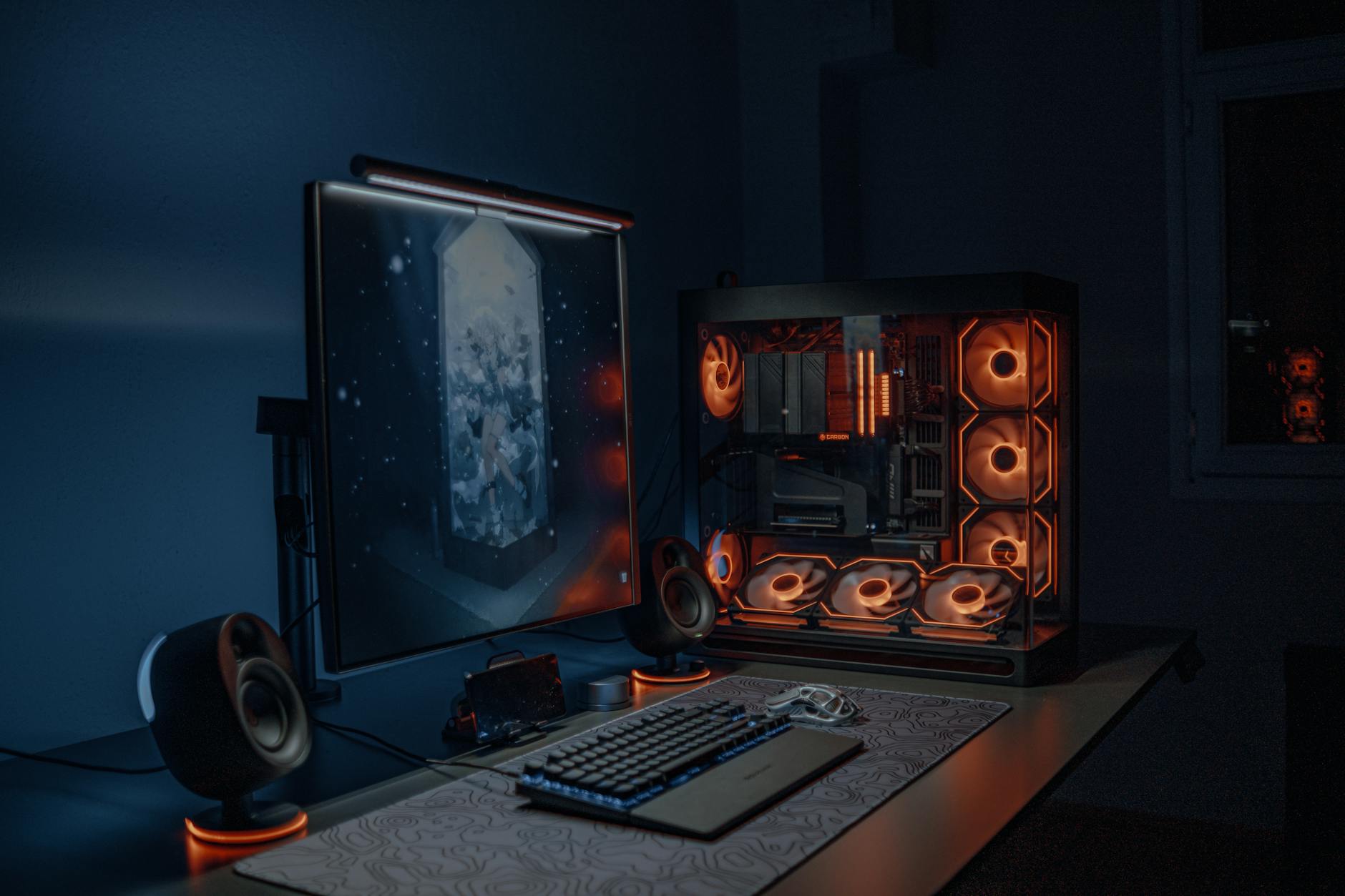
Start by deciding on your monitor layout. The most popular configurations include dual monitors for productivity and gaming balance, triple monitors for maximum immersion, or an ultra-wide primary display with secondary monitors for multitasking.
For gaming, ensure all monitors share the same refresh rate and resolution when possible. Mismatched specifications can cause stuttering, tearing, or synchronization issues during gameplay. The RTX 4080 easily handles 1440p gaming across three monitors or 4K gaming on dual displays.
Consider your desk space, viewing distance, and budget when selecting monitors. OLED panels offer superior contrast and color accuracy but cost more than traditional LCD displays. Gaming-focused monitors with features like G-Sync compatibility, high refresh rates, and low input lag provide the best experience with NVIDIA GPUs.
Position monitors at comfortable viewing angles to reduce neck strain during extended gaming sessions. The primary gaming monitor should sit directly in front of you, with secondary displays angled slightly inward for natural peripheral vision integration.
Step 2: Verify Hardware Requirements
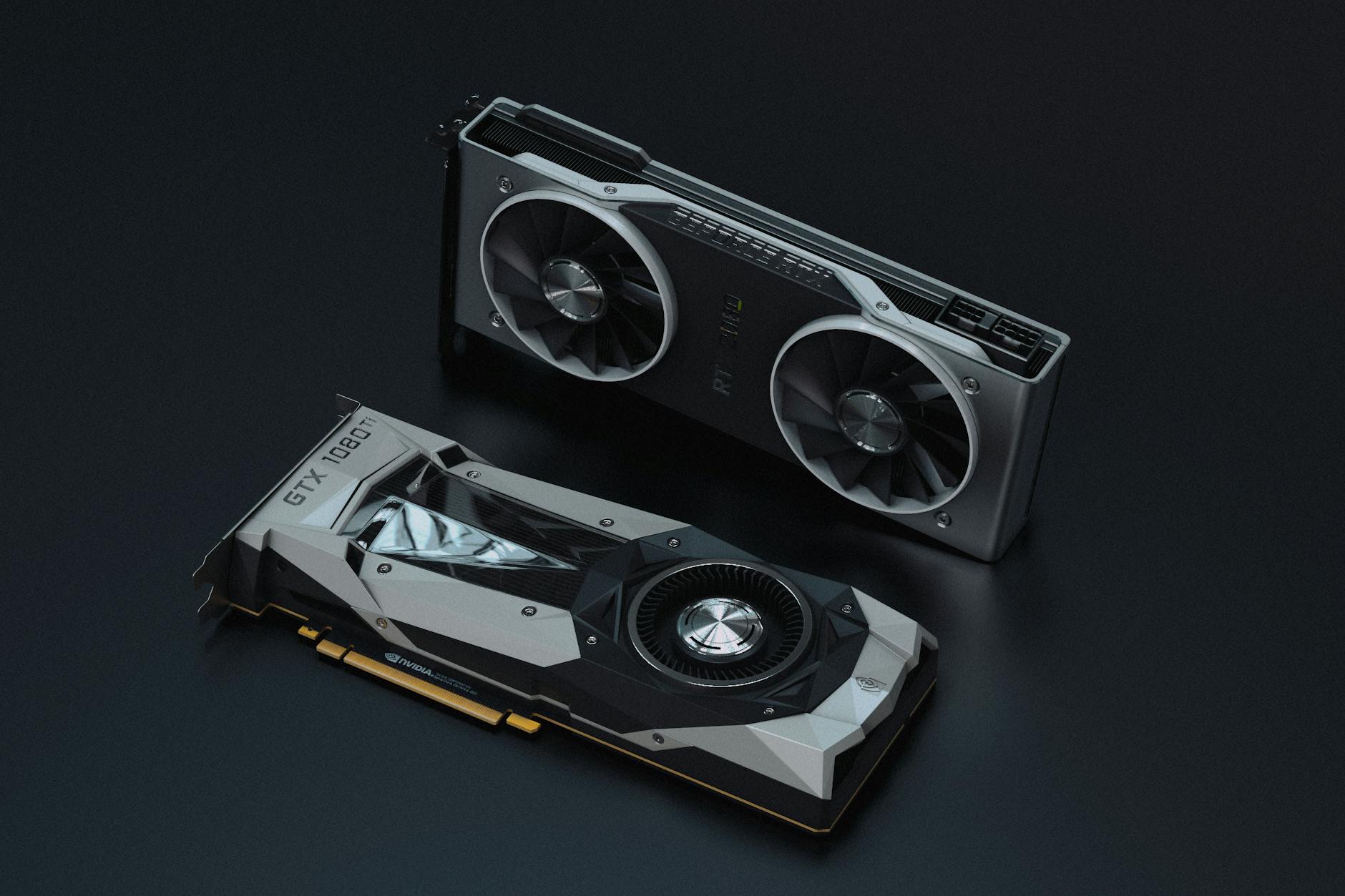
Check your RTX 4080’s available ports before purchasing cables or adapters. Most models feature three DisplayPort 1.4a connections and one HDMI 2.1 port, providing flexibility for various monitor combinations.
Ensure your power supply can handle the RTX 4080’s requirements, typically 750 watts or higher for stable operation under load. Multi-monitor setups increase power consumption, especially during intensive gaming sessions with high refresh rates and maximum brightness settings.
Your motherboard’s PCIe slot should support PCIe 4.0 for optimal GPU performance, though PCIe 3.0 compatibility exists. Adequate CPU performance prevents bottlenecking, particularly important when running games across multiple displays while streaming or recording gameplay.
System RAM requirements increase with monitor count and resolution. 32GB provides comfortable headroom for modern gaming with multiple displays, background applications, and streaming software running simultaneously.
Step 3: Install and Configure the Graphics Card
Power down your system completely and disconnect all cables before installation. Remove any existing graphics cards and clear the PCIe slot of debris or dust accumulation.
Carefully insert the RTX 4080 into the primary PCIe x16 slot, ensuring complete seating and secure retention bracket attachment. Connect all required PCIe power cables from your power supply, typically requiring two 8-pin or one 16-pin connector depending on your specific model.
Boot your system and install the latest NVIDIA drivers from the official website. Clean driver installations using DDU (Display Driver Uninstaller) eliminate conflicts from previous graphics card installations and ensure optimal performance.
Access NVIDIA Control Panel to configure initial settings. Enable GPU scaling, adjust color settings, and verify that all connected displays appear correctly in the configuration panel.
Step 4: Connect and Arrange Your Monitors
Connect each monitor using appropriate cables for your setup. DisplayPort cables generally provide better performance for high refresh rate gaming, while HDMI works well for secondary displays used primarily for productivity.
Use native resolution cables whenever possible to avoid signal degradation or compatibility issues. Quality cables matter more in multi-monitor setups where signal integrity across multiple connections affects overall stability.
Power on monitors in sequence, starting with your primary gaming display. Windows should automatically detect new displays, though manual configuration through Display Settings may be necessary for optimal arrangement.
Arrange monitors in Display Settings to match your physical layout. Drag display icons to represent their actual positions on your desk, ensuring smooth mouse cursor movement between screens without unexpected jumps or gaps.
Set your primary gaming monitor as the main display where games will launch by default. Configure taskbar behavior, wallpaper spanning, and notification preferences according to your workflow needs.
Step 5: Optimize Gaming Settings
Configure NVIDIA Surround if planning to game across all monitors simultaneously. This feature combines multiple displays into a single gaming surface, though not all games support ultra-wide aspect ratios properly.
For games that don’t support Surround well, consider using the primary monitor for gaming while dedicating secondary displays to streaming software, chat applications, system monitoring tools, or guides and walkthroughs.
Adjust individual game settings to balance performance across your monitor configuration. Higher resolutions and wider aspect ratios demand more GPU resources, potentially requiring reduced graphics settings to maintain smooth frame rates.
Enable G-Sync or G-Sync Compatible mode on supported monitors to eliminate screen tearing and reduce input lag. This NVIDIA technology synchronizes monitor refresh rates with GPU frame output for smoother gaming experiences.
Test various games to ensure stable performance and identify any compatibility issues with your specific monitor configuration. Some older games may require community patches or specific launch parameters to work correctly with multi-monitor setups.
Step 6: Fine-Tune Performance and Troubleshoot
Monitor GPU temperatures and usage during gaming sessions using MSI Afterburner or similar tools. Multi-monitor configurations increase thermal load, potentially requiring more aggressive fan curves or improved case ventilation.
Calibrate color settings across all displays for consistent visual experience. Professional calibration tools provide the most accurate results, though built-in monitor calibration wizards offer adequate results for most users.
Address any performance issues by adjusting in-game settings, updating drivers, or modifying Windows power management options. High-performance power plans ensure consistent GPU performance during demanding gaming sessions.
Configure Windows to prevent accidental cursor movement to secondary displays during fullscreen gaming. Third-party tools like Dual Monitor Tools provide additional control over multi-monitor behavior and window management.
Key Takeaways
Setting up a multi-monitor gaming configuration with the RTX 4080 requires systematic planning and careful attention to hardware compatibility. The GPU’s powerful specifications make it well-suited for driving multiple high-resolution displays simultaneously while maintaining excellent gaming performance.
Success depends on choosing compatible monitors, using quality cables, and properly configuring both hardware and software settings. Take time to optimize individual game settings for your specific configuration, as not all games handle multi-monitor setups equally well.
Regular maintenance including driver updates, thermal monitoring, and performance testing ensures long-term stability and optimal gaming experiences. The investment in a properly configured multi-monitor setup pays dividends through enhanced immersion and improved productivity during non-gaming activities.
Remember that multi-monitor gaming represents just one application of powerful modern GPUs. The same hardware that drives your gaming setup can enhance productivity workflows, content creation projects, and other demanding applications that benefit from expanded screen real estate and high-performance graphics processing.
Frequently Asked Questions
Can RTX 4080 handle three 1440p monitors for gaming?
Yes, the RTX 4080 easily powers three 1440p monitors simultaneously while maintaining high frame rates in most modern games.
What cables work best for multi-monitor RTX 4080 setups?
DisplayPort 1.4a cables provide optimal performance for high refresh rate gaming, while HDMI 2.1 works well for secondary displays.