


What You Need to Know
Cloud gaming has transformed how we play, eliminating the need for expensive gaming consoles or high-end PCs. Services like Xbox Cloud Gaming, NVIDIA GeForce Now, and PlayStation Plus stream games directly to your device, requiring only a stable internet connection and compatible hardware. Whether you’re gaming on a laptop, tablet, phone, or smart TV, cloud gaming opens up access to AAA titles without the hefty upfront investment.
The technology works by running games on powerful remote servers, then streaming the video and audio to your device while sending your controller inputs back to the server. This means you can play demanding titles like Cyberpunk 2077 or Microsoft Flight Simulator on devices that normally couldn’t handle them.
Step 1: Choose Your Cloud Gaming Service
The first decision involves selecting which cloud gaming platform meets your needs. Xbox Cloud Gaming offers access to hundreds of Game Pass titles for a monthly subscription, making it ideal for variety seekers. NVIDIA GeForce Now takes a different approach, letting you play games you already own on Steam, Epic Games Store, or other platforms.
PlayStation Plus Premium provides access to PlayStation exclusives and classic titles, while Amazon Luna focuses on curated gaming channels. Google Stadia shut down in 2023, but newer services like Boosteroid and Shadow continue expanding the market.
Consider your existing game library, preferred genres, and budget. Xbox Cloud Gaming costs around $15 monthly for Game Pass Ultimate, while GeForce Now offers both free and premium tiers. Some services require you to own the games separately, while others include them in the subscription.
Step 2: Verify Your Internet Connection
Cloud gaming demands consistent internet speeds and low latency. Microsoft recommends at least 10 Mbps for Xbox Cloud Gaming, while NVIDIA suggests 15-25 Mbps for optimal 1080p streaming. However, these are minimum requirements – you’ll want significantly more bandwidth for smooth gameplay.
Test your connection speed using fast.com or speedtest.net from the device you plan to game on. Pay attention to upload speed too, as controller inputs need to reach the servers quickly. Latency matters more than raw speed for responsive gaming – aim for under 20ms ping to nearby servers.
Wired ethernet connections provide the most stability, but modern Wi-Fi 6 routers can deliver excellent results. If possible, position your gaming device close to your router and minimize interference from other devices streaming video or downloading files simultaneously.
Step 3: Select Your Gaming Device
Cloud gaming works across multiple device types, each with distinct advantages. Smartphones and tablets offer portability but smaller screens, while laptops and desktops provide familiar keyboard and mouse controls. Smart TVs and streaming devices like Chromecast with Google TV bring cloud gaming to the living room.
For mobile gaming, ensure your device supports the service’s official app. iOS devices work with Xbox Cloud Gaming through Safari browser, while Android devices can use dedicated apps. Tablets with 10-inch or larger screens provide the best mobile gaming experience.
Streaming sticks and smart TV apps turn any television into a gaming console. The Amazon Fire TV Stick 4K Max, NVIDIA Shield TV, and newer Samsung smart TVs support various cloud gaming services natively. This setup works particularly well for home automation enthusiasts who already have connected entertainment systems.
Step 4: Choose Compatible Controllers
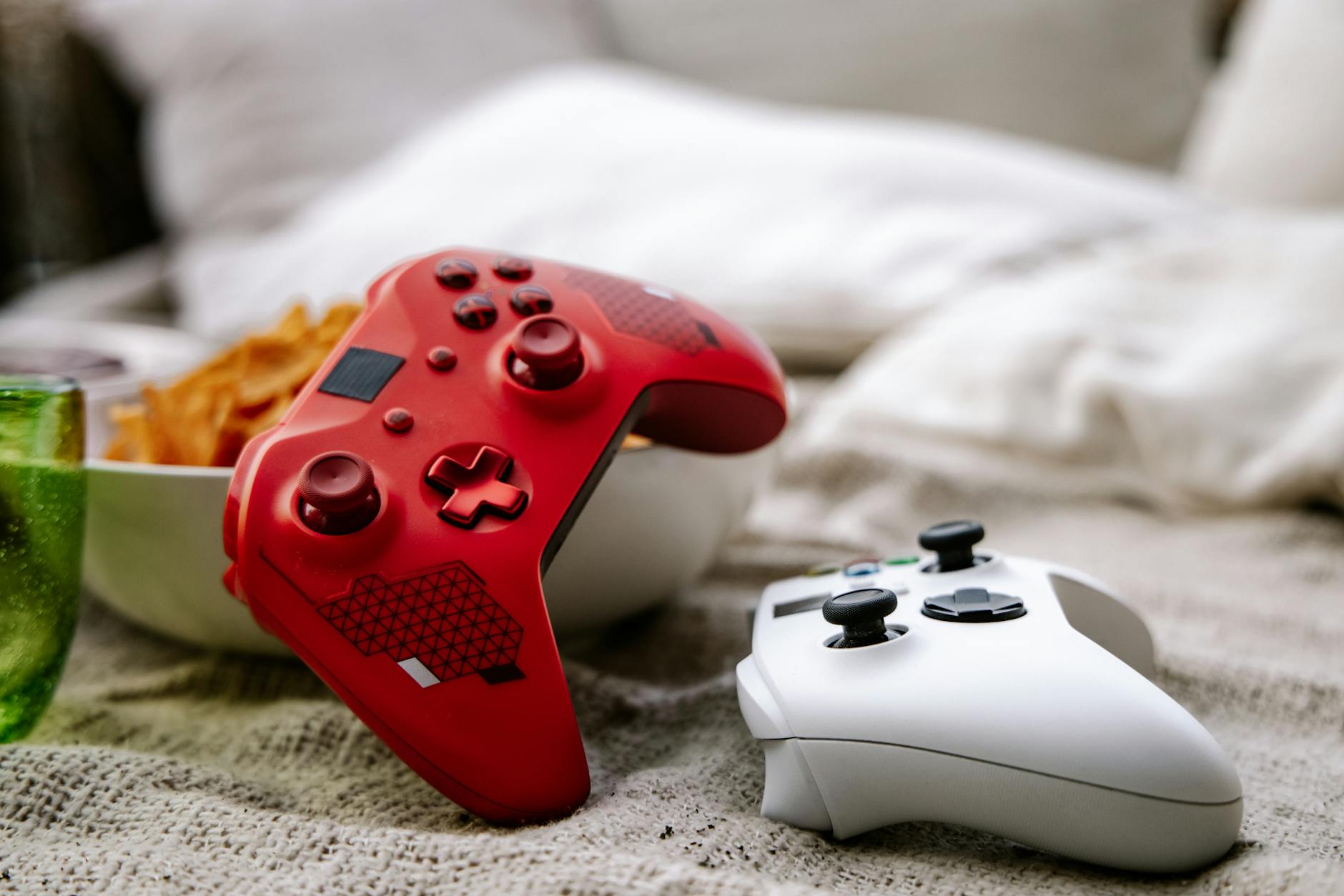
While touch controls work for some games, a physical controller dramatically improves the cloud gaming experience. Xbox Wireless Controllers pair seamlessly with most cloud gaming services, not just Xbox Cloud Gaming. The DualSense controller works well with PlayStation Plus Premium and other services that support it.
Third-party options like the Razer Kishi or Backbone One attach directly to phones, creating a handheld gaming experience similar to a Nintendo Switch. For TV gaming, any Bluetooth controller compatible with your streaming device will work.
Consider battery life for wireless controllers, especially during longer gaming sessions. Some controllers include built-in phone mounts, while others require separate accessories. USB-C or Lightning dongles can provide wired connections for reduced input lag on mobile devices.
Step 5: Install and Configure Your Service
Download the official app for your chosen cloud gaming service. Xbox Cloud Gaming integrates with the Xbox Game Pass app, while GeForce Now has its own dedicated application. Create an account and sign up for the appropriate subscription tier.
Most services offer settings to adjust streaming quality based on your connection. Start with automatic settings, then manually adjust if you experience issues. Lower quality settings reduce bandwidth usage and can improve stability on slower connections.
Enable hardware acceleration in your browser if gaming through a web interface. Chrome and Edge provide the best compatibility for browser-based cloud gaming. Clear browser cache and disable extensions that might interfere with streaming performance.
Step 6: Optimize Your Network Settings
Router configuration can significantly impact cloud gaming performance. Enable Quality of Service (QoS) settings to prioritize gaming traffic over other internet activities. Some routers include specific gaming modes that automatically optimize these settings.
Consider upgrading to a Wi-Fi 6 router if you’re using older hardware. The improved bandwidth and reduced latency of Wi-Fi 6 benefit cloud gaming, especially in households with multiple connected devices. Position your router centrally and away from interference sources like microwaves or baby monitors.
If your internet service provider offers gaming packages or low-latency options, these can improve cloud gaming performance. Some ISPs partner with cloud gaming services to provide optimized connections or reduced data usage counting.
Step 7: Test and Troubleshoot
Start with less demanding games to test your setup before jumping into competitive multiplayer titles. Single-player games are more forgiving of occasional connection hiccups, while fast-paced multiplayer games require consistent performance.
Monitor for common issues like pixelation, input lag, or connection drops. Pixelation usually indicates insufficient bandwidth, while input lag suggests network latency problems. Connection drops might require router restarts or service troubleshooting.
Most cloud gaming services include connection quality indicators during gameplay. Use these tools to identify when problems stem from your connection versus server issues. Document which settings and configurations work best for your specific setup.
Key Takeaways
Cloud gaming eliminates hardware barriers, letting you play demanding games on almost any connected device. Success depends on three critical factors: a reliable high-speed internet connection, compatible controllers, and choosing the right service for your gaming preferences.
The technology continues evolving rapidly, with improved compression algorithms and expanding game libraries. While cloud gaming won’t completely replace local hardware for all users, it provides an accessible entry point into modern gaming without substantial upfront costs.
Start with free tiers or trial periods to test performance with your specific internet connection and devices. Once you’ve optimized your setup, cloud gaming can deliver experiences nearly indistinguishable from local hardware – all while freeing up space in your entertainment center and reducing electricity costs.
Frequently Asked Questions
What internet speed do I need for cloud gaming?
Most services require 10-15 Mbps minimum, but 25+ Mbps provides the best experience for 1080p gaming with minimal lag.
Can I use any controller with cloud gaming services?
Xbox controllers work with most services, while platform-specific controllers like DualSense work best with their respective services.