



What You Need to Know
Adobe’s Photoshop Beta features are transforming photo editing with AI-powered tools that automate complex tasks. The latest beta includes Generative Fill, Object Selection improvements, and Neural Filters that can save hours of manual work. Setting up an efficient AI workflow requires understanding which features work best for different editing tasks and how to sequence them for maximum efficiency.
This workflow approach differs from traditional editing because AI features work best when you plan your edits strategically. Rather than jumping between tools randomly, you’ll establish a systematic process that leverages machine learning capabilities while maintaining creative control.
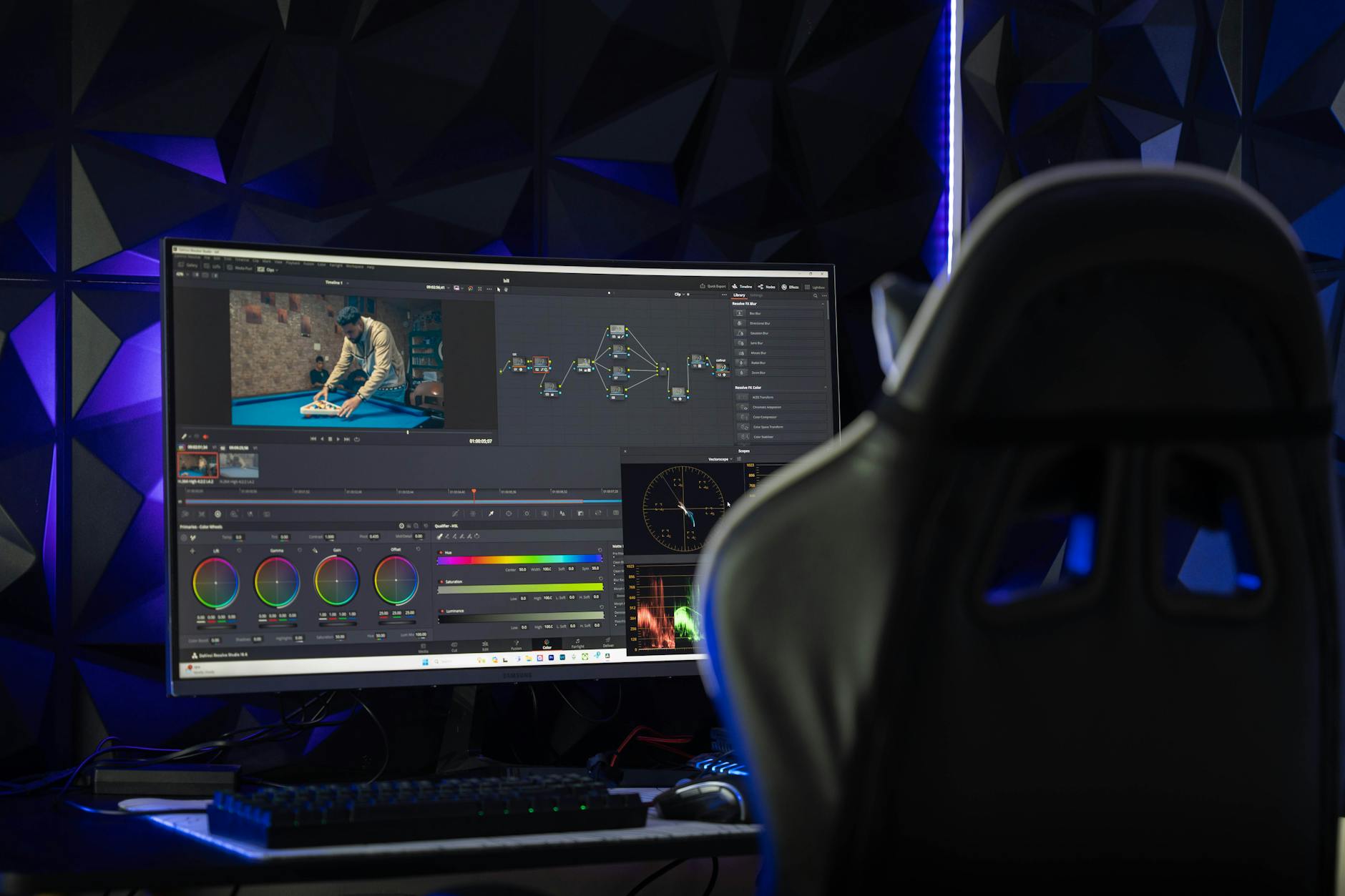
1. Install and Configure Photoshop Beta
Download the Creative Cloud Desktop app and navigate to the Beta apps section. Install Photoshop Beta alongside your regular Photoshop installation – they run independently without affecting your main workspace.
Once installed, open Photoshop Beta and enable GPU acceleration in Preferences > Performance. Set your scratch disk to an SSD if available, as AI processing generates large temporary files. Allocate at least 8GB of RAM to Photoshop for smooth AI feature performance.
Sign in to your Adobe account to access cloud-based AI services. Some features require internet connectivity for processing, while others work offline after initial setup.
2. Set Up Your Workspace for AI Editing
Create a custom workspace optimized for AI features. Open Window > Workspace > New Workspace and arrange panels with easy access to the Tools panel, Layers panel, and Properties panel. Add the Neural Filters panel to your workspace by going to Filter > Neural Filters.
Customize your toolbar to include AI-enhanced selection tools like Object Selection Tool and Quick Selection Tool. Position the Content-Aware Move Tool and Healing Brush prominently since they integrate well with AI workflows.
Save this workspace configuration so you can quickly switch between traditional editing and AI-focused sessions. This setup reduces time spent navigating menus during intensive editing sessions.
3. Master Object Selection and Background Removal
Start your AI workflow with intelligent selection tools. The Object Selection Tool uses machine learning to identify subjects automatically. Simply draw a rough rectangle around your subject – the AI analyzes edges, contrast, and common object patterns to create precise selections.
For complex backgrounds, use Select > Sky or Select > Subject for one-click selections. These features recognize patterns like hair, fur, and transparent objects that traditionally required manual masking.
Refine selections using Select and Mask workspace. The AI-powered edge detection automatically adjusts for soft transitions and fine details. Use the Refine Edge Brush on areas like hair or fur where the AI needs additional guidance.
4. Implement Generative Fill Workflow
Generative Fill represents the biggest leap in AI editing capabilities. After making a selection, right-click and choose “Generative Fill” or use the contextual task bar that appears.
For best results, write specific prompts describing what you want. Instead of “tree,” try “autumn maple tree with orange leaves.” The AI generates multiple options – review all three variations before choosing.
Layer management becomes crucial with Generative Fill. Each fill creates a new layer, allowing you to blend multiple generations or adjust opacity. Use layer masks to combine the best parts of different generations.
Build complex scenes by working in sections. Generate background elements first, then add foreground objects. This layered approach gives you more control than trying to generate everything at once.
5. Integrate Neural Filters for Enhancement
Neural Filters work best after basic corrections and selections. Access them through Filter > Neural Filters to open the dedicated panel. Download filters you’ll use regularly to work offline.
Start with Skin Smoothing for portraits, adjusting strength to maintain natural texture. The Smart Portrait filter offers comprehensive facial adjustments including gaze direction and facial expressions – use subtly to avoid uncanny valley effects.
Style Transfer filters work excellently for creative effects. Apply artistic styles to specific areas using layer masks rather than entire images. This selective approach maintains photographic quality while adding creative elements.
Color and tone Neural Filters like Colorize and Super Zoom enhance rather than replace traditional adjustment layers. Use them as starting points, then fine-tune with conventional tools.
6. Create Efficient Batch Processing
Set up Actions to record AI-enhanced workflows for similar images. While you can’t record AI tool interactions directly, you can create Actions that open Neural Filters panels and apply consistent settings.
Use batch processing for repetitive AI tasks. Process multiple portraits with the same Neural Filter settings, or apply consistent background removal techniques to product photos.
Create image sets with consistent lighting and composition when possible. AI tools perform better with similar input conditions, making batch workflows more reliable.

7. Optimize File Management and Output
Save AI-edited files as PSD format to preserve all layers and adjustments. This flexibility allows you to modify AI-generated content later or experiment with different blending modes.
Export final versions in multiple formats for different uses. Web images benefit from Smart Sharpen after AI processing, while print files may need additional color space conversion.
Keep organized folders for AI assets. Save custom Neural Filter presets, successful Generative Fill prompts, and reusable selections. Building this library accelerates future projects.
Monitor file sizes as AI features generate large documents. Similar to setting up cloud gaming streaming systems, efficient file management prevents storage issues and maintains smooth performance.
Key Takeaways
AI photo editing workflows in Photoshop Beta require strategic planning rather than random tool application. Start with intelligent selections, use Generative Fill for complex additions, and enhance with Neural Filters for finishing touches.
The key to successful AI editing lies in understanding each tool’s strengths and limitations. Use AI features to handle time-consuming tasks like background removal and object selection, while maintaining manual control over creative decisions.
Remember that AI tools work best as collaborative partners rather than complete replacements for traditional techniques. The most effective workflows combine AI efficiency with human creativity and judgment.
Frequently Asked Questions
Do I need a subscription for Photoshop Beta AI features?
Yes, Photoshop Beta requires an active Creative Cloud subscription to access AI-powered tools and features.
Can I use AI editing features offline?
Some Neural Filters work offline after downloading, but Generative Fill requires internet connectivity for cloud processing.