

What You Need to Know
Buffering during your favorite Netflix series or pixelated streams during the big game can turn entertainment time into frustration. Your smart TV’s performance depends heavily on your home WiFi network’s optimization, and most people leave significant performance on the table with default router settings and poor network configuration.
Smart TVs demand consistent, high-bandwidth connections for 4K streaming, HDR content, and modern apps. A poorly optimized network creates bottlenecks that result in stuttering video, long load times, and quality downgrades that diminish your viewing experience. The good news is that strategic network optimization can dramatically improve your streaming quality without expensive hardware upgrades.
This comprehensive guide walks you through proven techniques to maximize your WiFi network’s performance for smart TV streaming, from router placement and channel selection to advanced quality of service settings.
1. Assess Your Current Network Performance
Start by measuring your network’s baseline performance before making changes. Download a speed test app directly on your smart TV or use a mobile device positioned next to your TV. Run multiple tests at different times to understand your network’s consistency.
For 4K streaming, Netflix recommends 25 Mbps download speeds, while services like Disney+ and Amazon Prime Video suggest similar requirements. However, real-world performance often requires higher speeds due to network overhead and other connected devices competing for bandwidth.
Document your current speeds, noting any significant variations during peak usage hours. This baseline helps you measure improvement after implementing optimization techniques.
2. Optimize Router Placement and Environment
Router location dramatically impacts WiFi performance. Position your router in a central, elevated location away from walls, metal objects, and electronic interference sources. Avoid placing routers in closets, behind TVs, or near microwaves and baby monitors.
The ideal placement creates line-of-sight between your router and smart TV. If your TV sits in a media room far from your router, consider this when planning your network layout. Each wall between your router and TV can reduce signal strength by 3-5 dB.
Remove physical obstructions where possible. Large furniture, mirrors, and metal decorations reflect WiFi signals and create dead zones. Even fish tanks can interfere with wireless signals due to water’s absorption properties.
3. Configure Optimal WiFi Channels
WiFi congestion from neighboring networks creates interference that degrades streaming performance. Use WiFi analyzer apps to identify the least congested channels in your area. For 2.4 GHz networks, channels 1, 6, and 11 offer the best performance with minimal overlap.
Modern routers support 5 GHz bands with more available channels and less congestion. Configure your smart TV to connect to 5 GHz when possible, as this band typically provides better streaming performance despite shorter range.
Enable automatic channel selection if your router supports dynamic frequency selection. This feature automatically switches to cleaner channels when interference increases, maintaining optimal performance without manual intervention.
4. Update Router Firmware and TV Software
Outdated firmware often contains bugs that limit streaming performance. Access your router’s admin interface and check for firmware updates. Major manufacturers release updates that improve WiFi performance, security, and compatibility with smart devices.
Similarly, update your smart TV’s operating system and streaming apps. These updates frequently include networking improvements, codec optimizations, and bug fixes that enhance streaming reliability.
Enable automatic updates when available to ensure your devices maintain optimal performance without manual maintenance. Schedule updates during off-peak hours to avoid interrupting your viewing experience.
5. Implement Quality of Service (QoS) Settings
QoS settings prioritize streaming traffic over less critical network activities. Access your router’s QoS configuration and create rules that prioritize your smart TV’s MAC address or streaming applications.
Many modern routers include gaming and streaming modes that automatically optimize network traffic for entertainment devices. Enable these features and configure bandwidth allocation to reserve sufficient capacity for your TV during peak usage.
Set bandwidth limits for other devices to prevent them from consuming all available capacity during streaming sessions. This ensures your smart TV maintains consistent performance even when other family members use the network heavily.
6. Optimize Network Security Settings
Security protocols impact network performance differently. WPA3 provides the best security with minimal performance impact, while older WEP protocols can significantly slow network speeds. Configure your network to use WPA3 or WPA2 at minimum.
Disable WPS (WiFi Protected Setup) as this feature can create security vulnerabilities and sometimes causes connectivity issues with smart TVs. Use strong, unique passwords that balance security with device compatibility.
Consider creating a dedicated guest network for IoT devices, keeping your streaming devices on your primary network with optimized settings. This separation prevents smart home devices from interfering with entertainment traffic.
7. Consider Ethernet Connections for Best Performance
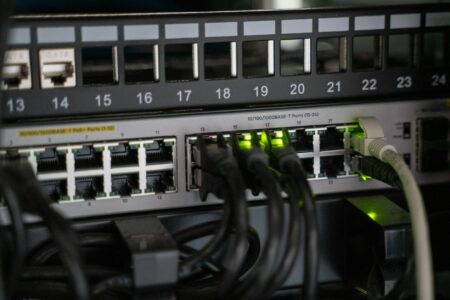
Wired connections eliminate WiFi variables entirely, providing the most stable streaming experience. If running ethernet cables isn’t practical, powerline adapters offer a middle-ground solution using your home’s electrical wiring.
Modern powerline adapters achieve speeds sufficient for 4K streaming while providing more stability than WiFi in challenging environments. Look for adapters supporting gigabit speeds and pass-through power outlets to maintain electrical capacity.
For setups requiring multiple gaming devices, like those detailed in guides for multi-monitor gaming configurations, wired connections become even more critical for maintaining low latency and high throughput.
8. Monitor and Maintain Network Performance
Regular network monitoring helps identify performance degradation before it impacts your viewing experience. Use router apps or built-in monitoring tools to track bandwidth usage, connected devices, and network health.
Schedule periodic speed tests to ensure your optimizations remain effective. Network performance can degrade over time due to interference changes, firmware bugs, or hardware aging.
Create a maintenance schedule that includes checking for firmware updates, reviewing QoS settings, and cleaning dust from router vents. Overheating routers often throttle performance to prevent damage.
Key Takeaways
Optimizing your home WiFi network for smart TV streaming requires a systematic approach addressing multiple performance factors. Start with router placement and channel optimization, as these changes often provide the most immediate improvement. QoS configuration and firmware updates deliver additional performance gains while maintaining network security.
Remember that network optimization is an ongoing process. As new devices join your network and neighborhood WiFi environments change, periodic adjustments maintain optimal performance. Monitor your network regularly and be prepared to make incremental improvements based on performance data.
For users managing complex home office setups alongside entertainment systems, similar optimization principles apply to configurations like Windows 11 virtual desktop environments, where network performance directly impacts productivity and user experience.
With proper optimization, your smart TV can deliver consistently smooth 4K streaming, eliminating buffering frustrations and maximizing your entertainment investment. These improvements also benefit other connected devices, creating a better overall home network experience.
Frequently Asked Questions
What internet speed do I need for 4K streaming on smart TV?
Most streaming services recommend 25 Mbps for 4K content, but 50+ Mbps provides better performance with multiple devices connected.
Should I use 2.4 GHz or 5 GHz WiFi for my smart TV?
Use 5 GHz when possible as it offers less congestion and better streaming performance, despite shorter range than 2.4 GHz.