


What You Need to Know
DaVinci Resolve continues to dominate professional video editing with advanced color grading capabilities that rival systems costing tens of thousands of dollars. The latest version brings enhanced color science, improved audio mastering tools, and streamlined workflows that make professional-grade editing accessible to creators at every level.
This comprehensive guide covers the essential techniques for mastering color grading and audio in DaVinci Resolve, from basic corrections to advanced cinematic looks. Whether you’re grading corporate videos or preparing content for theatrical release, these workflows will elevate your projects to professional standards.
Before diving in, ensure your system meets the recommended specifications: 32GB RAM minimum, dedicated GPU with 8GB VRAM, and calibrated monitors for accurate color representation. Projects should be organized with proper folder structures and proxy media for smooth playback during intensive grading sessions.
1. Setting Up Your Color Grading Workspace
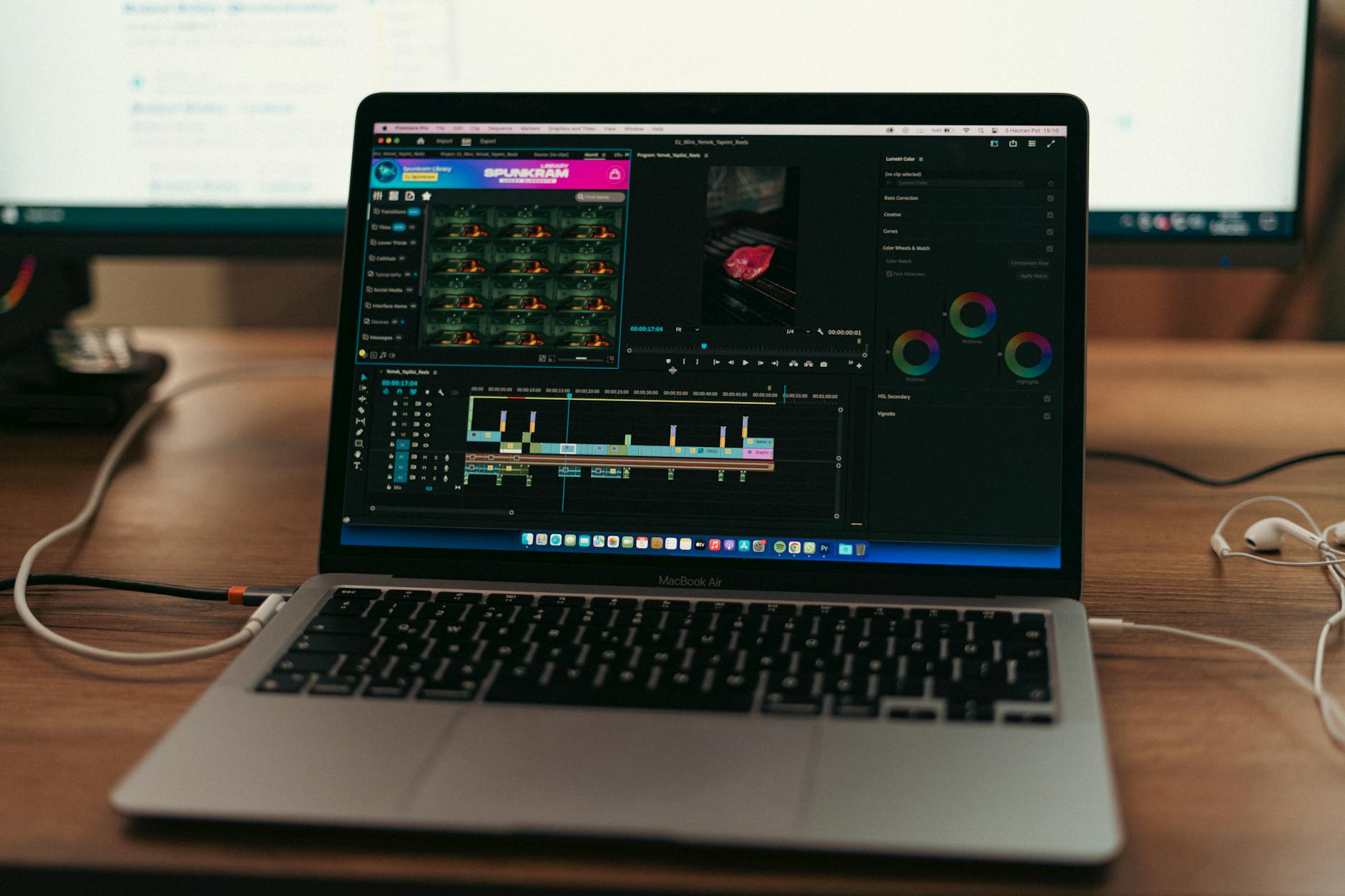
Navigate to the Color page and configure your workspace for maximum efficiency. Set up multiple viewer configurations by right-clicking in the viewer area and selecting “Show in New Floating Window” for reference monitoring. This allows simultaneous viewing of before/after states and different camera angles.
Configure your scopes by opening the Video Scopes panel and selecting Waveform, Vectorscope, and Histogram displays. Position these prominently for constant monitoring during grading. The Parade scope provides individual RGB channel analysis, while the Vectorscope shows color saturation and hue relationships.
Customize the Color Wheels panel layout based on your workflow preferences. Many colorists prefer the traditional three-wheel setup (Lift, Gamma, Gain), while others utilize the expanded four-wheel configuration that includes an additional Offset control for overall exposure adjustments.
2. Primary Color Correction Fundamentals
Begin every grading session with primary corrections to establish proper exposure and color balance. Start with the Offset wheel to set overall brightness, then adjust Lift for shadow detail, Gamma for midtone exposure, and Gain for highlight information.
Use the AUTO button sparingly as a starting point, but always refine manually. The automatic corrections often overcorrect and can introduce unwanted color shifts. Instead, analyze your footage using the waveform scope to identify proper black and white levels.
Implement the “YRGB” workflow for precise control. Adjust luminance first using the Y channel, then fine-tune individual color channels. This approach maintains better separation between exposure and color corrections, resulting in more natural-looking images.
Temperature and Tint corrections should be subtle unless recreating specific lighting conditions. Use the color temperature slider to remove unwanted color casts, typically warming skin tones slightly for more pleasing results. The vectorscope helps identify and correct color imbalances by showing which colors dominate your image.
3. Advanced Secondary Grading Techniques
Secondary corrections allow targeted adjustments to specific areas or colors within your footage. Access the HSL Qualifiers in the Color page to isolate skin tones, skies, or specific colored objects. Start with a loose selection and refine using the eyedropper tools and qualification controls.
Master the Power Window tools for geometric selections. Use circular, linear, or polygon windows to isolate areas for targeted correction. Feather edges appropriately to maintain natural transitions, typically setting softness between 0.3 and 0.8 depending on the selection size.
Combine multiple qualification methods for complex selections. Use HSL qualifiers for color-based selections, then add Power Windows to limit the affected area geographically. This hybrid approach provides precise control over specific elements without affecting similar colors elsewhere in the frame.
Track your selections across time using DaVinci’s motion tracking. Right-click on any Power Window and select tracking options. The built-in tracker handles most camera and subject movement, but manual keyframe adjustment may be necessary for complex motion or occlusion scenarios.
4. Creating Cinematic Color Looks
Develop signature looks using the Color Wheels and Curves panels systematically. Start with overall color temperature to establish mood – cooler temperatures for modern or clinical feels, warmer for intimate or nostalgic atmospheres. Subtle adjustments often prove more effective than dramatic shifts.
Utilize custom curves for advanced color manipulation. Access RGB curves to create film emulation looks by lifting shadows slightly and rolling off highlights. The classic “S-curve” increases contrast while maintaining detail in shadows and highlights.
Implement color separation techniques popular in cinema. Push shadows toward blue/teal while warming highlights toward orange. This complementary color scheme creates visual depth and draws attention to properly lit subjects. Keep adjustments subtle to avoid the over-processed look common in amateur grading.
Save your looks as LUTs for consistency across projects. Right-click in the LUT browser and select “Export Current Grade as LUT.” This creates reusable color transforms that can be applied to matching footage or shared with other colorists.
5. Professional Audio Mastering Workflow
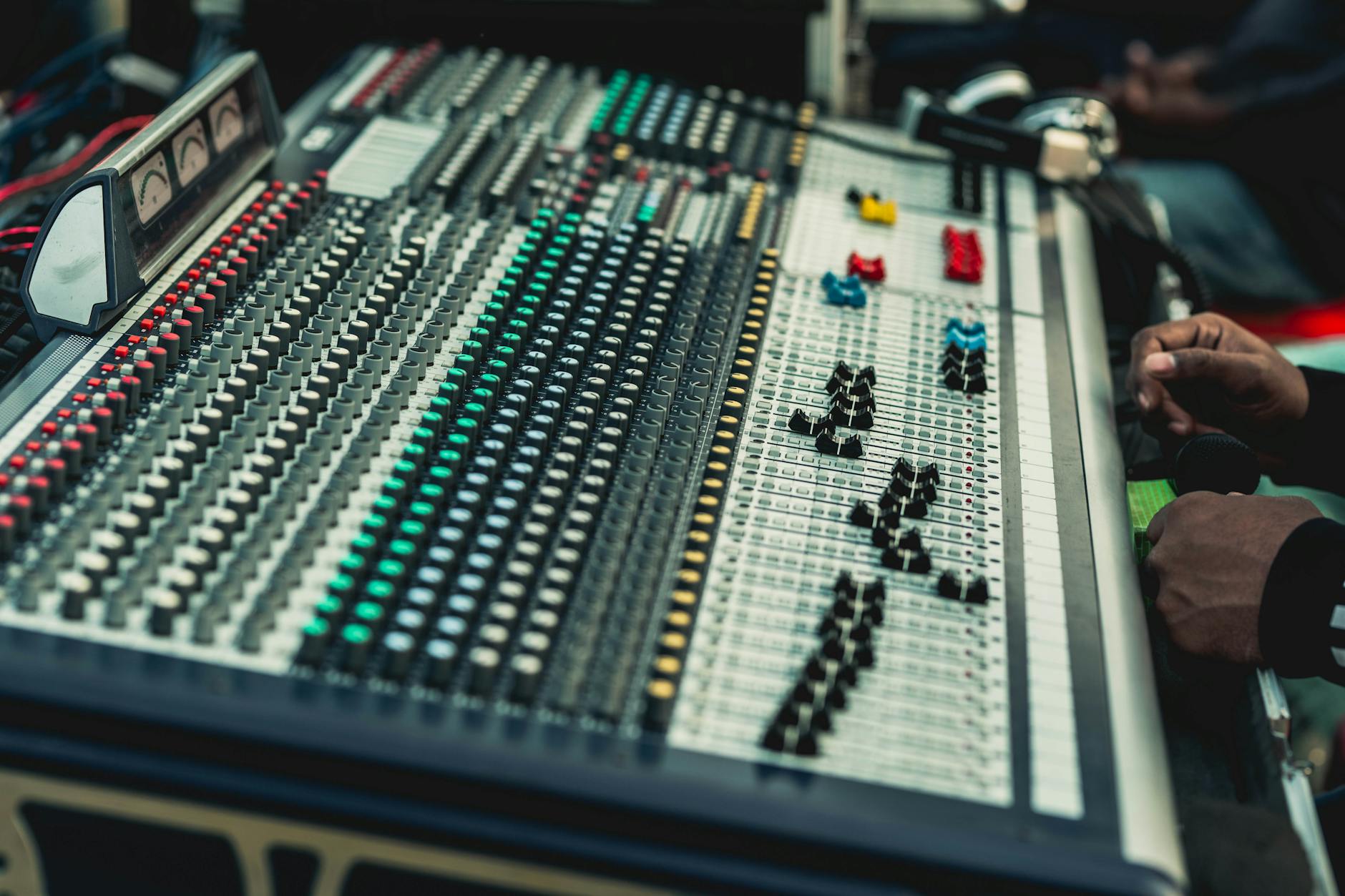
Switch to the Fairlight page for comprehensive audio mastering. The integrated audio environment rivals dedicated audio workstations for most video production needs. Begin by organizing your audio tracks logically – dialogue, music, sound effects, and ambient tracks on separate lanes.
Set proper gain structure throughout your signal chain. Audio levels should peak around -6dB to -12dB to provide headroom for mastering processing. Use the built-in meters to monitor both peak and RMS levels, ensuring consistent loudness across your timeline.
Apply EQ systematically to each audio element. High-pass filter dialogue tracks around 80Hz to remove low-frequency rumble. Apply gentle high-frequency boost around 10-12kHz to add presence and clarity to speech. Music tracks often benefit from slight midrange cuts around 400-800Hz to reduce muddiness.
Implement dynamic range control using the built-in compressors and limiters. Set dialogue compression with gentle ratios (2:1 to 3:1) and slow attack times to maintain natural speech patterns. Music may require more aggressive compression depending on the source material and desired impact.
6. Advanced Audio Processing Techniques
Master the multiband compressor for frequency-specific dynamic control. This tool allows independent compression of different frequency ranges, essential for complex audio mixes. Set crossover points at approximately 250Hz, 2kHz, and 8kHz for most content.
Use the built-in noise reduction tools to clean problem audio. The Spectral Display provides visual feedback for identifying and removing specific frequency problems. Apply noise reduction conservatively to avoid artifacts that can make dialogue sound processed or unnatural.
Implement proper monitoring techniques using reference tracks and calibrated speakers. Switch between near-field monitors and consumer-grade speakers to ensure your mix translates well across different playback systems. The built-in reference levels help maintain consistent loudness standards.
Apply final limiting and loudness control for delivery compliance. Different platforms require specific loudness standards – streaming services typically target -23 LUFS for long-form content, while social media may require -16 LUFS. Use the integrated loudness meter to verify compliance before export.
7. Workflow Optimization and Project Management
Organize complex projects using DaVinci’s timeline and bin structure efficiently. Create separate bins for raw footage, color-corrected clips, audio elements, and graphics. This organization becomes crucial during client revisions or when collaborating with team members.
Utilize render cache strategically to maintain real-time playback during intensive grading sessions. Cache color-corrected clips by right-clicking and selecting “Render Cache Color Output.” This preprocessing allows smooth playback of complex grades without compromising creative flow.
Implement version control using DaVinci’s built-in project management features. Save incremental project versions before major changes, and use the timeline comparison tools to review different creative approaches. This safety net proves invaluable during client feedback sessions.
For professionals working with multiple applications, understanding how DaVinci integrates with other creative tools becomes essential. While comprehensive guides exist for applications like Blender’s latest 3D capabilities, DaVinci’s native integration with other Blackmagic tools provides seamless workflow continuity for many production pipelines.
Key Takeaways
Mastering DaVinci Resolve requires understanding both the technical fundamentals and creative possibilities of professional color grading and audio mastering. The software’s comprehensive toolset rivals systems costing significantly more, making high-end post-production accessible to independent creators and boutique studios.
Success in color grading depends on systematic workflows, proper monitor calibration, and understanding how different adjustments affect the overall image. Start with solid primary corrections before moving to creative secondary work, and always maintain awareness of your scopes and technical requirements.
Audio mastering in DaVinci provides professional results when approached methodically. Proper gain structure, strategic EQ application, and appropriate dynamic range control create polished soundtracks that enhance the visual storytelling without drawing attention to technical limitations.
Regular practice with these techniques builds muscle memory and creative intuition essential for efficient post-production work. The investment in learning DaVinci’s comprehensive feature set pays dividends in both creative flexibility and professional credibility across diverse project types and client requirements.
Frequently Asked Questions
What system requirements are needed for DaVinci Resolve color grading?
Minimum 32GB RAM, dedicated GPU with 8GB VRAM, and calibrated monitors for professional results.
How do I create consistent color looks across multiple clips?
Use LUTs by exporting your grade as a LUT file, then apply it to matching footage for consistency.